academy
Watching lessons and tracking progress
Play lessons in the player, move through the curriculum sidebar, mark lessons complete, see your progress and drip-locked modules, and download course files.
Updated 23 June 2026
The lesson player is where you watch a course. It opens when you click Continue learning on a course page, or click a lesson in the curriculum. This page covers playing lessons, tracking your progress, and downloading course files. To enrol first, see The course page and enrolling.
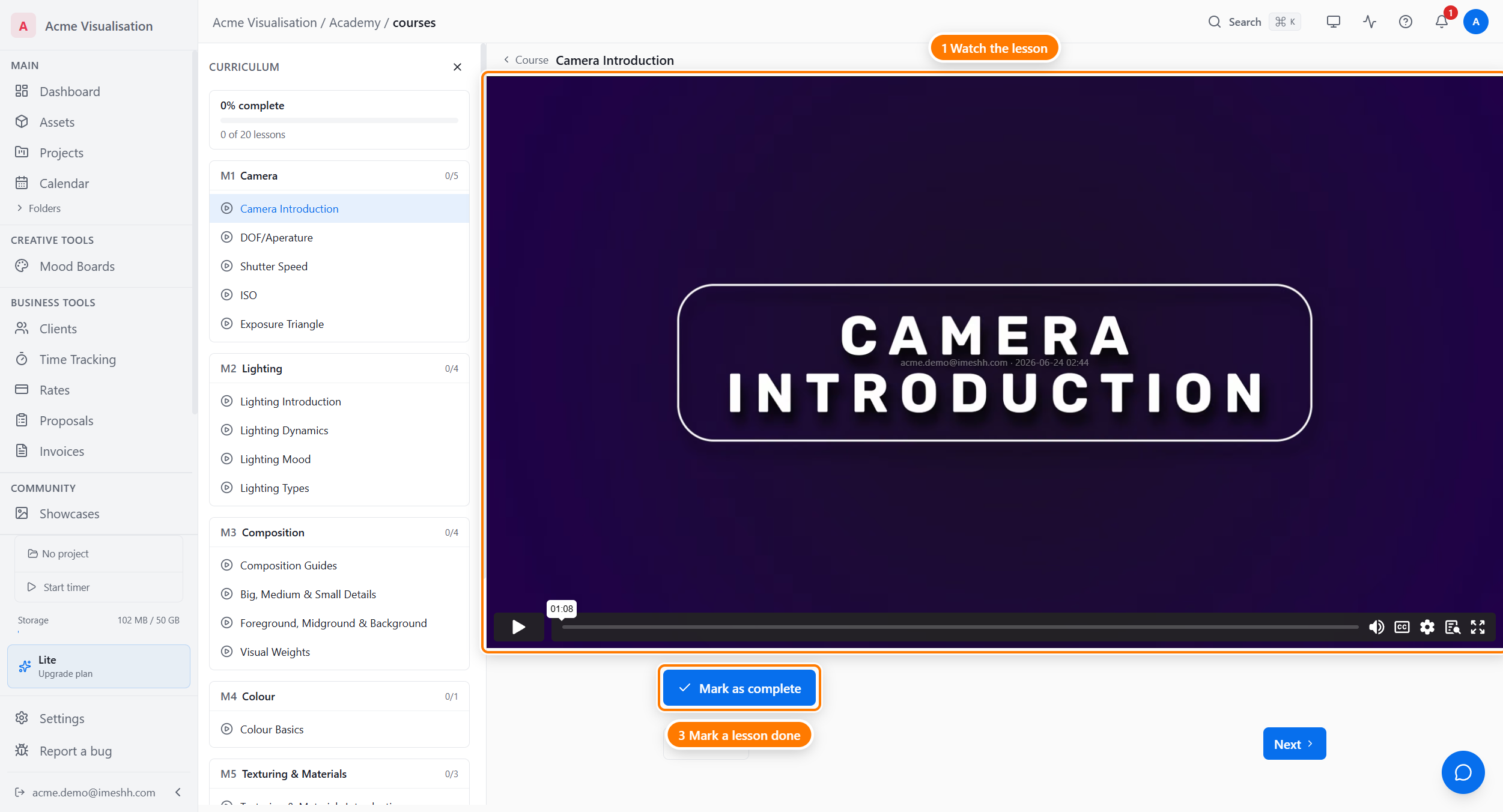
Playing a lesson
The main area shows the current lesson — a video for video lessons, or text for reading lessons. Video lessons use the standard player controls for play, pause, volume, and full screen.
Moving through the curriculum
The sidebar on the left lists every module and lesson in the course. Use it to jump between lessons and see what you've finished.
- A checkmark sits next to every lesson you've completed.
- The current lesson is highlighted so you can see where you are.
- Click any lesson in the list to switch to it.
Locked modules
If a course releases its modules over time, a not-yet-open module appears greyed out in the sidebar with an Unlocks in X days label. You can see it's coming but can't open it yet.
The countdown is measured from the day you enrolled. Once the wait is up, the module opens and the lessons become clickable. See drip-release modules for how the schedule is set.
Marking a lesson complete
A lesson is marked done for you once you watch most of the way through it — the checkmark appears in the sidebar on its own. You can also mark it by hand.
- Click Mark as complete to mark a lesson done before you reach the end.
- Once a lesson is complete, the button changes to Lesson completed and an Unmark option appears if you want to clear it.
Your overall course progress, shown as a percentage, goes up as you complete lessons.
Picking up where you left off
Your progress saves as you watch, so you can stop and come back later. To resume:
- Open the course from the Academy catalog or its course page.
- Click Continue learning.
You land on the next lesson you haven't finished, rather than the start.
Course files and resources
Courses can include files you download — project files, reference images, and similar. These appear in two places.
- Lesson files — attached to the lesson you're on, listed below the video or text
- Module files — attached to a section of the course, listed in the sidebar under that module
- Course files — attached to the whole course, available from the sidebar on any lesson
Click any file to download it. Not every course or lesson has files attached.
What's next
- The course page and enrolling — read a course and enrol or buy it
- iMeshh Academy — browse the catalog, filter courses, and the learning streak