client-review
Accepting or declining a proposal
What a client sees on a proposal link — line items, packages, add-ons, the total, and a single Accept or Decline decision.
Updated 24 June 2026
When you send a client a proposal, they get a link to a review page. Like a share link, it's a long, unguessable URL — no login, no account. The client sees who it's from, what's being quoted, and two buttons: Accept this proposal or Decline.
What the page looks like
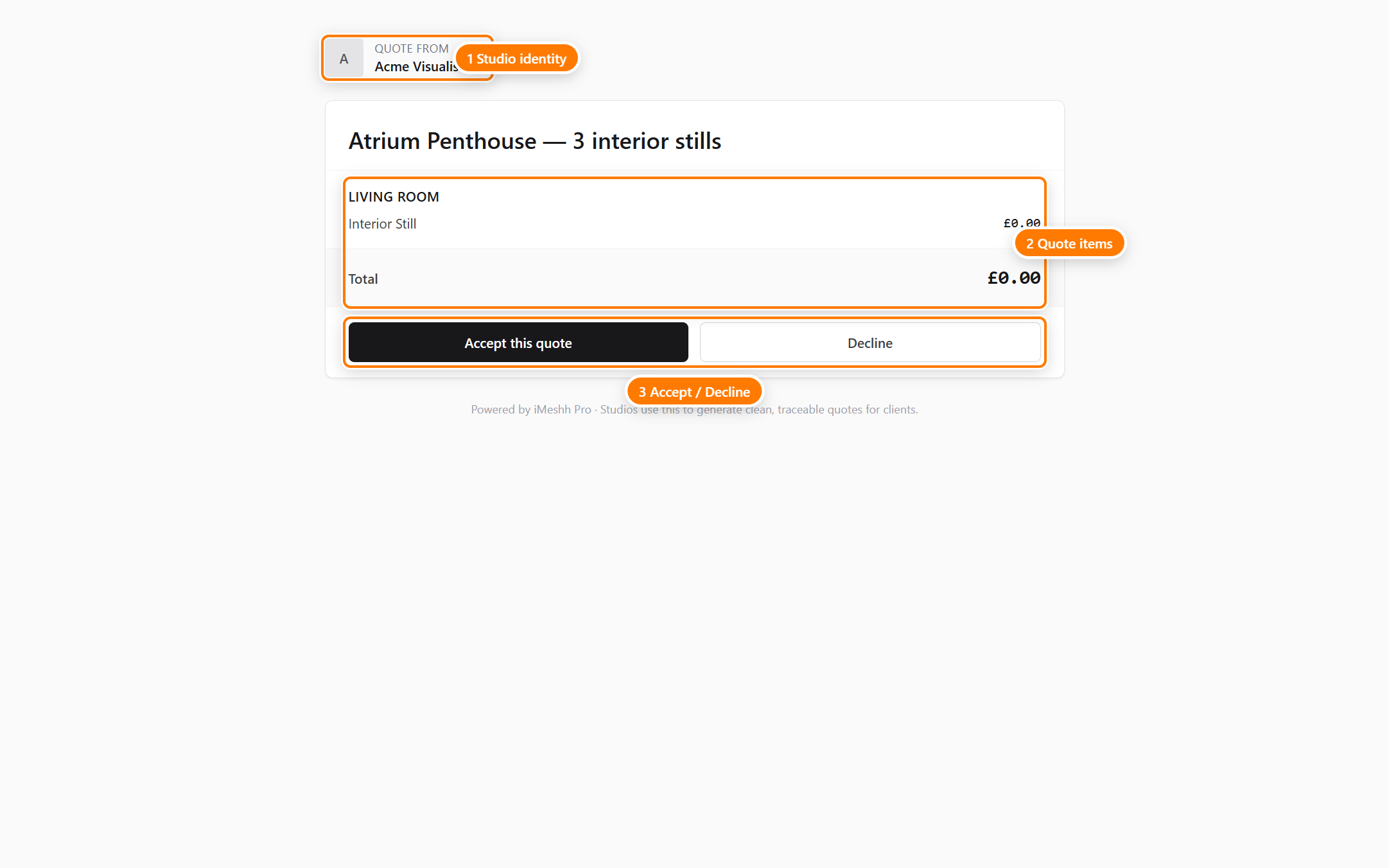
The header reads Proposal from followed by your studio name and logo. That's the only studio context the client gets — there's no link out to your other work and no contact form.
What the proposal shows
A proposal is built from sections you fill in. Sections appear only when you've added content to them, so a short proposal shows the items and the total, while a fuller one adds your pitch, references, and policies.
The parts a client may see, depending on what you included:
- Cover and pitch — a cover image and a short introduction
- Line items, grouped by room or section — each item with its description and price; the heart of every proposal
- Packages — named tiers the client chooses between (see below)
- Add-ons — optional extras the client can tick on
- What's included / What's excluded — the scope of the work
- Revisions policy and payment terms — how changes and billing are handled
- Mood board, portfolio, testimonials, and an FAQ — references, past work, client quotes, and answers to common questions
Below the items sits the Total Investment row in your studio's currency. The Total Investment is the figure your studio entered (line items plus any discounts or surcharges); the proposal page does not add or itemise VAT/sales tax separately — fold any tax into your line-item prices if it applies.
Choosing a package
When you offer more than one tier, the client picks one before accepting. A Choose a package picker shows a card for each tier with its name, description, and total.
The client clicks a card to select that tier. The total updates to match the chosen package.
Ticking add-ons
Optional extras show with an Add-on badge. The client ticks any they want, and the total updates with each one.
The estimated range
When a proposal spans a range of prices — for example, several packages at different totals — an Estimated range row appears above the total, showing the lowest-to-highest spread. As the client chooses a package and ticks add-ons, the Total Investment settles on the final figure.
Accepting the proposal
To accept, the client clicks Accept this proposal. A confirmation step opens first.
- Click Accept this proposal.
- Enter a name in the Your name field if you want it recorded against the acceptance. This is optional.
- Click Confirm accept.
The page updates to a Proposal accepted screen, and your studio is notified by email. If you've set proposals to create an invoice on acceptance, a draft invoice or proforma is created and emailed to you with its link.
Declining the proposal
To decline, the client clicks Decline. A confirmation step opens with an optional reason.
- Click Decline.
- Type a reason in the box if you want to explain the decision. This is optional.
- Click Confirm decline.
The page updates to a declined state and your studio is notified. The reason, if given, is saved for you to read.
After a decision
A proposal link can be accepted or declined once. Once the client decides:
- Your studio is notified by email and in-app.
- The decision is recorded with a timestamp and the name the client gave, if any.
- The same link can no longer be acted on. Opening it again shows a message — for example, This proposal has already been accepted — rather than the live Accept and Decline buttons.
To let a client decide again or review a changed proposal, send a new proposal link.
What the client cannot do
A proposal link is narrow on purpose. The client cannot:
- Change the line items, prices, or total
- Counter-offer on the page — they reply to you separately to negotiate
- See past proposals you've sent to them or anyone else
- See your projects, deliverables, or other content
- Pay on this page — accepting is a commitment, not a payment. Invoicing happens separately
Previewing your own proposal
You can open your own proposal exactly as the client will see it, using a preview link. In preview, a Preview mode banner shows at the top and the Accept and Decline buttons are hidden, so opening the preview never records a decision.
What's next
- Reviewing a deliverable on a share link — what clients see when reviewing a deliverable
- Sending a proposal to a client — how your studio sends and tracks the proposal