projects
List view and folders
Tour of the Projects index — grid, list, and calendar views, status filters, search, folders, row actions, and the trash.
Updated 23 June 2026
The Projects index is your studio's list of every job in iMeshh Pro. Use it to find a project, organise projects into folders, switch between views, and recover anything you've deleted.
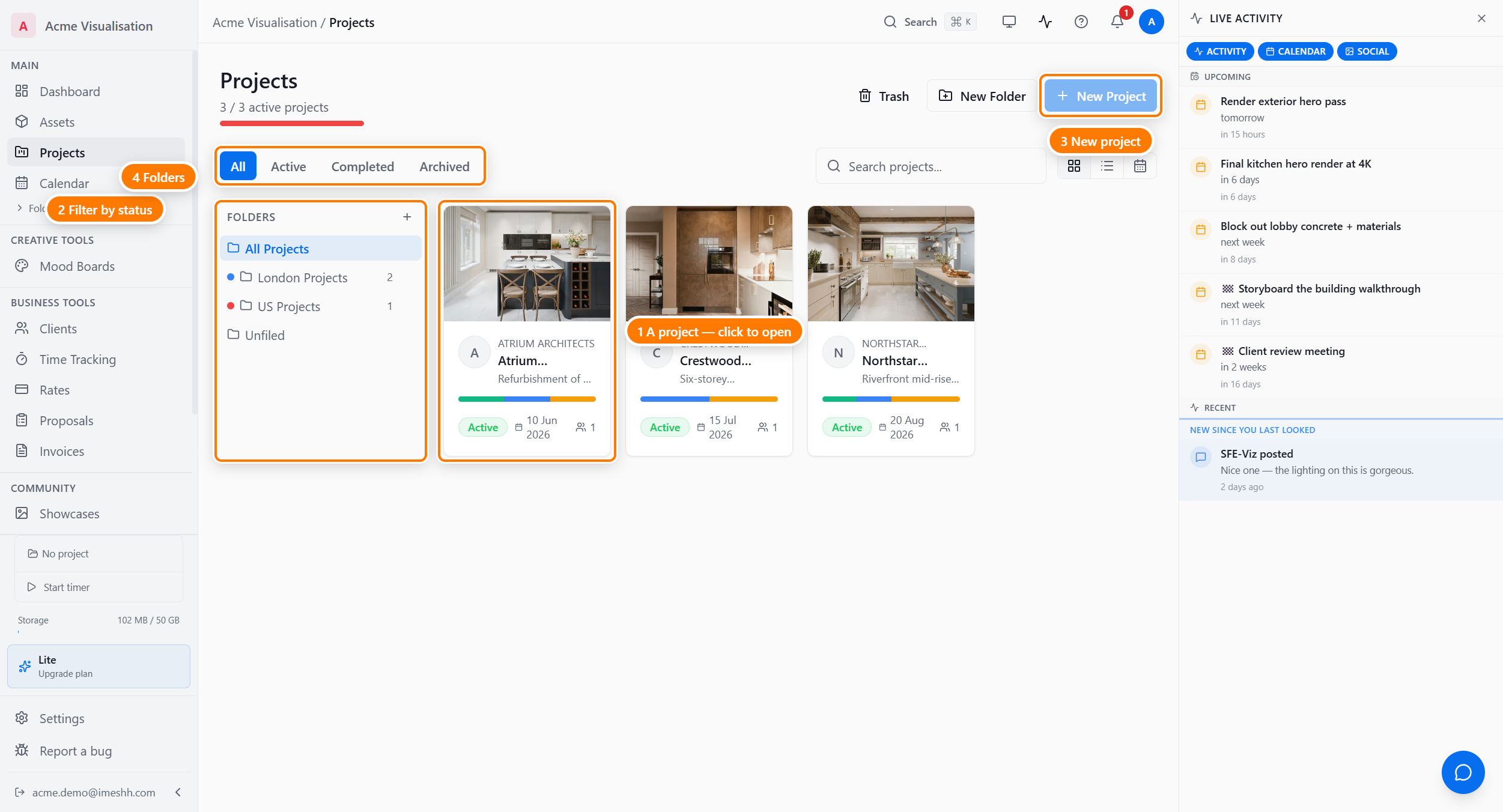
The three views
The view toggle at the top right flips between three layouts. Pick whichever suits what you're trying to find.
- Grid — large cards with cover images and a coloured progress bar. Best for browsing by feel.
- List — a compact table, one row per project: name, status, progress, deadline, members, folder, created date.
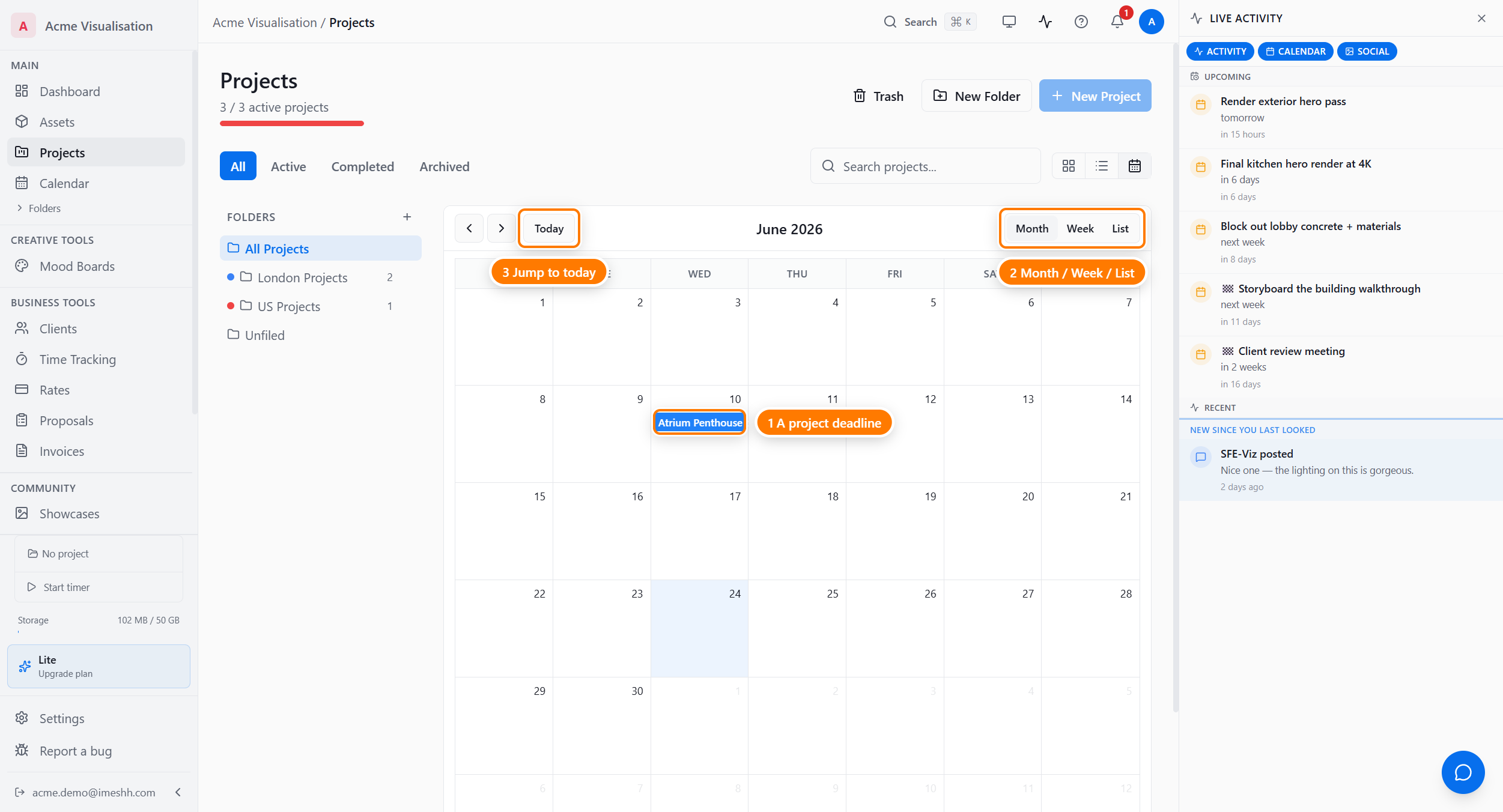
- Calendar — projects plotted onto their deadlines.
Grid view
Each card shows the cover image, the client name (if linked), the project name, a one-line description, a status badge, the deadline, and the member count. The coloured bar across the middle of each card is the deliverable progress — green segments are approved, orange are ready for review, blue are still in progress.
Click any card to open the project.
List view
The same projects, denser, with sortable columns.
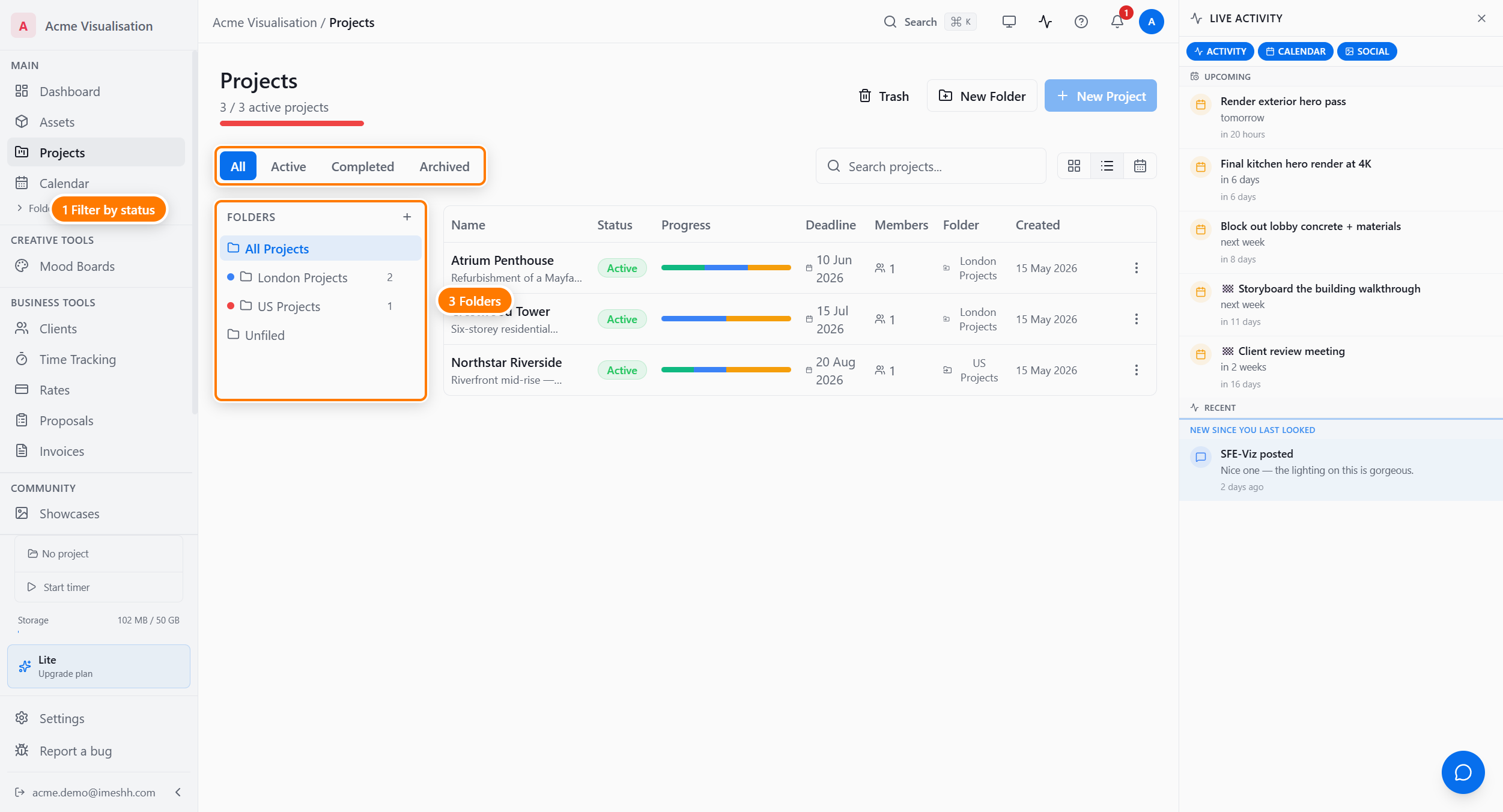
Click any column header to sort by that column. The Folder column shows which folder a project sits in — it appears only once your studio has at least one folder.
Row actions
Each row in list view ends with a three-dot menu. Click it to act on that project without opening it:
- Move to folder — pick a folder to file the project under
- Mark completed — moves the project to the Completed status
- Archive — moves the project to the Archived status
- Delete — moves the project to the trash (owners and admins only)
Calendar view
Calendar view plots every project on its deadline. Use the arrows at the top left to step through months, click Today to jump back, and switch between Month, Week, and List at the top right.
Status filter
The four tabs at the top — All, Active, Completed, Archived — filter the list to projects in that state. They work in every view.
- Active — projects you're currently working on
- Completed — projects you've marked done but haven't archived
- Archived — finished projects you've moved out of the way (still searchable)
- All — everything except deleted
To change a project's status, open the project and use the three-dot menu on the header, or use the row actions menu in list view.
Search
The Search projects... box on the right narrows the list as you type. Search matches the project name and the description.
Search combines with the active folder and status tab. If you're inside the London Projects folder on the Active tab and type a search, results only come from active, London-folder projects. Clear the folder or tab to search everywhere.
The Folders sidebar
The left sidebar groups your projects into folders. This is your studio's filing system, separate from the Folders item in the main app sidebar (an asset surface).
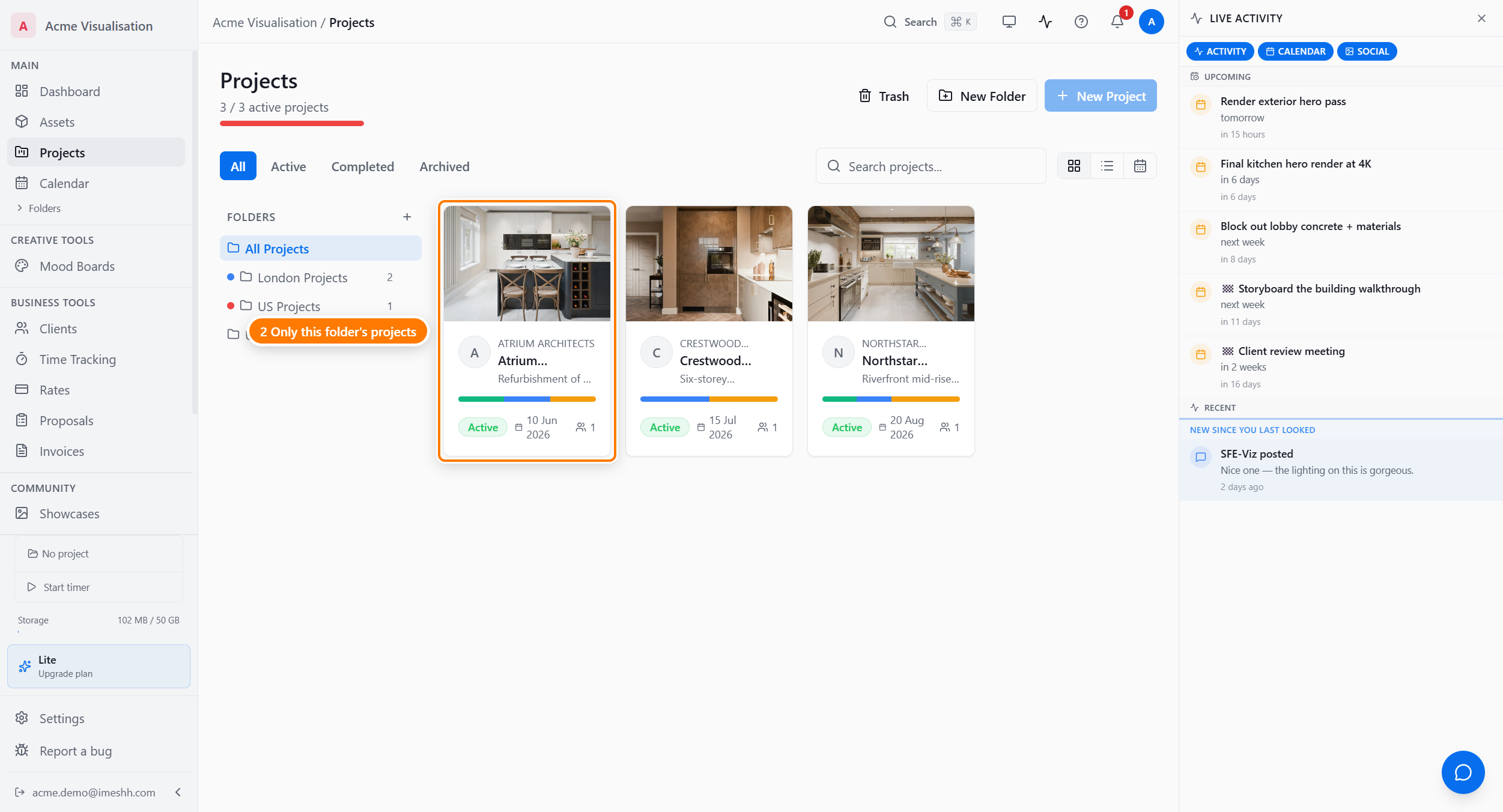
The sidebar shows:
- All Projects — every project regardless of folder
- Your folders — each with a coloured dot, name, and project count
- Unfiled — projects you haven't put in a folder yet
Click a folder to filter the list. Click All Projects to clear it.
To file a project, drag its card or row onto a folder in the sidebar, use the row actions menu, or open the project and use its header menu. The Folders and organisation page covers folder management in detail.
Plan limit
The number under the Projects heading — for example 3 / 3 active projects — is your active-project count against your plan cap.
| Plan | Active projects |
|---|---|
| Free | 2 |
| Lite | 3 |
| Studio Pro | Unlimited |
| Enterprise | Unlimited |
Only Active projects count. Completed and archived projects don't. If you're at the cap and need to start a new project, archive an old one to free a slot.
Deleting and recovering projects
Deleting a project doesn't wipe it — it moves to the trash for a recovery window before iMeshh Pro removes it for good. See Trash and recovery for the recovery window per plan and how to restore a project.
What's next
- Folders and organisation — making folders, drag-to-folder, nesting, colours
- Creating a project — the New Project flow end to end
- Inside a project — the header and the six tabs
- Trash and recovery — restoring deleted projects, tasks, and deliverables