mood-boards
Create and organise boards
Create a board, rename it, sort boards into folders, switch between grid and list view, and delete a board.
Updated 24 June 2026
This page covers managing your boards from the Mood Boards list: creating them, naming them, sorting them into folders, and deleting them. To draw on a board once it's open, see Working on a board.
Create a board
- Open Mood Boards from the left sidebar.
- Click New Board in the top-right corner.
- Type a name for the board.
- Click Create.
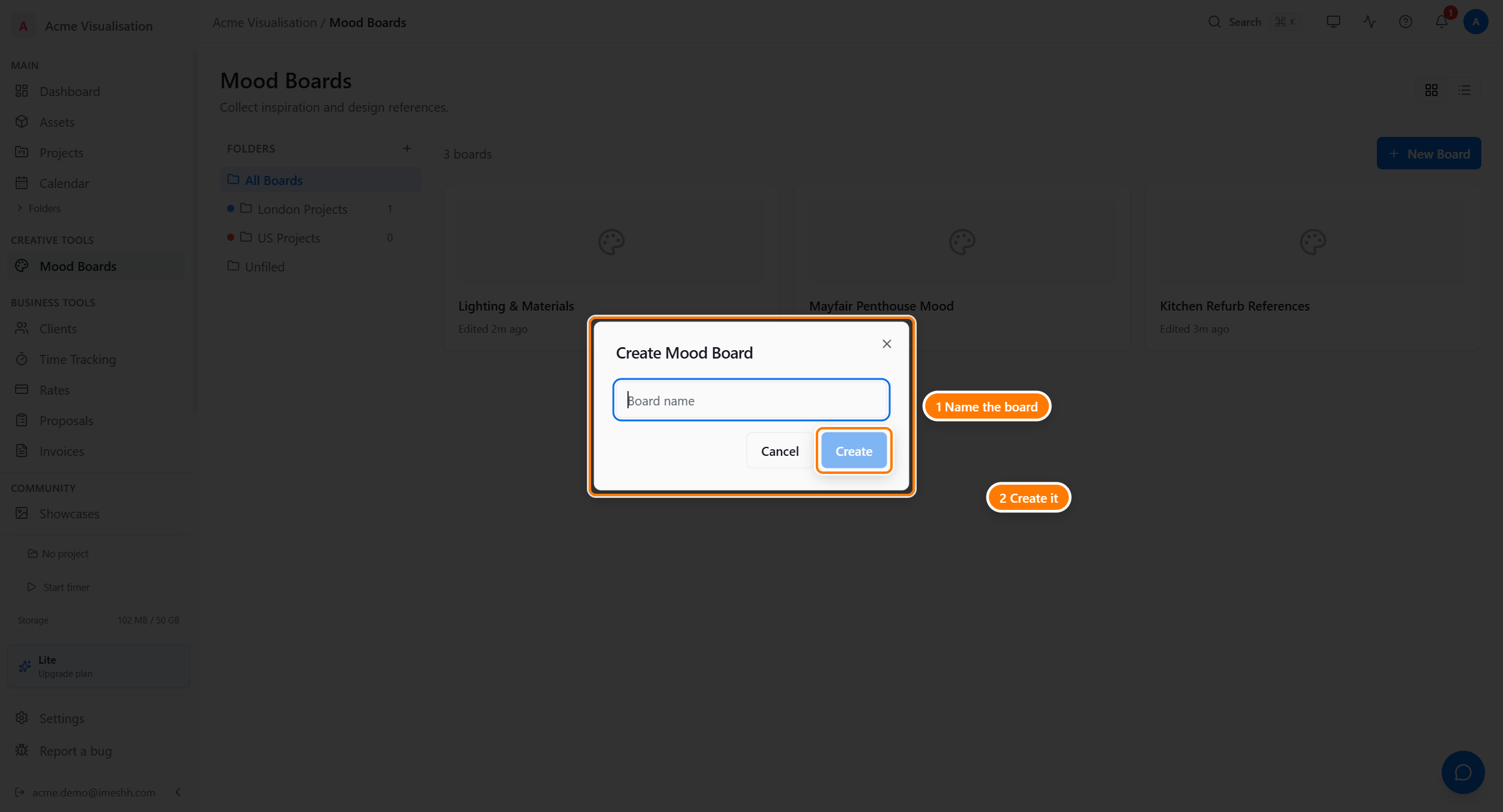
Your new board appears at the top of the list. Click it to open the blank canvas and start drawing.
Rename a board
You can rename a board from its card on the list, or from inside the editor.
From the list:
- Point at the board's card and click the three-dot menu in its corner.
- Click Rename.
- Type the new name and click Rename.
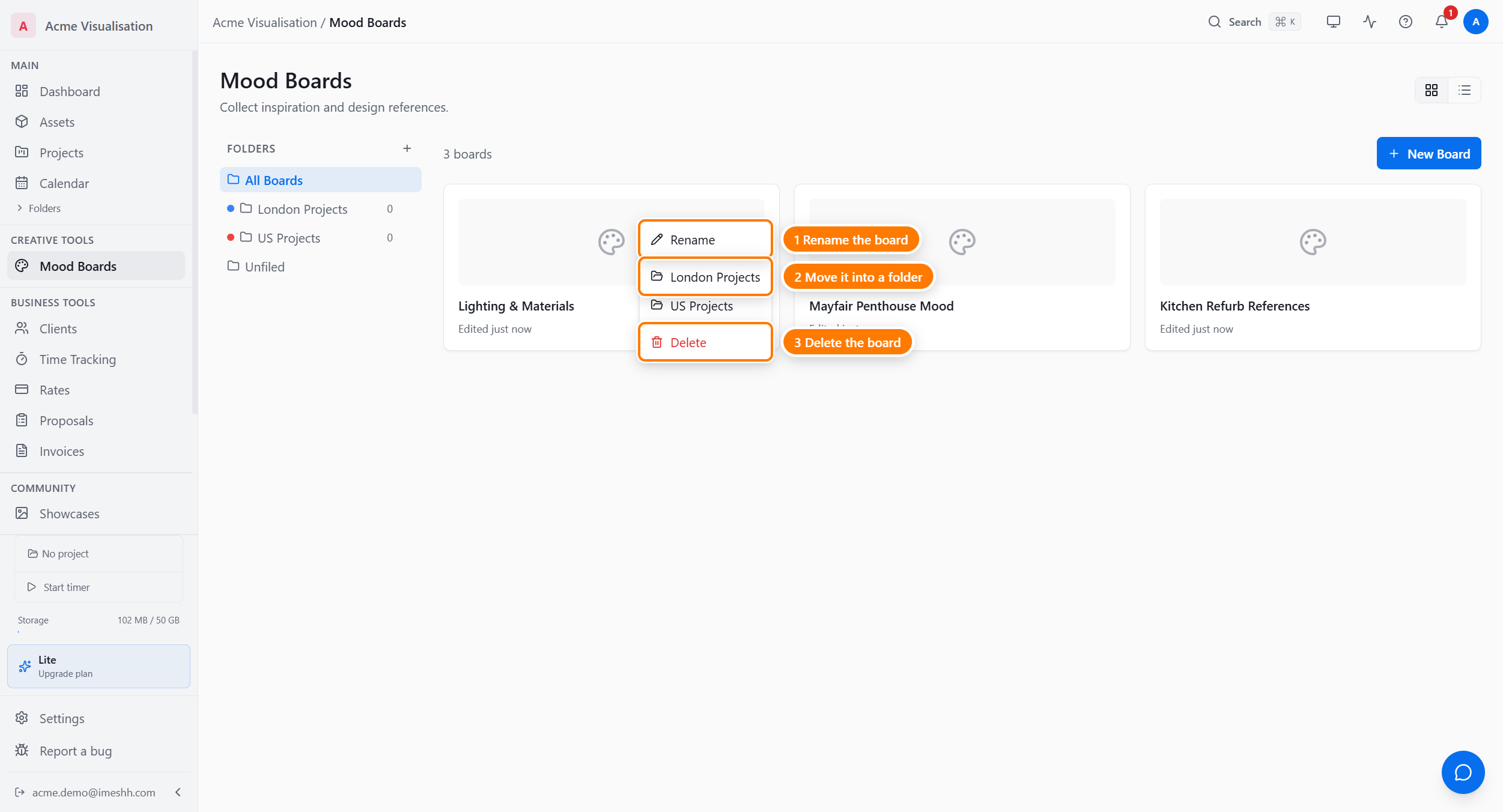
From inside the editor, click the board name at the top of the canvas to edit it in place. See Working on a board.
Sort boards into folders
Boards use the same folders as your Projects section. A folder you make for projects shows up here too, and vice versa — there's no separate folder list for boards.
- Move a board into a folder — drag its card onto a folder in the left sidebar, or open the card's three-dot menu and pick a folder.
- Filter by folder — click a folder in the sidebar to show only its boards. Click it again to clear the filter.
Switch between grid and list view
The list shows boards as a grid of preview cards by default. Switch to a list view for a denser, row-by-row layout.
- Find the view toggle in the top-right of the Mood Boards list.
- Click the List icon for rows, or the Grid icon for cards.

Your choice is remembered, so the list opens in the same view next time. Boards always appear newest first.
Delete a board
- Point at the board's card and click the three-dot menu.
- Click Delete.
- Confirm when prompted.
The board moves out of your list. Deleting frees up a slot on the Free plan's 3-board limit.
What's next
- Working on a board — draw, add images, save your work, and use boards inside a project
- Mood Boards overview — plan limits, roles, and what the section does