projects
Sharing with clients
Put work in front of a client with anonymous share links, and keep ongoing clients updated with email subscriptions.
Updated 24 June 2026
iMeshh Pro puts a deliverable in front of a client with anonymous share links — long, unguessable URLs that open a single deliverable or the whole project, no account and no sign-in. A client who keeps coming back can also subscribe by email from any share link to get updates automatically.
| Way in | Best for | Sign-in | Expiry |
|---|---|---|---|
| Share link (anonymous URL) | A quick "have a look" — passing review around, one-off freelancers, the client's wider team | None — anyone with the URL gets in | Up to 1 year |
| Share link + email subscription | An ongoing client who wants updates without you re-sending the URL | None to open; they add their email to subscribe | Link up to 1 year; subscription until you revoke it |
A full named-account client portal is being rolled out — see Email subscribers below.
Anonymous share links
A share link is a long, unguessable URL that opens a single deliverable. Anyone with the URL can open it — no account, no email check, no sign-in.
From a single deliverable
Open the deliverable, then click Create Share Link at the top of the detail panel.
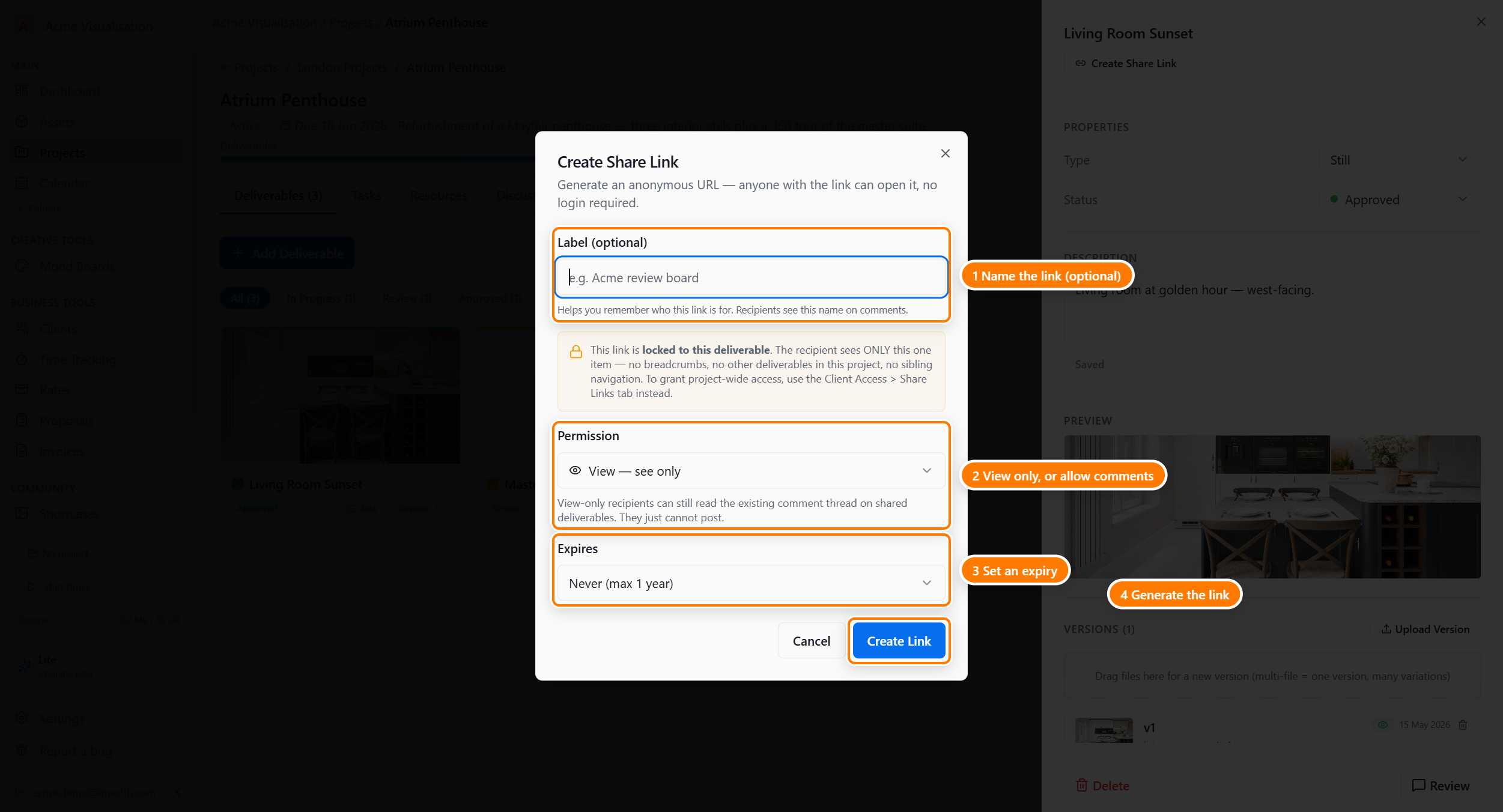
What each field does:
- Label (optional) — for you. If the recipient leaves comments, the Label is what shows on their comments instead of "Anonymous".
- Permission — three levels:
- View — see only (default) — the recipient can look but not interact
- Comment — they can also leave inline comments and feedback
- Approve — they can also approve the deliverable, which moves its status to Approved
- Expires — pick a date, or Never (max 1 year). One year is the hard cap — you can't make a link that lasts longer. Renew or revoke before then.
Click Create Link and the dialog reveals the URL. Copy it into an email, a chat, wherever.
From the project (People → Clients)
The same kind of share link, but project-wide — opens the whole project for the recipient rather than one deliverable.
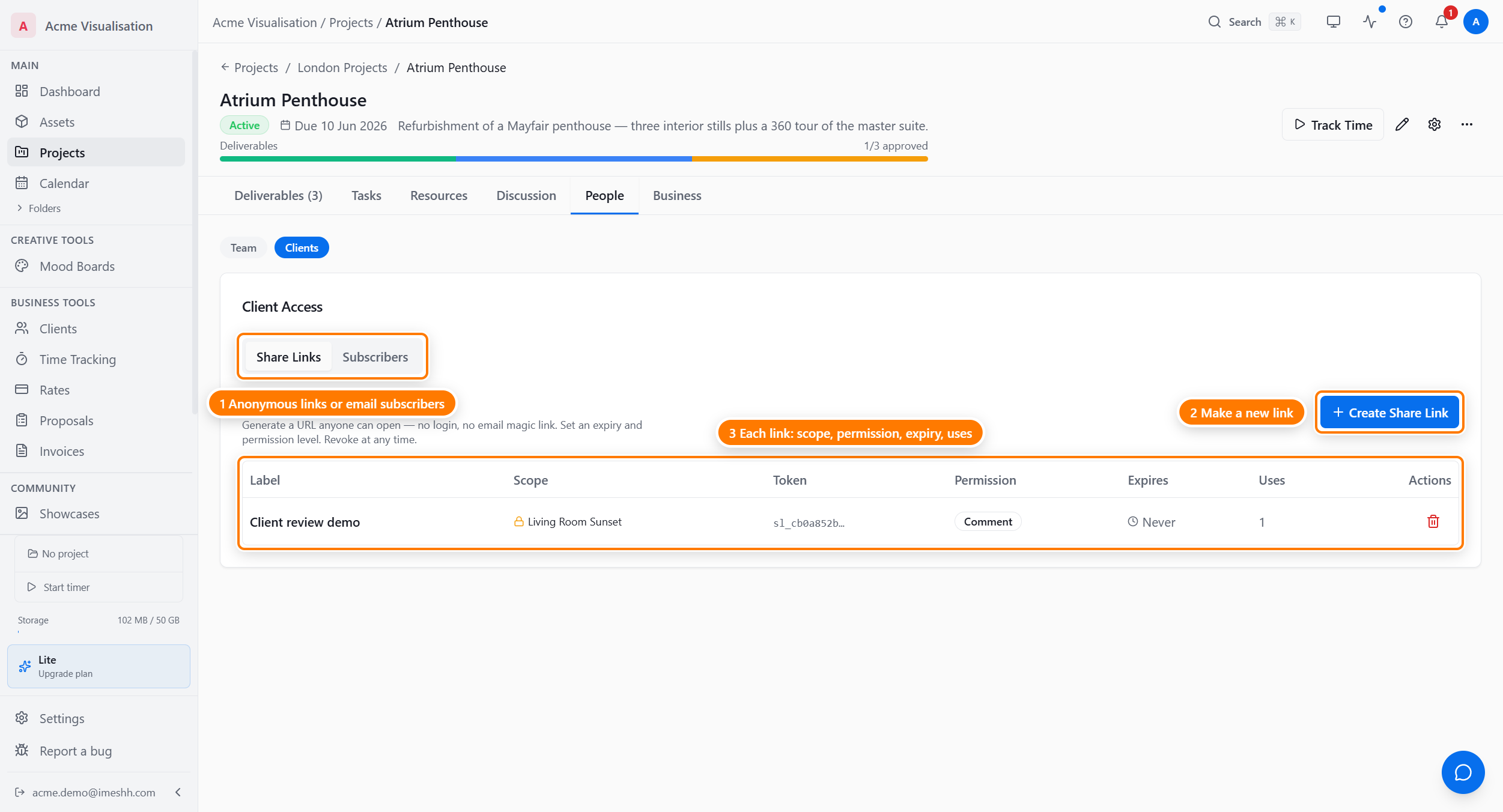
The fields are the same as the per-deliverable dialog. The difference is what the recipient sees:
- Per-deliverable link — only that one deliverable, no project context, no sibling deliverables
- Project-wide link — the project shell, with every shared deliverable
Use per-deliverable for a tight, single-page handoff. Use project-wide when the client needs to see everything together.
Revoking and managing links
Every share link you create lives in People → Clients for as long as it's active. From the row you can:
- Copy the URL again
- Edit the label, permission, or expiry
- Revoke — kills the link immediately. Anyone who opens it then gets a "this link has been revoked" page.
To bring access back after revoking, create a new link with a new URL. Revoke if a link has leaked.
Email subscribers (ongoing clients)
For a client who keeps coming back, a share link plus an email subscription keeps them updated without you re-sending a URL each time. Anyone who opens one of your share links can subscribe with their email address from that page.
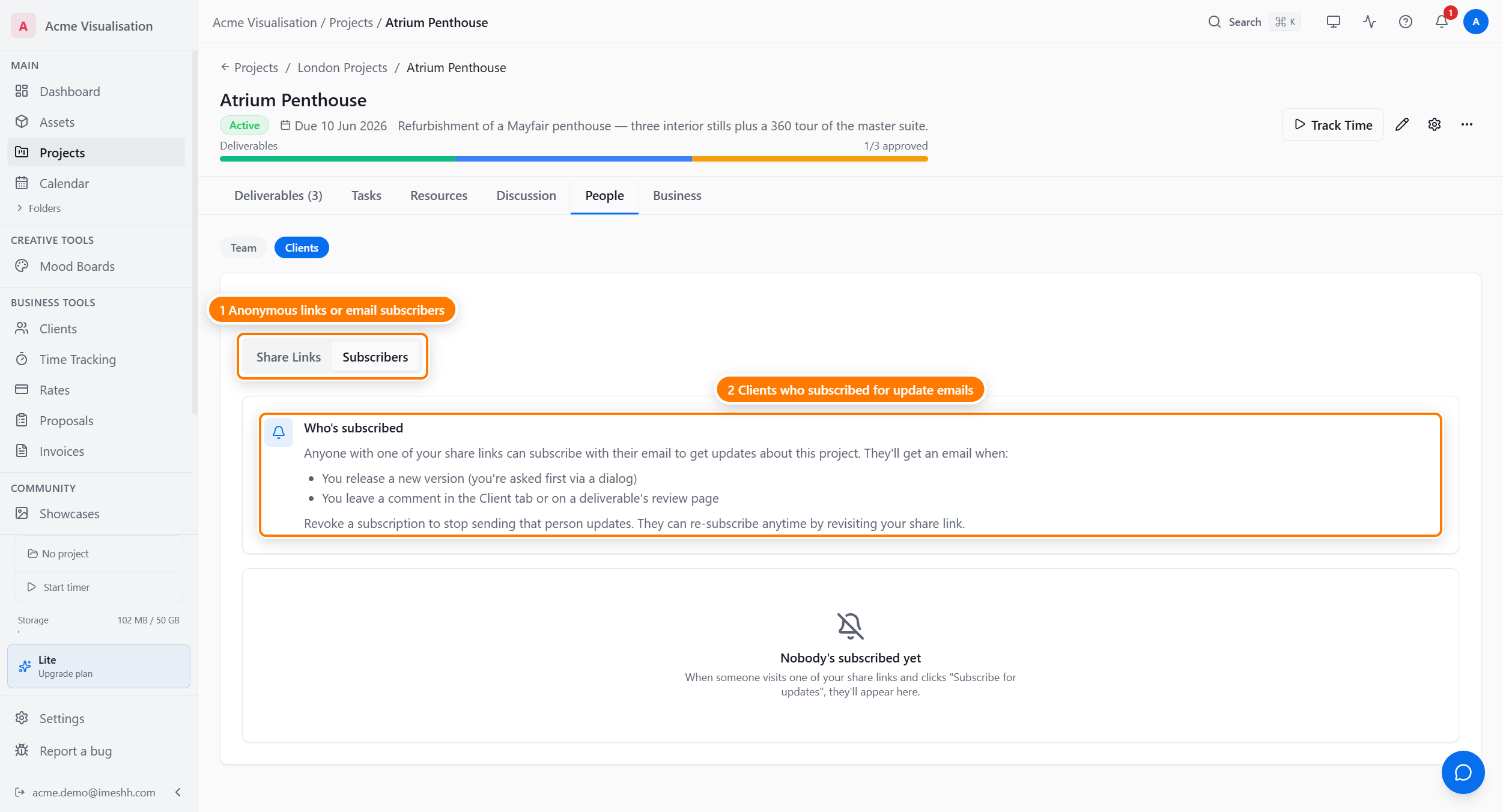
A subscriber gets an email when:
- You release a new version (you're asked first, in a dialog).
- You leave a comment in the Client thread or on a deliverable's review page.
To stop sending someone updates, revoke their subscription from this tab. They can re-subscribe any time by reopening your share link.
When to use which
| Situation | Use |
|---|---|
| One-off review with a freelancer or pass-through reviewer | Anonymous share link, View permission |
| Client reviewing the same project across weeks | Share link + email subscription — they get update emails as you post |
| Confidential or pre-release work | Anonymous share link, View, with a short expiry — and revoke when the review is done |
| The client's wider team also needs to see it | Anonymous share link, Comment permission |
| Approving deliverables for final sign-off | Share link with Approve permission so the activity log captures who approved |
What clients see
When a client opens a share link or review link, they get a stripped-down view of the deliverable — image or video at full size, your client note for that version, and a comment field. They never see:
- Versions you haven't shared (the toggle on each version row)
- Properties beyond the status
- Anything from the Tasks, Resources, Discussion (Team), or Business tabs
- The trash, deleted items, or activity from before they were invited
The Client thread on the project's Discussion tab is the one place studio and client talk in the same space. Use it for project-level conversation; use deliverable comments for per-deliverable feedback.
Plan tier
Anonymous share links and email subscriptions are unlimited on every paid plan — no caps on links per project, subscribers, or project-level versus per-deliverable links. The 1-year cap on link expiry is a security limit, not a plan one.
What's next
- Deliverables — what gets shared
- Deliverable versions — controlling which versions the client sees
- Members and roles — the studio-side equivalent for your own team