feed
Reading and posting
Browse the Feed by tab and topic, write a post with a topic and images, and edit or delete what you posted.
Updated 24 June 2026
This page covers moving around the Feed and writing your own posts. To read it, no account is needed; to post, you need to be an Owner or admin of a studio (see the overview).
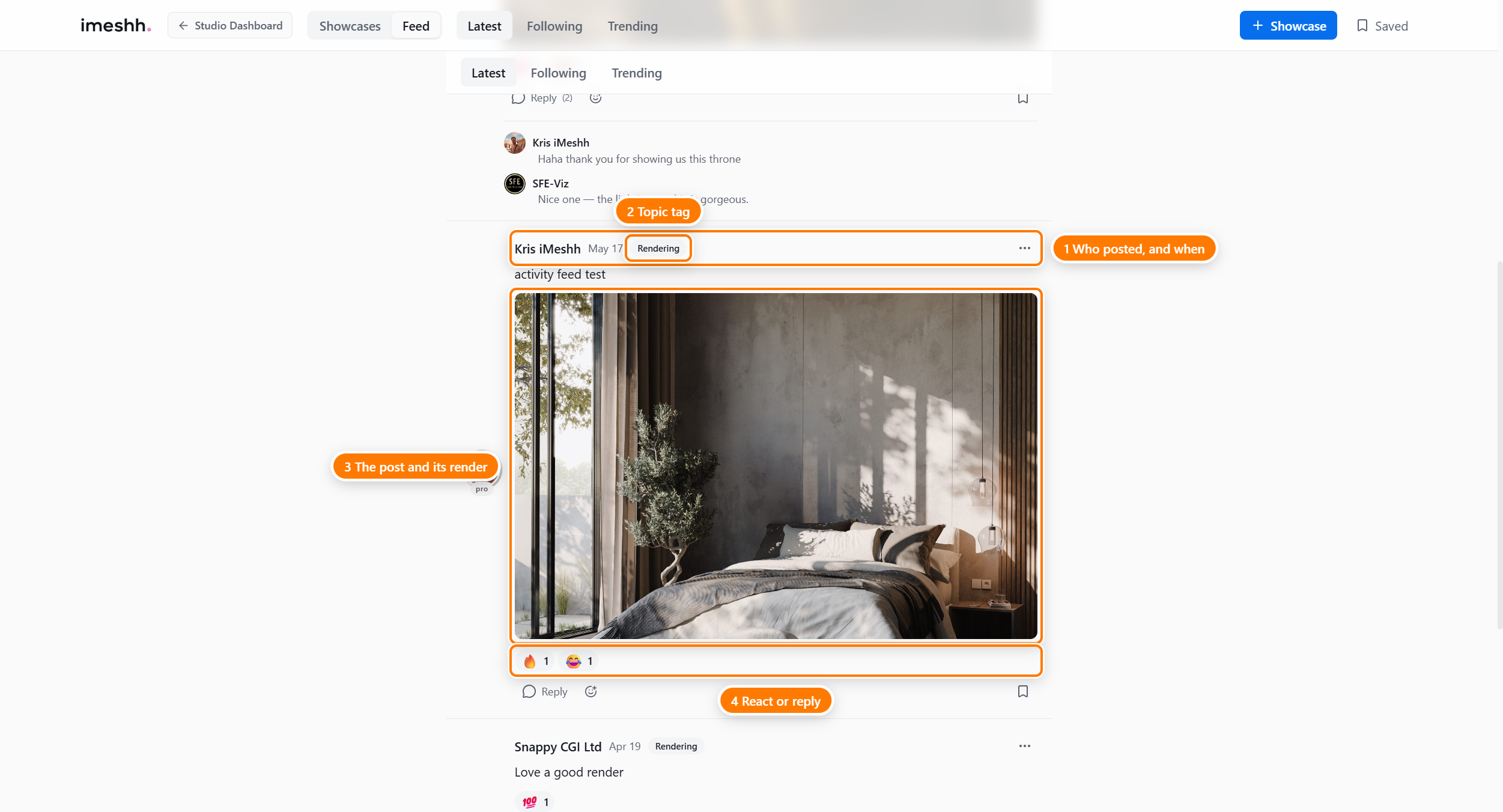
Choosing what you see
Three tabs at the top of the Feed control which posts you see.
- Latest — every post, newest first
- Following — posts only from studios you follow (sign-in required)
- Trending — the most-engaged posts from the last seven days, ranked by replies, reactions, and reposts
The Feed remembers which tab you last used and opens there next time.
Filtering by topic
Below the tabs is a row of topic pills. Click one to show only posts filed under that topic. Click All to clear the filter and see every topic again.
The topics are:
- Rendering
- Lighting
- Materials
- Modelling
- Software
- Workflow
- Career
- Inspiration
- Feedback Request
- Tutorial
- News
Loading more posts
More posts load on their own as you scroll toward the bottom — there's no page-number or Load more button. Scroll back up at any time to return to the top.
Writing a post
The post box sits at the top of the Feed, above the posts. It starts collapsed, showing What's on your mind?.
To write a post:
- Click the What's on your mind? box to expand it.
- Type your post in the text area.
- Click a topic pill to file the post under a topic.
- Optionally, click the image icon to attach pictures (see below).
- Click Post.
Your post appears at the top of the Latest tab straight away.
Pick a topic before you post
A topic is required on every new post. The Post button stays greyed out until you've selected one.
If you type something but haven't picked a topic yet, a reminder appears under the topic pills: "Pick a topic above so your post is discoverable." Click any topic pill to clear it and the Post button turns on.
Adding images
You can attach up to four images to a post.
- Click the image icon in the expanded post box.
- Choose the pictures from your computer.
- Wait for each thumbnail to finish loading.
- To drop one before posting, click the X on its thumbnail.
iMeshh accepts JPG, PNG, WebP, and GIF up to 10MB.
Editing a post
You can edit a post for 15 minutes after you post it. After that the edit option disappears and the post is fixed.
- Click the three-dot menu in the top-right corner of your post.
- Click Edit post.
- Change the text in the box that opens.
- Click Save, or Cancel to keep it as it was.
An edited post is marked as edited so readers know it changed.
Deleting a post
- Click the three-dot menu on your post.
- Click Delete post.
- Confirm when asked.
What happens next depends on whether anyone has replied:
- No replies — the post is removed from the Feed.
- Has replies — the post text is replaced with "This post has been deleted" and the replies stay, so the conversation underneath still reads in order.
What's next
- Replies, reactions, and saving — reply to a post, react, bookmark, and copy a link
- The Community Feed — who can read and post, and how the Feed relates to Showcases