projects
Deliverables
How deliverables work — the four types, the status flow, the card, and the detail panel where versions, comments, and client sharing live.
Updated 23 June 2026
A deliverable is one output you're producing for the client — a render, an animation, a 360 tour, a video. Every project's Deliverables tab is the list of what's being made.
Deliverables are how clients see your work. When you share a project with a client, the Deliverables tab is what they land on. Everything else — tasks, time, files — is studio-internal. The deliverable is the thing the client cares about.
The grid
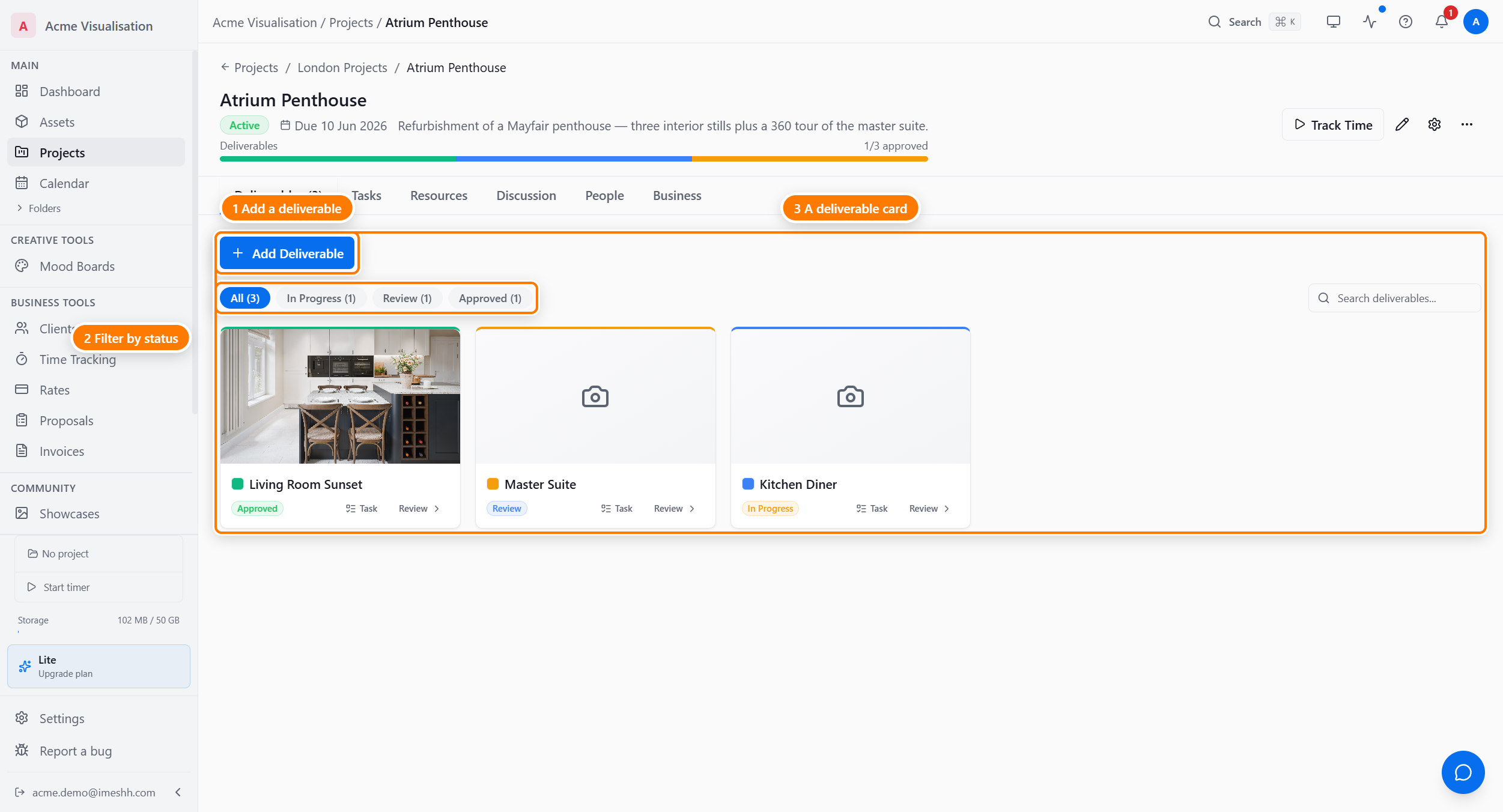
What every card shows:
- A thumbnail — the latest version's preview, or a camera icon if no version has been uploaded yet
- The deliverable name
- A coloured type dot — still, animation, 360 tour, or video
- A status badge — In Progress, Review, Approved, or Revisions
- A Task button to create a task linked to this deliverable
- A Review button to open the deliverable's review screen
Click any card to open the detail panel.
Adding a deliverable
Click Add Deliverable at the top left.
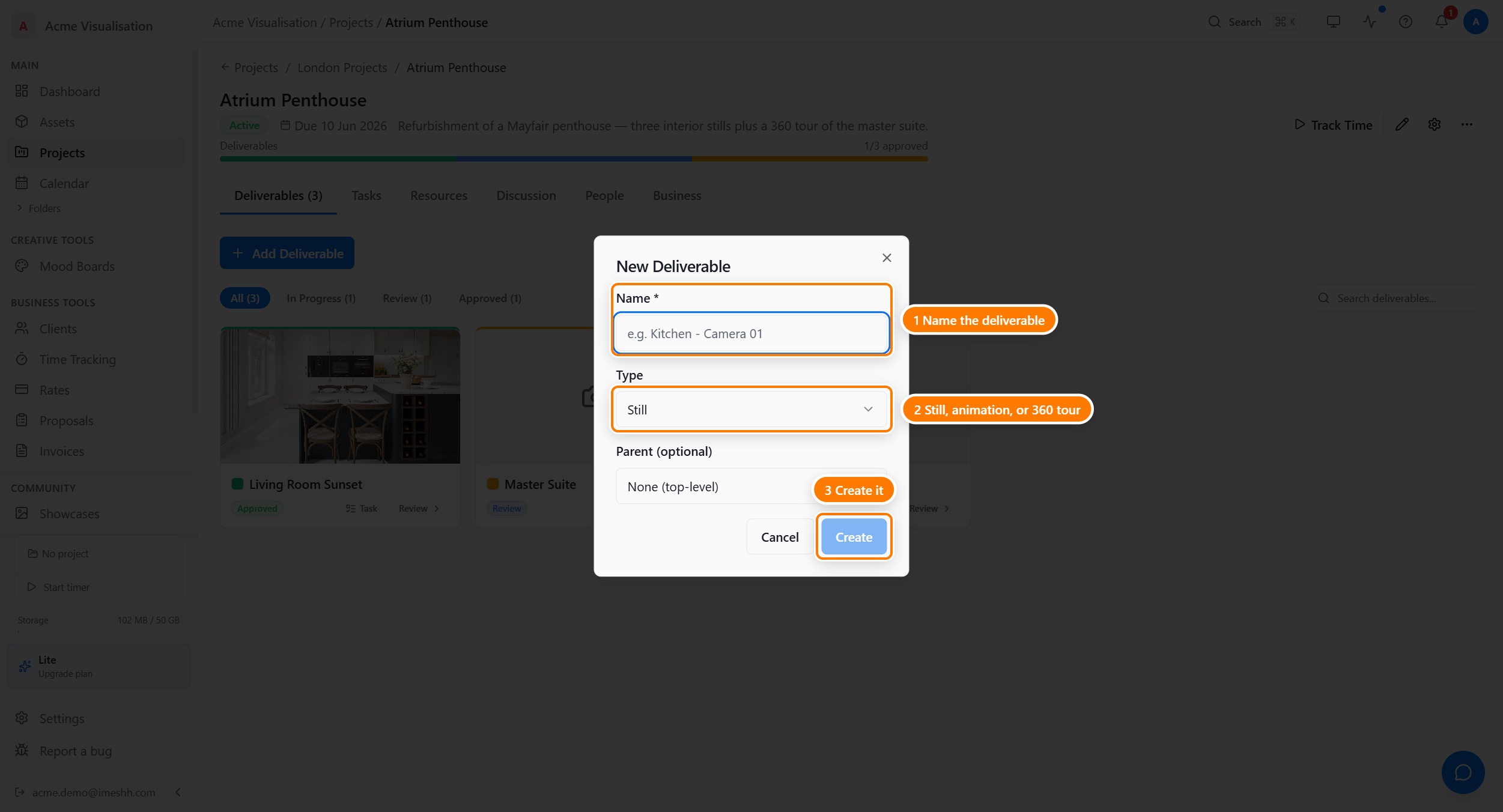
- Name (required) — what the deliverable's called. Name it the way you'd reference it out loud.
- Type — picks the kind of output. It sets the icon on the card and which review tools become available:
- Still — a single image (jpg, png, exr, tif)
- Animation — a moving sequence
- 360 / Panorama — interactive 360 imagery
- Video — playable video (mp4, mov, webm)
- Parent (optional) — nest this deliverable under another, for example Kitchen Hero under Apartment A interiors. Only one level of nesting is allowed.
Click Create to add it. The deliverable lands in the grid with status In Progress and no versions yet.
The status flow
Every deliverable runs through the same four statuses. Change a status manually from the detail panel, or let it change as you upload versions and the client approves.
In Progress  →  Ready for Review  →  Approved
                       ↓
                  Revisions
                       ↓
                  (back to In Progress when you upload a new version)
- In Progress — you're still working on it
- Ready for Review — uploaded for the client (or internal review) to look at
- Approved — signed off, no further changes expected
- Revisions — the reviewer asked for changes; bumps you back to working on it
The strip across the project header reflects this in aggregate — green segments are approved, orange are ready for review, blue are in progress.
The detail panel
Click any deliverable card to slide the detail panel in from the right.
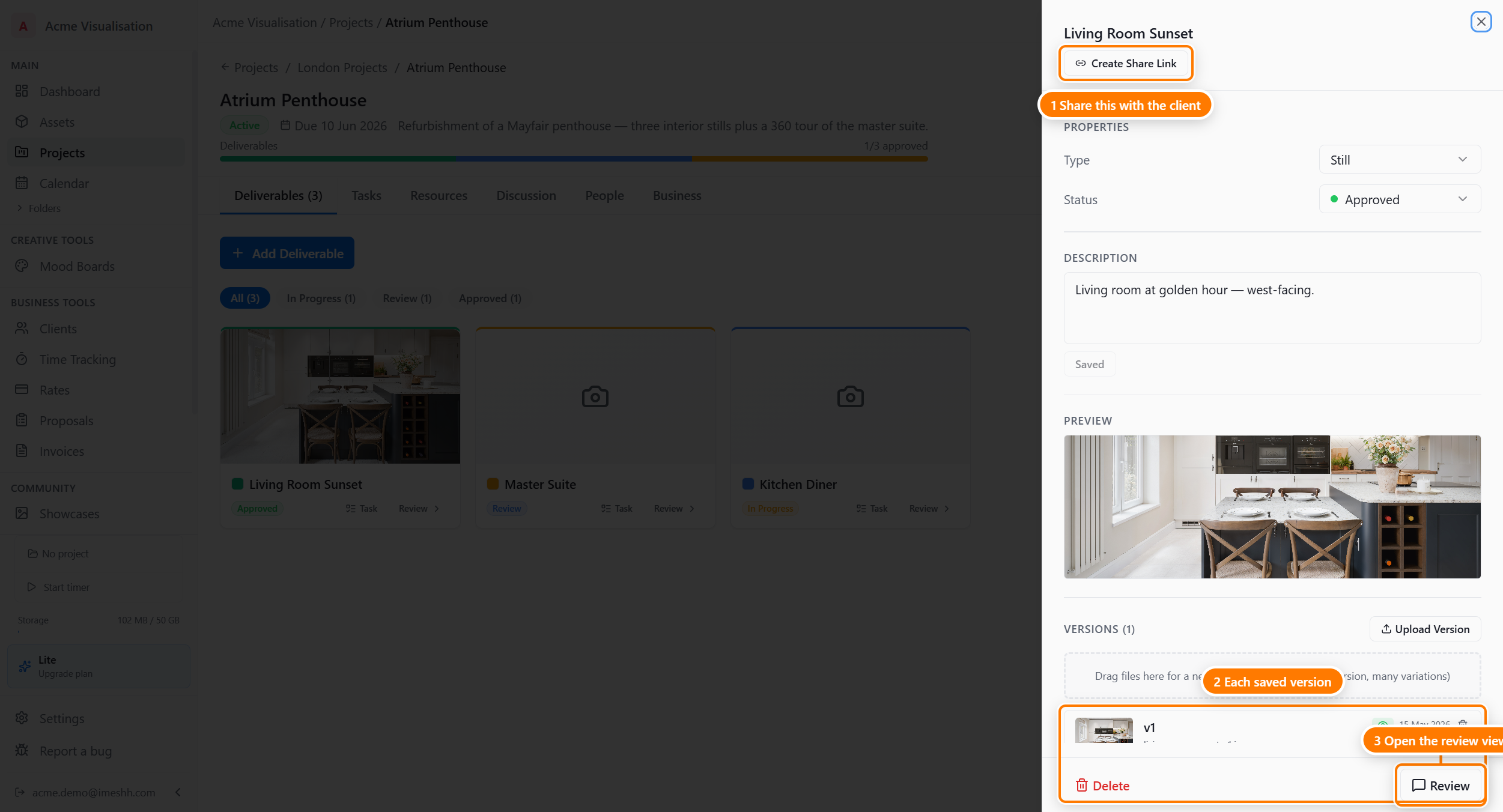
What's in the panel:
- Send Review Link — emails the client a link that opens this deliverable in the review viewer. The client doesn't need an iMeshh Pro account.
- Create Share Link — generates an anonymous URL locked to this deliverable. You set the permission (view, comment, or approve) and an expiry. Both are covered on Sharing with clients.
- Properties — the Type and Status dropdowns, both editable in place.
- Description — an optional note about what this deliverable is. Useful when you've got several similar ones.
- Preview — the latest version's thumbnail, full-width.
- Versions — every version you've uploaded, newest first. See Deliverable versions for the upload flow.
- Review (bottom-right) — opens the full review screen for comments and annotation.
- Delete (bottom-left, lead only) — moves the deliverable to the trash.
What the client sees
The detail panel is your studio view — Properties, Description, file details, Delete. The client never sees this panel.
When a client opens a share link or review link, they get a stripped-down view: the latest shared version's image or video at full size, the description, and a comment field. They don't see versions you haven't shared, and they don't see anything in Properties beyond the status.
The Sharing with clients page covers what's visible to whom.
Plan tier
Deliverables are unlimited on every paid plan — no caps on count, file size (within your plan storage), versions, or share links.
The only related plan limit is active project count — see Projects overview.
What's next
- Deliverable versions — uploading new versions and controlling which the client sees
- Sharing with clients — share links, review links, and what the client sees
- Tasks — the internal work behind each deliverable