settings
Your profile and account
Edit your name, change your password, upload your studio logo, leave a studio, or delete your account from the Profile tab.
Updated 24 June 2026
The Profile tab holds your personal account and a few studio actions. Open Settings and you land here by default.
The tab stacks several cards. What you see depends on your role: owners get a Studio Branding card; members who were invited into a studio get a Leave Studio card.
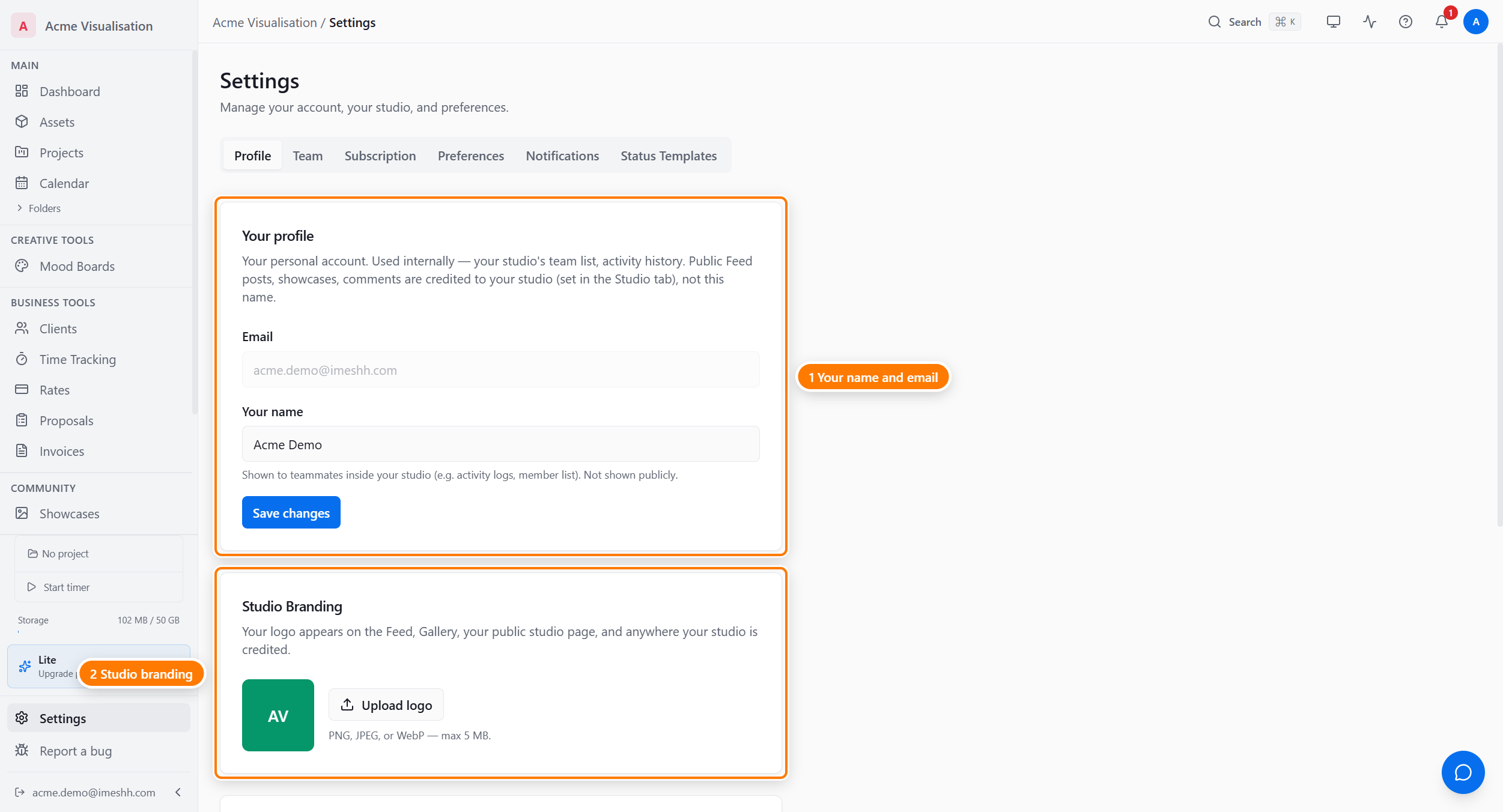
Your profile
The Your profile card holds your name and email.
- Email — your sign-in address. This field is locked and can't be edited here.
- Your name — the name your teammates see in activity logs and the member list.
To change your name:
- Type your name in the Your name field.
- Click Save changes. The button shows Saved when it's done.
Studio Branding (owners only)
If you own the studio, a Studio Branding card lets you upload your studio logo. The logo appears on your public showcases and client-facing pages.
To set your logo, click the upload control on the card and choose an image file. The new logo replaces the old one straight away.
Security
The Security card changes your account password.
- Type a new password in New password. It must be at least 8 characters.
- Type it again in Confirm password.
- Click Change password. The button shows Password updated when it's done.
If the two fields don't match, or the password is under 8 characters, an error appears and nothing is saved.
Leave Studio (invited members only)
If you were invited into a studio you don't own, a Leave Studio card lets you remove yourself from it.
- Click Leave studio.
- Read the warning, then click Yes, leave studio.
You're signed out and returned to the login page. You lose access to that studio's projects and data, and you'll need a fresh invitation to rejoin.
Delete your account
The Danger zone card at the bottom of the Profile tab permanently deletes your account. Deletion starts a 30-day grace period before anything is erased.
To delete your account:
- Click Delete account. A dialog opens and loads what the deletion affects.
- Read the impact list. If you're the only owner of a studio, the dialog warns that the studio, its projects, and any active subscription go with it.
- Type the confirmation phrase shown in the dialog. It's DELETE for a normal account, or DELETE MY STUDIO if deleting also removes a studio you solely own.
- Type your account password.
- Click Delete my account.
Your account is scheduled for erasure on a date shown in the dialog, and you're signed out.
What's next
- Team members and seats — invite people, set roles, limit access
- Subscription and billing — your plan, payment, and invoices
- Preferences — theme, timezone, and data export