assets
Browsing the Asset Library
Find 3D models, materials, and HDRIs using the software switcher, source tabs, type and category filters, search, and tag facets for material, colour, and style.
Updated 6 July 2026
The Asset Library is where you find iMeshh's stock 3D models, materials, HDRIs, and scenes. This page covers finding what you need. The Asset Details panel page covers what to do once you've found it.
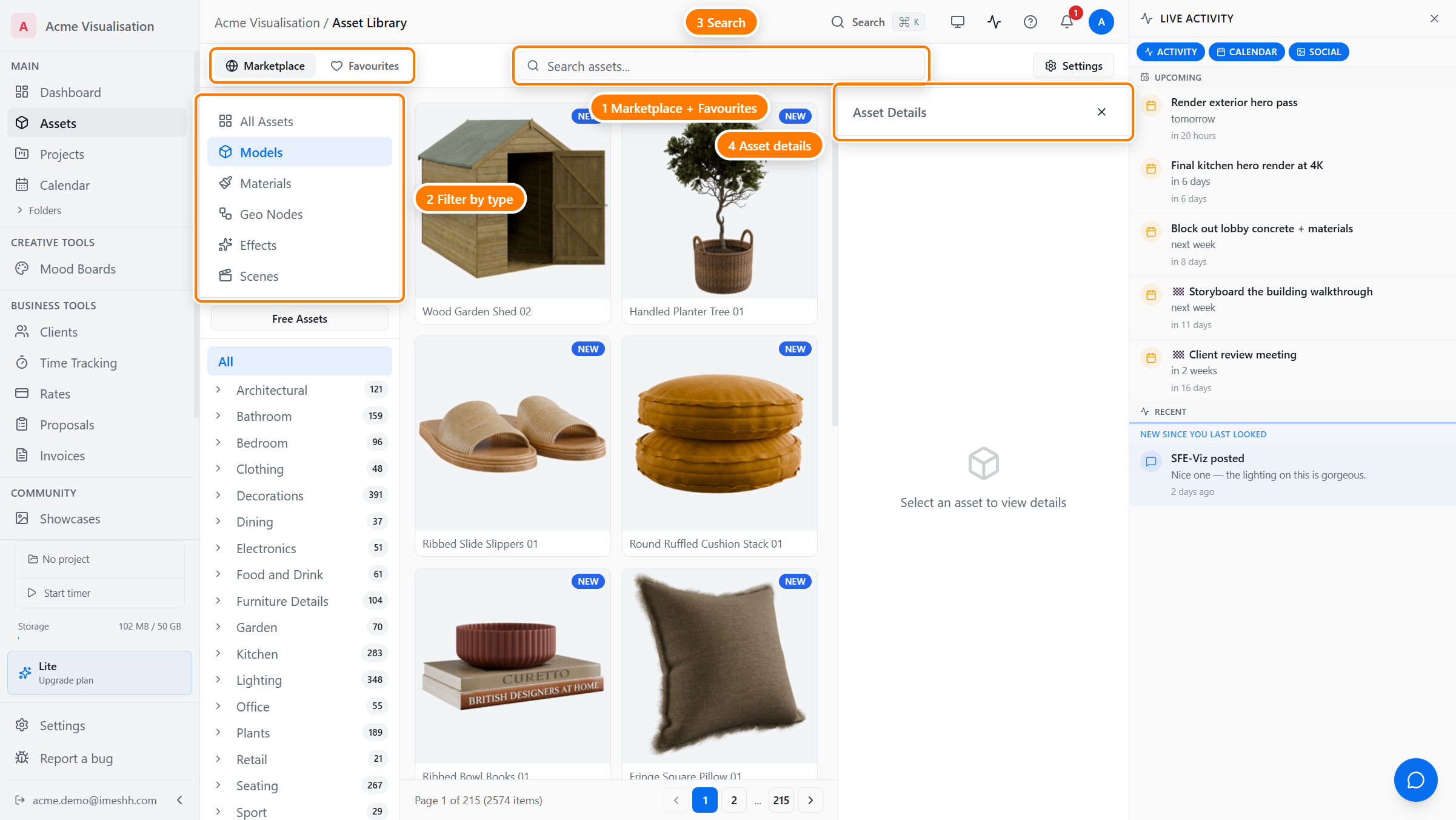
Switching between Marketplace and Favourites
Tabs at the top of the library let you switch between everything iMeshh publishes and the assets you've saved.
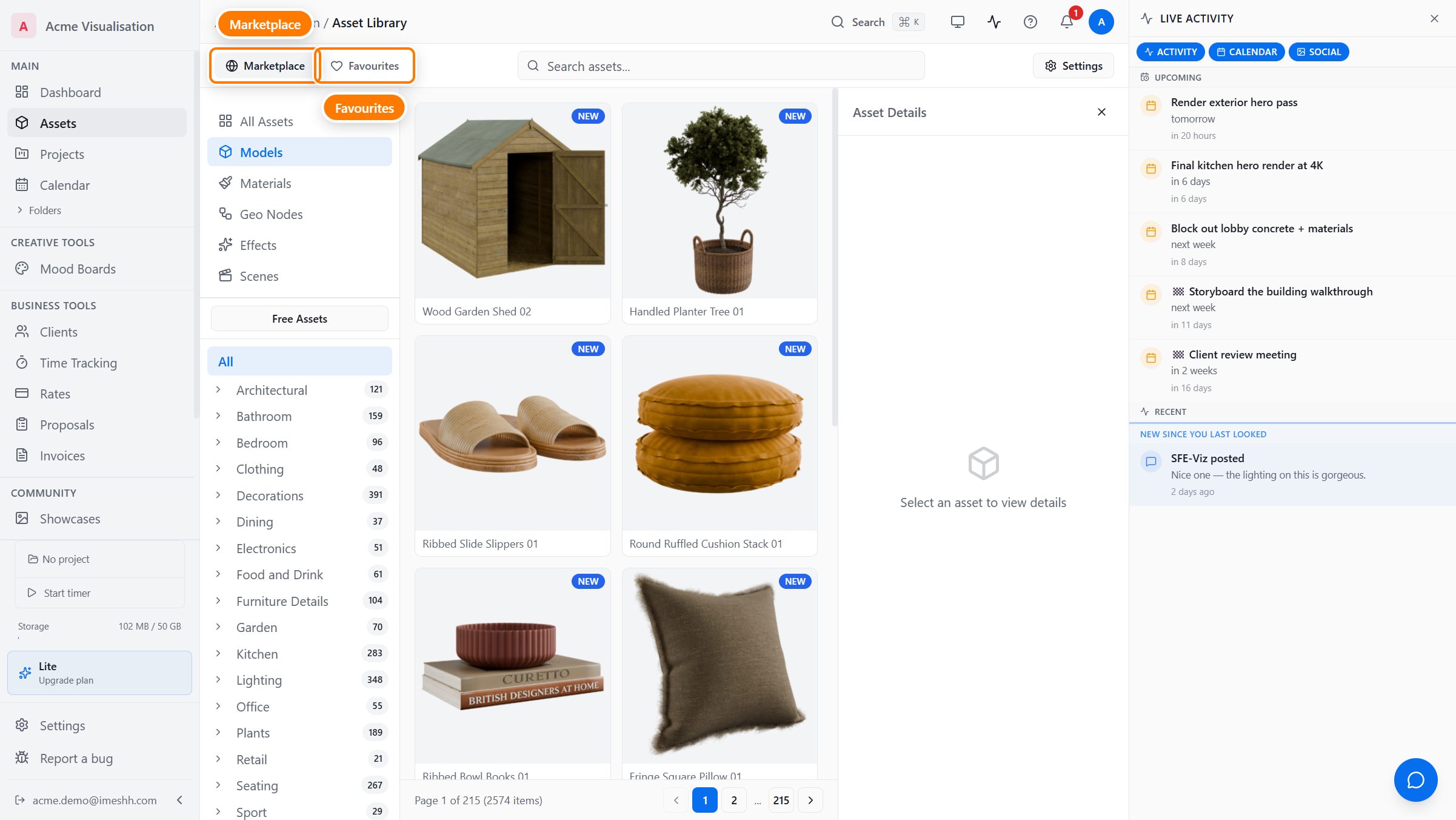
- Marketplace — every model, material, and HDRI iMeshh publishes
- Favourites — the assets you've marked with the heart icon, kept as a personal shortlist that follows you across devices
Browsing for Blender or glTF
Under the tabs, a Browsing for strip picks which software you're collecting assets for.
- Blender — the full catalogue. Every asset has a native Blender file, so nothing is filtered out
- glTF — only assets that ship a glTF export, for game engines, D5, three.js, and other non-Blender tools
Your choice does two things: it narrows the grid to assets available in that format, and it sets which file the Download button grabs by default. It's remembered on your account, so the library opens the same way next time — on any device.
While browsing glTF you'll see an Optimised badge on assets whose glTF is our new pipeline export — a single .glb with clean Principled-BSDF materials plus 1K/2K web tiers. A note above the grid explains the transition: we're re-exporting the whole catalogue, so newer releases may be Blender-only until the pipeline reaches them. See Optimised glTF and quality tiers.
Filtering by asset type
Pick a type to show only one kind of content. The grid updates straight away.
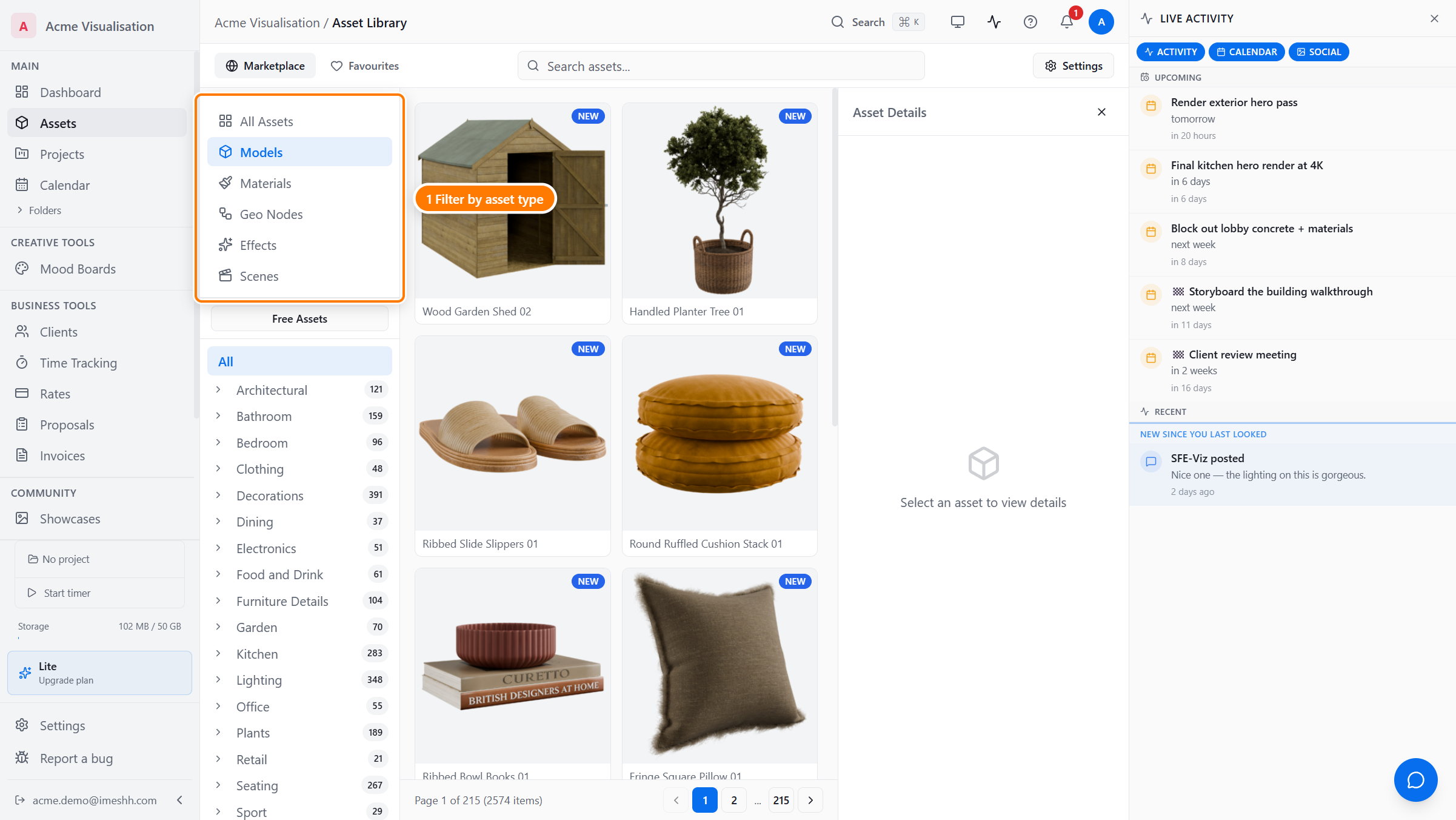
| Type | What you get |
|---|---|
| All Assets | Everything in one grid |
| Models | Meshes — furniture, plants, vehicles, hardware |
| Materials | Shader presets you apply to your own geometry |
| Geo Nodes | Geometry-node setups for procedural detail |
| Effects | FX rigs such as smoke and fluids |
| Scenes | Full pre-built scenes you drop into a project |
Below the type list is a Free Assets toggle. Turn it on to show only items you can download without a subscription. It combines with the type filter, so you can show only free materials, for example.
While browsing for glTF, an Optimised only toggle appears next to it. Turn it on to hide the older glTF exports and show only the assets with the new optimised .glb files.
Filtering by category
Categories sit below the type filter. They group assets by where they're used (Bathroom, Kitchen, Plants) rather than by what they technically are.
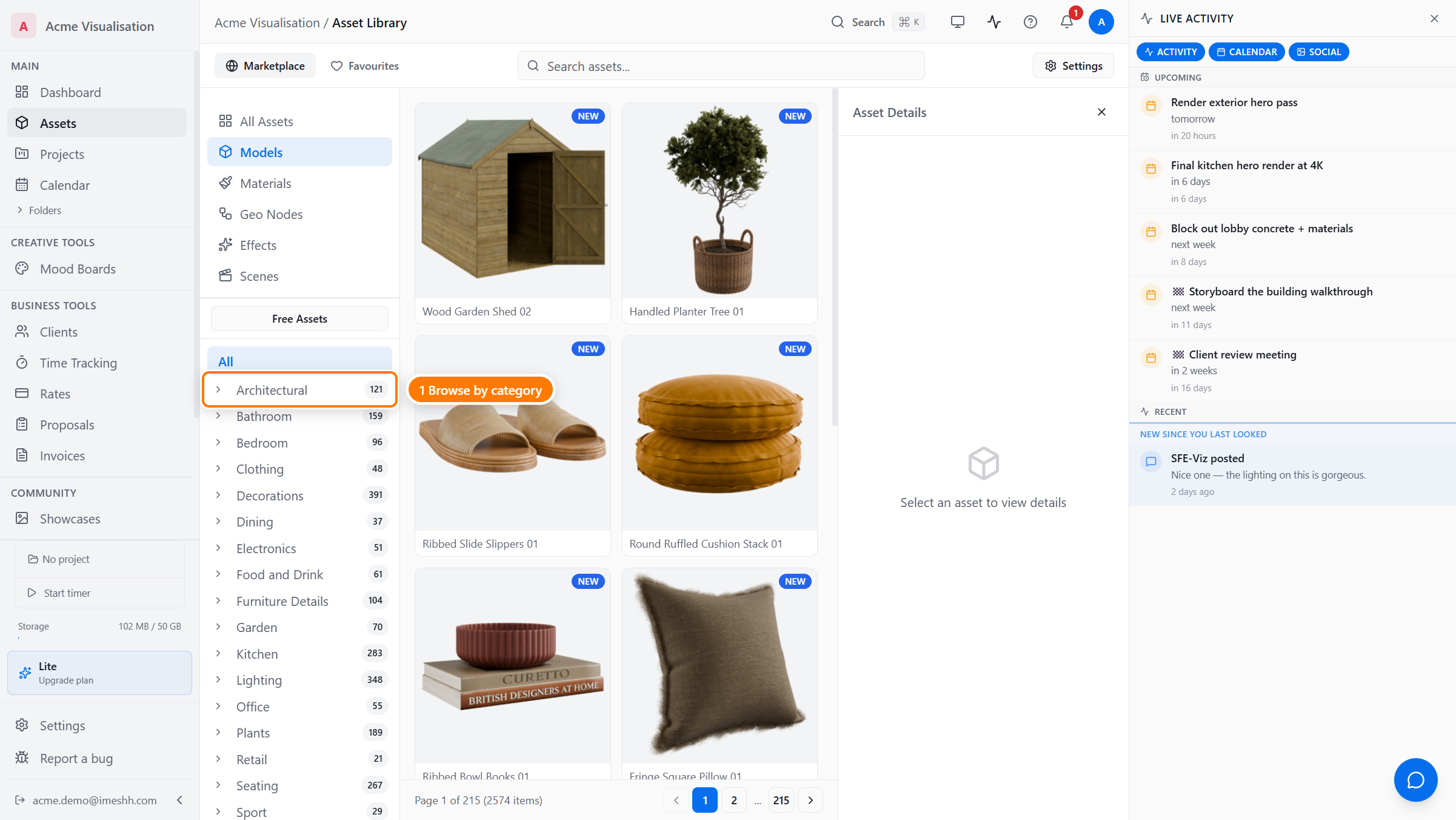
A few practical points:
- Counts stay in sync. If you've picked a type or typed a search, the number next to each category reflects only the items that still match.
- Some categories have sub-categories. Click into one and a second list appears.
- Click to filter, click again to clear. There's no Apply button — changes happen as you click.
Searching by keyword
The search field at the top searches three things at once, so you don't need to know exactly how an asset is labelled.
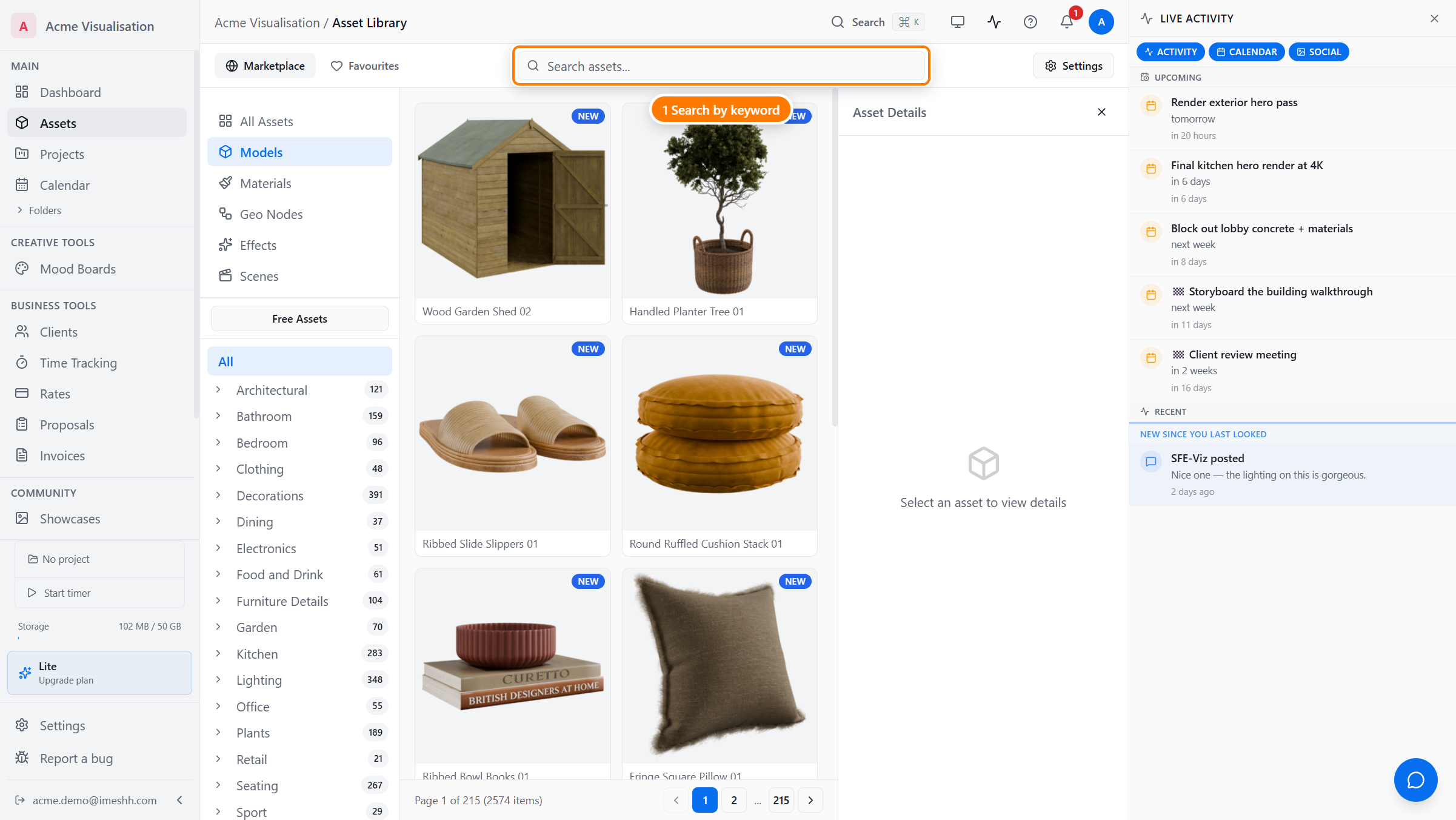
You can search by:
- Asset name —
sofa,door lever,floor lamp - Description — every asset has a one-line description; words inside it count too
- Tags — material, colour, style, era, and scene tags. Try
brass,minimalist,art deco
A few things worth knowing:
- Results update as you type. There's no need to press Enter.
- Search narrows; it doesn't replace. Typing while a category is selected searches inside that category only. Clear the category first for a catalogue-wide search.
- Tags work even when the name doesn't say so. Searching
brassfinds any asset tagged with brass, even if the word "brass" isn't in the name.
Filtering by material, colour, and style
Below the category tree, the sidebar shows tag facets that iMeshh generates for each asset. Use them to filter by what the asset is made of, what colour it is, and its style.
- Material — wood, metal, fabric, glass, and so on
- Colour — colour swatches you click to filter by tone
- Style — modern, classic, industrial, and similar
Pick more than one facet to narrow further. Facets combine — choosing wood and black shows only assets tagged with both. The facets section hides itself when nothing in the current grid is tagged.
Composition: single items or full sets
A composition toggle sits with the facets. Use it to separate single items from pre-built sets.
- All — both single items and sets
- Single — one item per asset
- Sets — pre-dressed groupings, such as a styled shelf or a full decor set
Tag filters from an asset
You can also build a filter from an asset you're looking at. Open any asset, then click a tag in its Tags section to add that tag as a filter over the whole grid. Active tag filters show in a strip above the grid.
Tag filters combine — each tag you add narrows the grid further. Click Clear all in the strip to remove them in one step. See the Tags section of the Asset Details panel for where the tags come from.
Reading an asset card
Each tile in the grid is an asset card, showing the thumbnail, the asset name, and any badges in the corners.
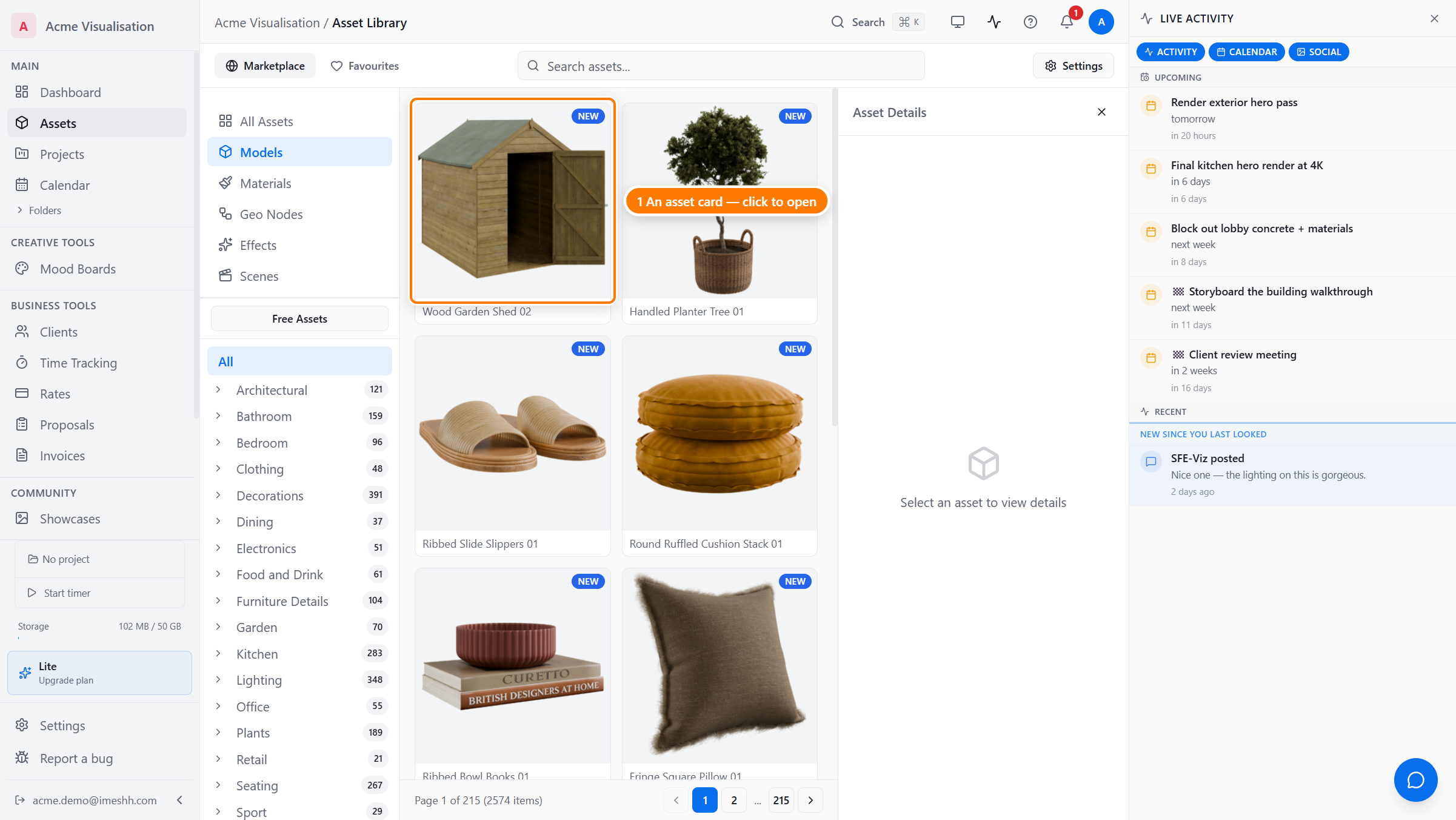
The badges you might see:
- NEW — added or updated in the last 30 days
- FREE — download it without a subscription
- Optimised — the asset's glTF is our new optimised
.glbexport (glTF view only) - ✓ — already saved to your computer (desktop app only)
When you point at a card, a second image cross-fades in to show another angle, and two icons appear in the top-left corner of the image:
- Expand — opens the asset's images at full size in a lightbox
- Heart — adds or removes the asset from your Favourites tab
To see everything about an asset, click anywhere on the card. The Asset Details panel opens on the right with the gallery, specs, tags, similar items, and a Download button.
What's next
- Asset Details panel — what each section of the right-side panel does
- Favouriting & requests — saving assets and asking iMeshh to make more
- Downloading assets — who can download, the per-asset limit, and free re-downloads when an asset is updated