showcases
Showcases overview
What Showcases is, the four tabs, which plans can publish, and why your showcases follow you across studios.
Updated 23 June 2026
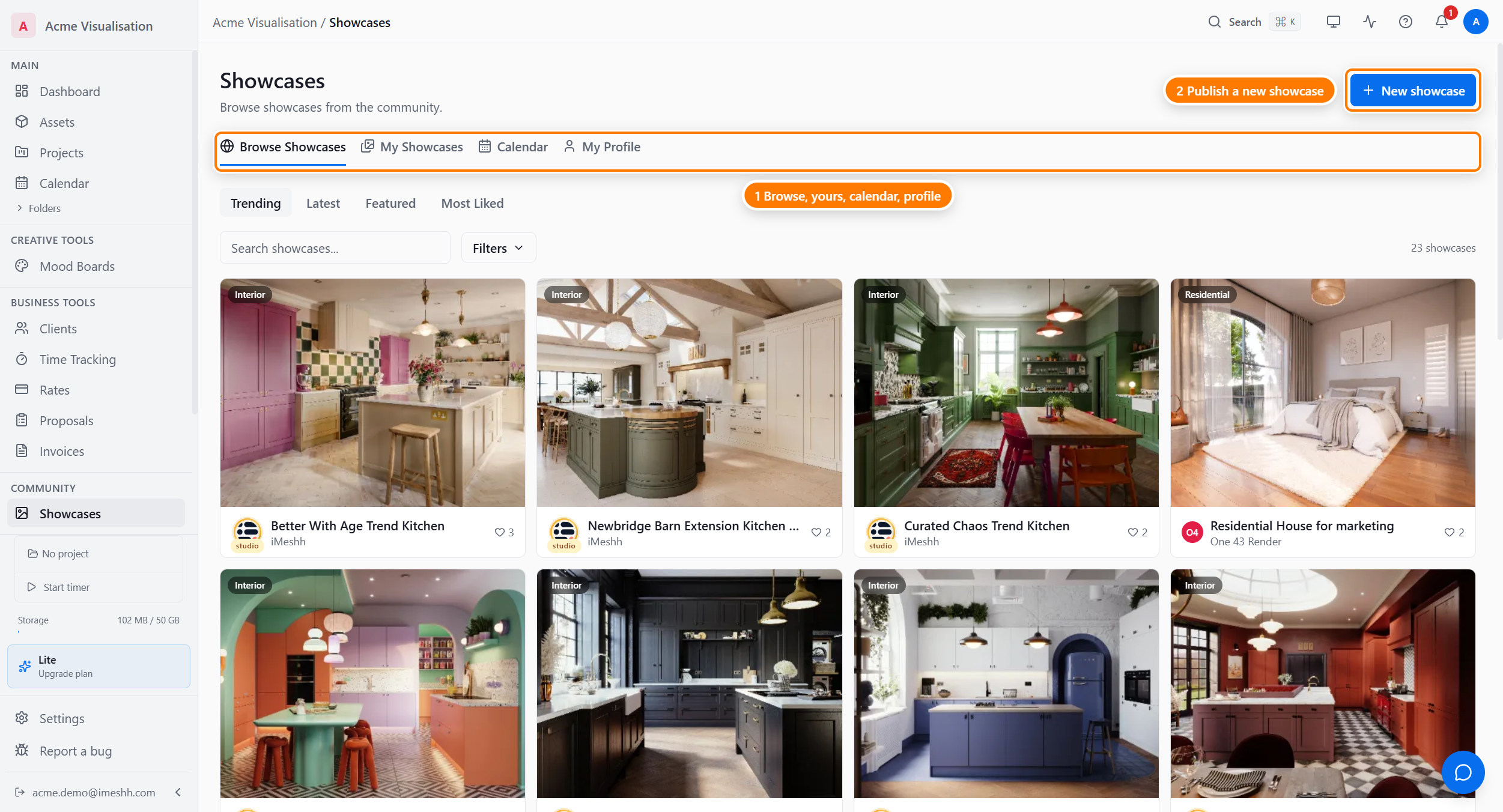
Showcases is your studio's public portfolio. You create image-based showcases of your rendered work, publish them, and they appear in the community Gallery for everyone to browse, like, save, and comment on. It is not a general social feed (that is the Feed section), and it is not the stock 3D catalogue (that is the Asset Library).
Open Showcases from the left sidebar. The page has four tabs:
- Browse Showcases — the community gallery: every published showcase from every studio
- My Showcases — the showcases your studio has created, including drafts
- Calendar — a month view of when your showcases were published (Pro and above)
- My Profile — your studio's public profile: name, bio, logo, and links
Who can publish
Creating and publishing showcases depends on your plan:
| Plan | Showcases you can publish | Images per showcase |
|---|---|---|
| Free | None | None |
| Lite | Up to 20 | Up to 10 |
| Pro | Unlimited | Up to 30 |
| Enterprise | Unlimited | Unlimited |
On Free, the Create showcase button is blocked — you can browse, view, like, save, comment, and follow other studios, but you cannot publish your own work. Move to Lite or above to start publishing.
Browsing is open to everyone
Anyone can browse the Gallery — you do not need an account to look at published showcases. Once you sign in, you can like, save, comment, and follow studios. Free accounts get all of those; only publishing is gated.
Your showcases follow you, not the studio you're in
Showcases belong to your home studio — the studio you signed up with and own. If you've been invited into another studio as a member, the My Showcases tab still shows your own studio's showcases, not the studio you're currently working inside.
What each tab does
- Browse Showcases — read the community gallery, filter and search, like and save. See Browse the Gallery.
- My Showcases — see every showcase you've created, publish or unpublish, and delete. See Manage your showcases.
- Calendar — a month grid of your publish dates (Pro and above). See Manage your showcases.
- My Profile — edit what visitors see on your studio's public page. See Your studio profile.
To create your first showcase, see Create a showcase.
What's next
- Browse the Gallery — feed tabs, search, filters, liking, saving, and the detail page
- Create a showcase — upload images, fill in the details, add content, save a draft or publish
- Manage your showcases — the management list, unpublish, delete, and the calendar
- Your studio profile — what visitors see and how to edit it