projects
Creating a project
Walk through the New Project dialog — name, deadline, client, contract value — and what happens when you click Create Project.
Updated 23 June 2026
A project is iMeshh Pro's container for a single piece of studio work. You start one any time you take on a new job. This page walks through the New Project dialog and what each field controls.
Starting a new project
From the Projects index, click New Project at the top right.
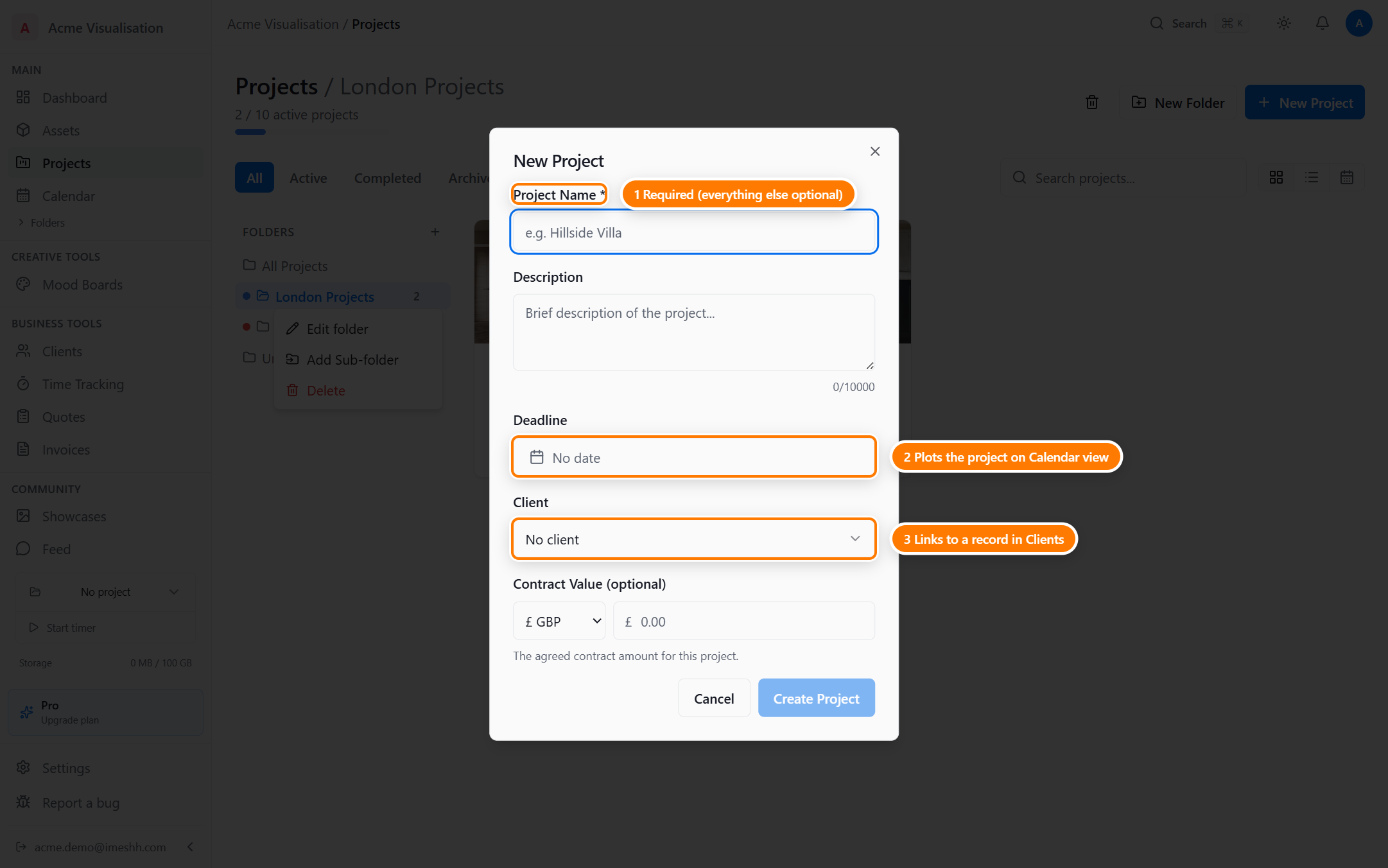
The fields
Project Name (required)
The only field you have to fill in. Up to 255 characters. This shows on the project card, in the breadcrumb, on the calendar, and in client-facing share links — so name it the way you'd reference the job out loud.
Description
A short summary of what the project is about. Up to 10,000 characters, though a sentence or two is usually plenty. This shows on the project card and at the top of the project's detail page.
Deadline
Pick a date from the date picker. The deadline shows on:
- The project card (grid view)
- The Deadline column (list view)
- The Calendar view, plotted onto the day itself
- The project header
You can change or remove the deadline later. Projects without a deadline still appear in grid and list views — they don't land on the calendar, but everything else works.
Client
Type into the Client field to search your studio's client records, then pick a match.
Once a client is linked:
- The client's name shows under the project name on the card
- The client's logo (if they have one) appears on the chip
You don't have to pick a client now — you can link one later from the project's three-dot menu.
Contract Value (optional)
The agreed amount you're being paid for the project. Two parts:
- Currency — defaults to your studio's currency. Pick another currency for a one-off job in a different region.
- Amount — the figure in whole units. For £4,500, enter
4500.
Once set, the Business tab tracks this value, lets you record change orders against it, and uses it as the base value on the Finance sub-tab.
You can leave Contract Value blank and fill it in later — common when the value is still being negotiated.
Clicking Create Project
When you click Create Project, three things happen:
- The project is created and you land on its detail page, on the Tasks tab.
- You're added as a project lead, along with every studio owner and admin. Leads have full access to everything in the project, including managing members.
- Your studio's default task statuses are copied across, so the project starts with a known set of statuses on the Tasks board.
From there you can:
- Create deliverables on the Deliverables tab
- Add tasks on the Tasks tab
- Invite team members on the People tab
- Share with the client through the People tab or a share link
The active-project limit
Every plan caps how many active projects you can have at once. The dialog blocks creation with an upgrade prompt if you're at the cap.
| Plan | Active projects |
|---|---|
| Free | 2 |
| Lite | 3 |
| Studio Pro | Unlimited |
| Enterprise | Unlimited |
Creating from inside a folder
If you click New Project while a folder is selected in the sidebar, the new project lands in that folder. The dialog is the same. If the folder is linked to a client, that client is pre-selected.
What's next
- Inside a project — the header and the six tabs
- Members and roles — invite the team, set what each person can see
- Folders and organisation — organising projects after creation