assets
Favouriting & requests
Save assets to your Favourites tab with the heart icon and tell iMeshh what to model next with Request more like this.
Updated 23 June 2026
The Asset Library is large. Favourites are how you build a personal shortlist so you don't have to find the same asset twice. Request more like this is how you tell iMeshh which kinds of assets you want more of. Both are one click and free on every plan.
Saving an asset to Favourites
There are two places to favourite an asset:
- From the grid — point at any asset card, then click the heart icon that appears in the top-left corner of the image.
- From the Asset Details panel — open an asset, then click the heart icon in the top-right corner of the panel, below the × close button.
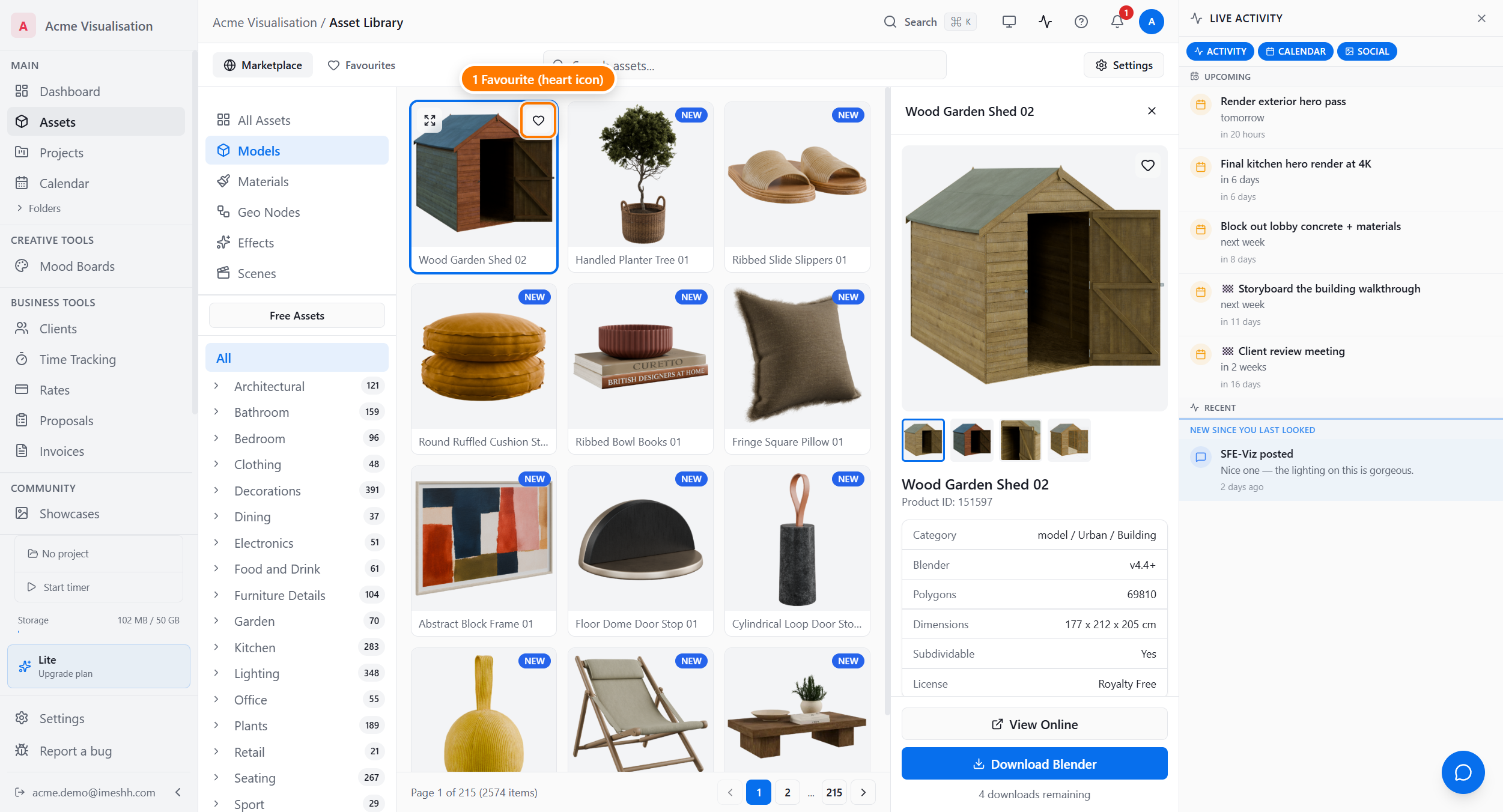
The heart fills in to confirm the asset is saved. Click it again to remove the favourite.
Browsing your Favourites
The Favourites tab sits at the top of the Asset Library, next to Marketplace.
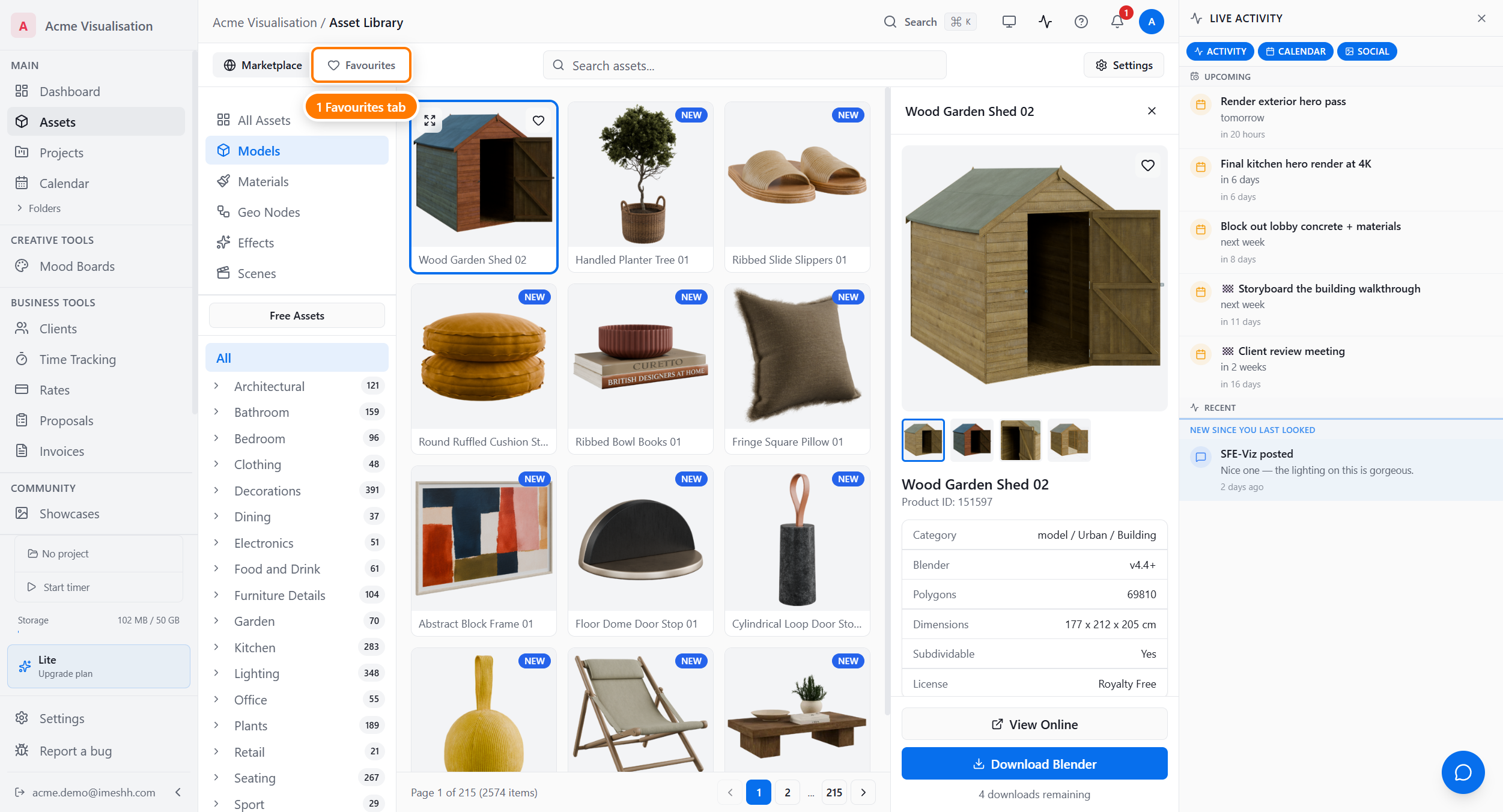
On the Favourites tab you can:
- Filter the same way as the Marketplace tab — type, category, search, and tag facets all work, which helps when your shortlist grows past a couple of pages
- Click any saved asset to open the same Asset Details panel as in the Marketplace
- Click the heart again to remove an asset from your shortlist
The tab is empty until you save something. Open Marketplace, save a few hearts, and the tab fills.
Asking iMeshh to make more like this
Each Asset Details panel has a Request more like this button below the similar items.
Click it once to record your vote. The button stays highlighted while your vote stands. Click it again to take the vote back. You can vote once per asset.
Votes are private — no one else sees what you've requested.
What's next
- Downloading assets — how the download limit works, who can download, and what happens when an asset is updated