settings
Team members and seats
Invite teammates on a paid seat, set their studio role, limit which sections they can open, and remove them — all from the Team tab.
Updated 23 June 2026
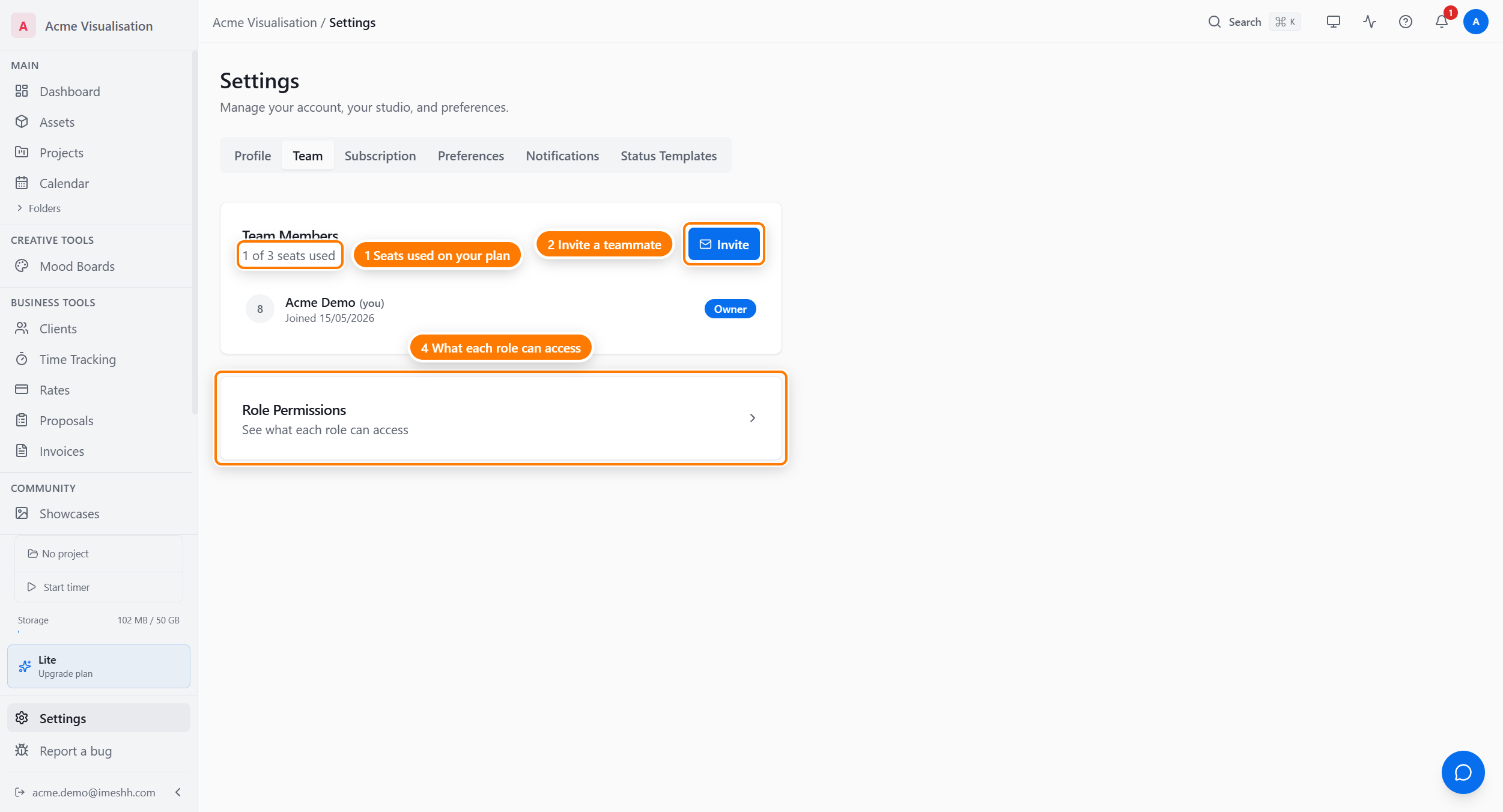
The Team tab is where you manage who's in your studio — the people who can sign in to your iMeshh Pro account.
Open Settings, then click Team.
Paid seats
Every new invite uses a paid seat added to your subscription. There are two seat types:
- Restricted — limited modules. £9/mo, or £7/mo billed annually.
- Full — all studio modules. £35/mo, or £29/mo billed annually.
The seat is added to your subscription when the invitee accepts, not when you send the invite. You're charged a prorated amount for the rest of the current billing cycle.
Seat status badges
A paid seat row shows a seat-type badge (Restricted seat or Full seat) and a status badge:
- paid — a normal paid seat, billed to your subscription
- free promo — the member has their own iMeshh Pro subscription, so their seat costs you nothing
- complimentary — a free seat granted by iMeshh, not affected by the member's own subscription
- grace — nd left — the member's own Pro lapsed; the badge counts down the days before the seat is suspended
- suspended — access has been removed pending a paid seat
If your own seat in another studio is complimentary, a banner at the top of the Team tab tells you so.
Inviting a teammate
- Click Invite. The Invite Team Member dialog opens.
- Choose a Seat type — Restricted or Full.
- Choose a billing period — Monthly or Annual. Annual saves around 20%.
- Type the person's email in Email address.
- Click Send seat invitation.
When you leave the email field, iMeshh checks whether that person already has their own iMeshh Pro subscription:
- If they do, a green note tells you they'll join on a free promo seat — no charge to you.
- If they don't, they'll be billed through your subscription when they accept.
The person gets an email with a link to a setup screen, where they pick a password and add their name.
Pending invitations show in a Pending Invitations card with the invited email, the role, and an expiry date. Click Cancel on a row to revoke an invite before it's accepted.
Studio roles
iMeshh Pro has six studio roles. Each higher role can do everything the ones below it can.
| Role | What they can do |
|---|---|
| Owner | Full control of the studio, billing, and all settings. There's always exactly one owner. |
| Admin | Manage members, projects, and all settings except billing and studio deletion. |
| Manager | Manage projects, clients, invoices, quotes, and team tasks. Can't manage the team or billing. |
| Member | View and contribute to projects they're assigned to. Can't see clients, invoices, or analytics. Gallery and Feed are view-only. |
| Viewer | Read-only across the sections they're permitted. Can't create, edit, or delete anything. |
| Collaborator | Minimal access — only the tasks assigned to them inside specific projects, plus project chat. |
To see exactly what each role can open, expand the Role Permissions card below the member list and click a role. It shows an enabled / disabled grid of every section for that role.
Changing a role
Click the role badge on a member's row and pick a new role from the list. The change applies straight away — the member doesn't need to sign out. You can assign any role except Owner (the owner can't be reassigned from this list).
Limiting which sections a member can open
Beyond the role, you can restrict an individual member to fewer sections.
- Click the Settings (gear) icon on the member's row.
- The Module Access panel opens, showing the work sections that member's role allows.
- Click a section to turn it off for that member. Click again to restore it to the role default.
- Click Save.
This only covers work sections (Assets, Projects, Clients, Invoices, Quotes, Analytics, Time Tracking, Mood Boards). Social sections (Feed, Showcases, Messages, Jobs) belong to each member's own studio, not yours, so they aren't listed here.
Removing a teammate
Click the remove (person-minus) icon on a member's row, then confirm. Removing a teammate:
- Signs them out of your studio immediately
- Keeps the content they authored (projects, tasks, comments stay)
- Frees up their seat — the paid seat is removed from your subscription
You can't remove the owner, and you can't remove yourself from this list.
What's not on this tab
- Per-project membership — add people to one project from that project's People tab. See Members & roles.
- Client access — also on the project's People tab, under the Clients section. See Sharing with clients.
What's next
- Members & roles (per-project) — Lead, Contributor, Viewer inside a project
- Subscription and billing — where paid seats appear on your invoice
- Settings overview — back to the six tabs