assets
Downloading assets
Who can download, the per-asset limit and why it exists, how free assets work, picking a format, glTF quality tiers, setting the desktop download folder, and what happens when iMeshh updates an asset.
Updated 22 July 2026
Downloading an asset gives you the file to drop into Blender or another 3D app. This page covers who can download, the per-asset limit, and the details around formats, free assets, and updates.
Who can download
Two kinds of users can download from the Asset Library:
- Anyone on a paid plan — Lite, Pro, and Enterprise members can download any asset
- Anyone, on free assets — assets marked FREE download without a subscription, on any plan
If you're signed into a free account and try to download a paid asset, the Download button is replaced with a Subscribe to Download button that takes you to the pricing page. Free assets always show the regular Download button.
Picking a format
Every asset ships in at least one file format, listed in the Available Downloads section of the Asset Details panel.
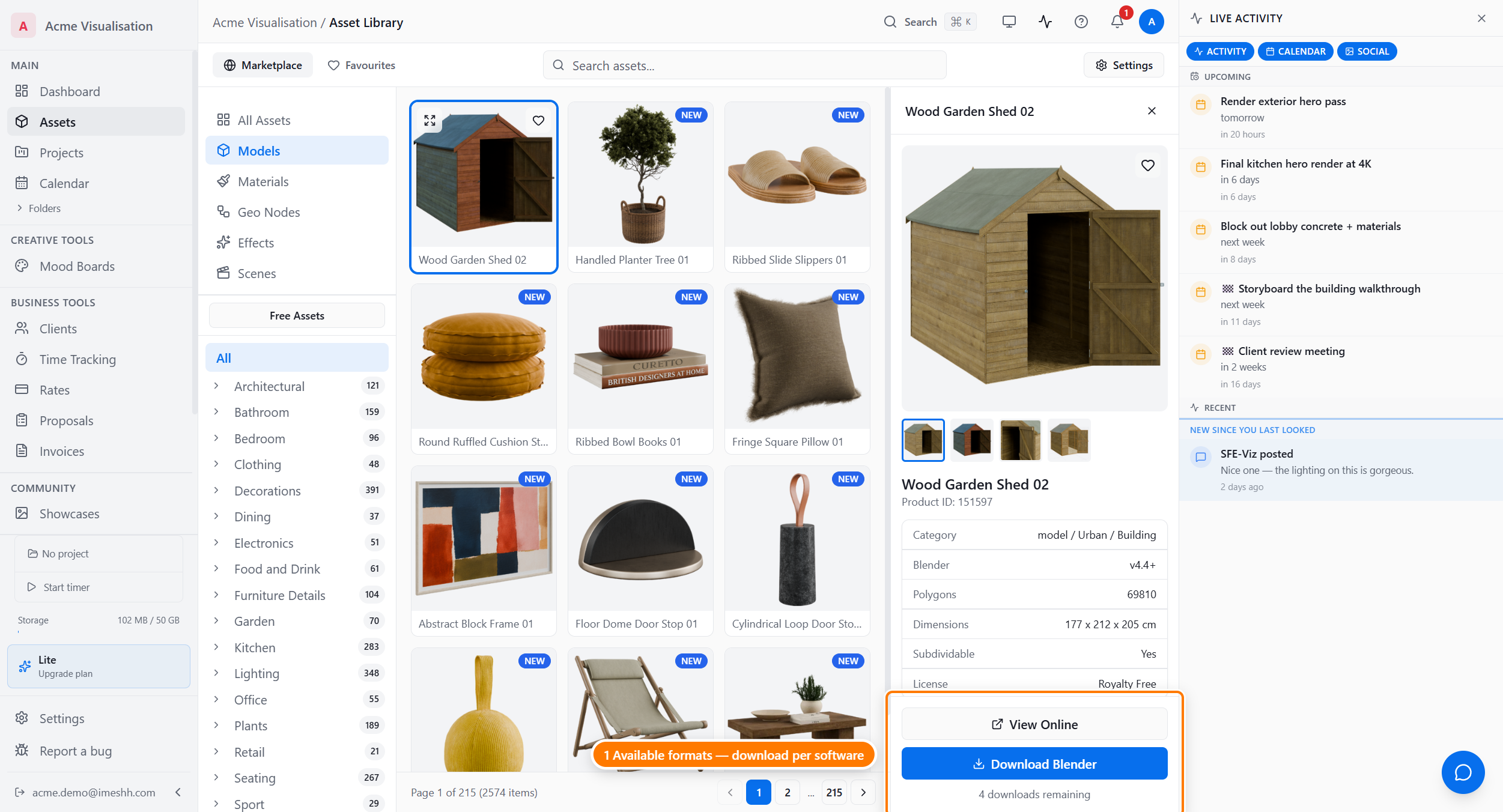
What you'll typically see:
<asset>_Blender.zip— the native Blender file (.blendplus textures), ready to append into your scene<asset>.glb— the optimised glTF export, for use in non-Blender tools such as Unreal, Unity, D5, and three.js. Older assets we haven't re-exported yet ship the previous<asset>_glTF.zipinstead
When an asset has more than one format, the Download button shows a chevron on its right edge. Click the chevron to open a short list and pick a different format; the main button defaults to the format that matches your active filter.
Materials and HDRIs use different file types (for example a .png HDRI, or a node-group-only .blend). The format list always matches whatever the asset actually ships with.
Optimised glTF and quality tiers
We're re-exporting the whole library as optimised glTFs — single .glb files with clean Principled-BSDF materials that open directly in game engines and browser tools, no unzipping needed. Assets that already have one show an Optimised badge when you browse the glTF filter.
Optimised assets come in three quality tiers:
- Full quality — the original textures, uncompressed. This is what the main Download button gets you
- 2K (web) — textures compressed to 2K; a fraction of the size, great for real-time work
- 1K (web) — textures compressed to 1K; the smallest files, ideal for browser apps
With glTF selected, the 2K and 1K tiers appear as extra download buttons under the main one. Each tier is its own file, so you can grab the full version for hero shots and the 1K version for a web viewer.
The download limit
Each asset has a download limit per user. By default you can download the same asset up to 4 times from your account. The counter sits below the Download button and shows how many you have left.
For example, "4 downloads remaining" means this is your first attempt. After your first download it reads "3 downloads remaining", and so on.
This is a per-asset limit, not a total one. There's no cap on how many different assets you can download — you could download the entire library. The limit only applies to how many times you download the same asset, and every asset has its own separate allowance.
The limit is there to help prevent account sharing — it stops one login being used to hand the same files out to lots of people. It isn't meant to get in the way of normal use, and for that you'll effectively never reach it.
The limit counts each format — and each glTF quality tier — separately. Downloading the glTF after the Blender zip uses a fresh allowance, and so does grabbing the 2K tier after the full one. In practice you'll never run out.
If you do reach the limit on an asset for any reason — a run of failed downloads, moving to a new machine, or anything else — reach out through the help bubble in the bottom-right corner and we'll sort it out for you.
Re-downloading after an update
When iMeshh updates an asset — a new texture pack, a remodelled version, a fix — you can re-download the latest version without it counting against your download limit, as long as you are on an active plan.
On the desktop app:
- iMeshh publishes the update.
- The next time you open the Asset Library, the asset's card shows an update marker, and the sidebar Updates available button shows a count.
- Click into the asset. The Download button changes to Update.
- Click it to download the new version. Your remaining count stays the same.
Downloading again after losing your files
Lost a drive, moved machine, or cleared a folder? Nothing you downloaded is gone from our side. Every asset stays in the library, and you can download it again from your account.
Downloading again needs the same thing a first download does: an active plan that includes paid assets. If your subscription has lapsed, or you're on the Free plan or a trial that doesn't include paid assets, the button reads Subscribe to Download until you're subscribed again. Once you are, everything you had is available to download straight away.
The download queue
After you click Download, you'll see a brief progress indicator while iMeshh prepares the file, then the download starts.
On the desktop app, a download bar appears at the bottom of the screen whenever a download is in progress, showing every active and recent download with a progress bar. Up to six downloads run at once; the rest wait in the queue. On the web, the bar clears finished items on its own.
If a download fails (rare), the Download button changes to Error — Retry. Click it to queue the download again. If a download keeps failing, reach out through the help bubble in the bottom-right corner.
Web vs desktop downloads
Where the download lands depends on which version of iMeshh Pro you're using:
| Web | Desktop app | |
|---|---|---|
| Where it goes | Your browser's Downloads folder | The category folder you set (see below) |
| File handling | One .zip, you unpack it yourself | iMeshh unpacks it and puts the asset in the right Blender folder |
| Update marker | None | Shows on the card and in the sidebar |
| Send to Blender | Not available | A Send to Blender action opens the file in a running Blender window |
Setting the desktop download folder
On the desktop app, downloads land in the folders you choose — so set them before your first download. Two places show the same settings:
- On the Assets page, click the button in the top-right corner of the header. Until you've set a folder it reads Set download folder; after that it reads Settings. Open the Folders tab.
- Or go to the main Settings page and open the Downloads tab.
Expand your software (for example Blender), click Browse next to Models to pick a folder, then Use Models folder for all to apply it everywhere at once. See Blender, folders & your own files for the full folder layout.
glTF is the exception: it saves to your computer's Downloads folder on both web and desktop, as a plain file. glTFs feed other tools — game engines, browsers, other DCCs — so we don't file them into the Blender library folders, and they don't get the downloaded checkmark or update marker.
If you're on the web and don't have the desktop app yet, it's free to install on any plan and does the file handling for you. See Getting the Blender add-on & desktop app and Blender, folders & your own files.
What's next
- Getting the Blender add-on & desktop app — installing the free add-on, the Bridge, and the desktop app
- Blender, folders & your own files — pairing the desktop app with Blender and the My Folders tab
- Subscriptions & access — which plan includes what