quotes
Proposals
What the Proposals section is, the six tabs, the seven proposal statuses, and who can see it.
Updated 24 June 2026
The Proposals section is where your studio writes priced project proposals, sends them to a client to accept or decline, and tracks the outcome. You build a proposal from rooms and line items, set a price (or a range of packages), then email the client a private link they open without an iMeshh Pro account.
Open it from Proposals in the left sidebar.
Who can see it
The Proposals entry appears only for studio members with a Manager role or above. Members and viewers do not see the tab.
- View, build, and edit proposals — Managers and above
- Send a proposal to a client — Managers and above
- Turn an accepted proposal into an invoice — Managers and above
A few features sit behind a plan:
- Calendar tab — available on Pro and above
- Save your own templates — available on Studio Pro and above (the platform's Starter Templates are open to everyone)
The six tabs
Across the top of the page are six tabs.
| Tab | What you do here |
|---|---|
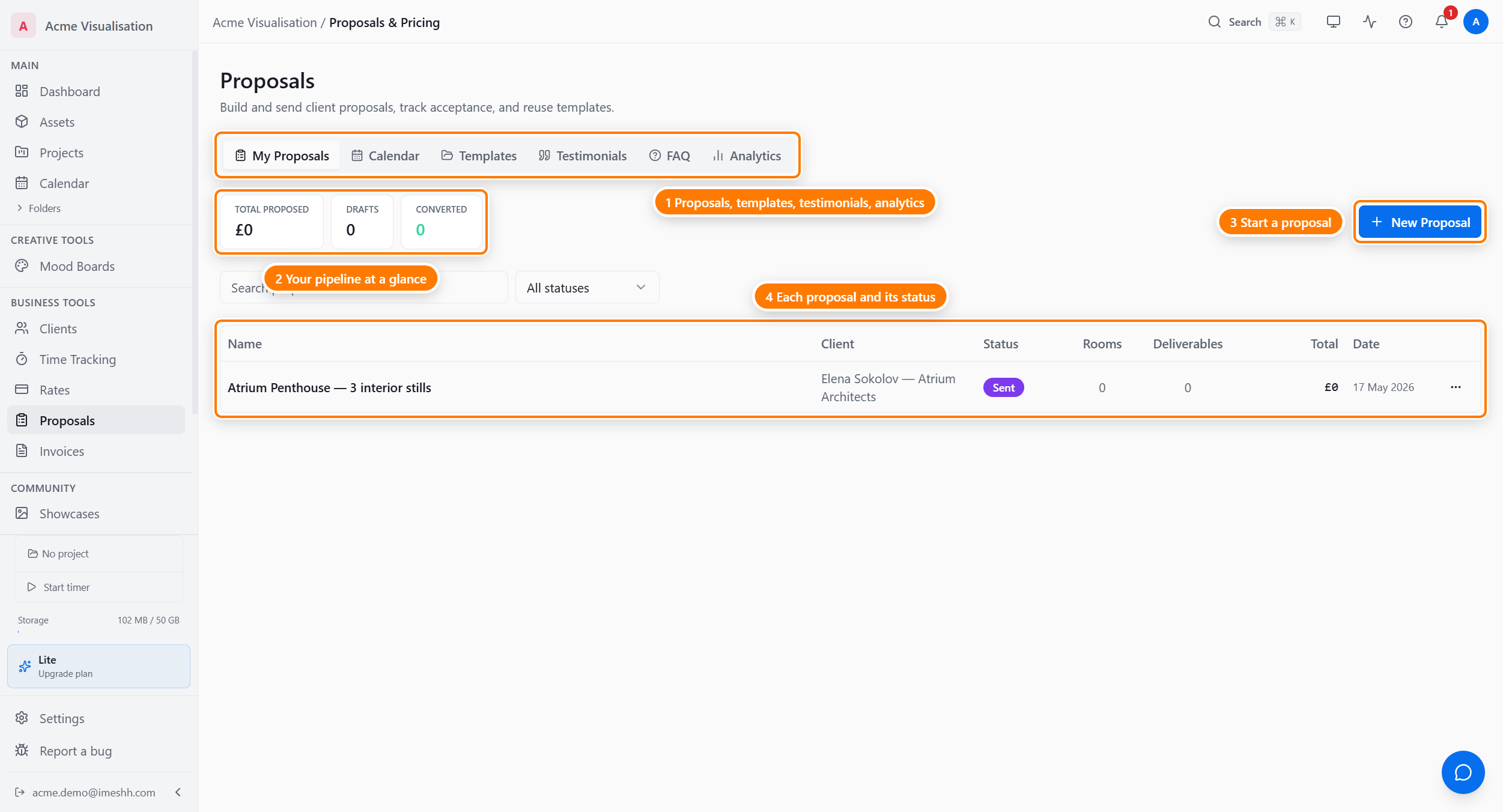
| My Proposals | The list of every proposal you've drafted, sent, or had decided. Search, filter by status, and open one to edit or duplicate. |
| Calendar | Your proposals plotted by expiry date, so you can see which ones are about to lapse. (Pro and above) |
| Templates | Reusable proposal shapes — the platform's Starter Templates plus your own saved templates. See Templates and analytics. |
| Testimonials | A library of client quotes you can attach to any proposal. See Templates and analytics. |
| FAQ | A library of reusable questions and answers you can attach to any proposal. See Templates and analytics. |
| Analytics | View rate, acceptance rate, won value, and time to accept across your proposals. See Templates and analytics. |
The My Proposals list
The My Proposals tab is the home of the section. Three summary figures sit at the top — Total Proposed, Drafts, and Converted — followed by a search box, a status filter, and the proposal table.
From this tab you can:
- Search by proposal name or client in the search box marked "Search proposals or clients…"
- Filter by status using the All statuses dropdown
- Start a new proposal with New Proposal
- Start from a saved template with the From template dropdown next to New Proposal
- Open a proposal by clicking its row, then Duplicate, Save as template, or delete it
Set up your pricing first
When you haven't built any rate cards yet, a Set up your pricing first banner appears above the list with a Set Up Rate Cards button.
A rate card is a reusable price list. Building one first means every proposal pulls from the same prices, so a rate change flows into future proposals instead of being retyped each time. You can still create a proposal without one — the New Proposal button always works — but setting up a rate card first saves the most time. See Building and pricing a proposal.
Proposal statuses
Every proposal carries one status. The badge on its row in My Proposals shows the current one.
| Status | Meaning |
|---|---|
| Draft | Saved and editable. Not yet ready, not sent. |
| Ready | Marked ready for internal review before sending. Nothing has gone to the client yet. |
| Sent | Emailed to the client. They can open the link and accept or decline. |
| Accepted | The client accepted from their link. You can turn it into an invoice. |
| Declined | The client declined from their link. |
| Expired | Past its valid-until date with no decision recorded. |
| Converted | An invoice was created from this proposal. This is the final status — a converted proposal can't be sent again. |
Edit by duplicating
A proposal you've already sent stays as the record of what the client received. To revise it, open it and click Duplicate to create an editable copy, change that copy, and send the new version. Editing any proposal opens the same builder you used to create it.
What's next
- Building and pricing a proposal — rooms, line items, rate cards, the rate builder, and packages
- Sending a proposal to a client — preview, send, resend, and what you see once the client opens it
- Templates and analytics — Starter Templates, your own templates, testimonials, FAQs, and proposal analytics
- What your client sees — the client's review page