settings
Preferences
Set your theme, timezone and date language, subscribe to your task calendar, turn on a studio workflow, and export your data.
Updated 24 June 2026
The Preferences tab holds personal display settings, a calendar feed, a studio workflow switch, and your data exports.
Open Settings, then click Preferences.
The tab stacks several cards. The Studio workflow card appears only if you own the studio.
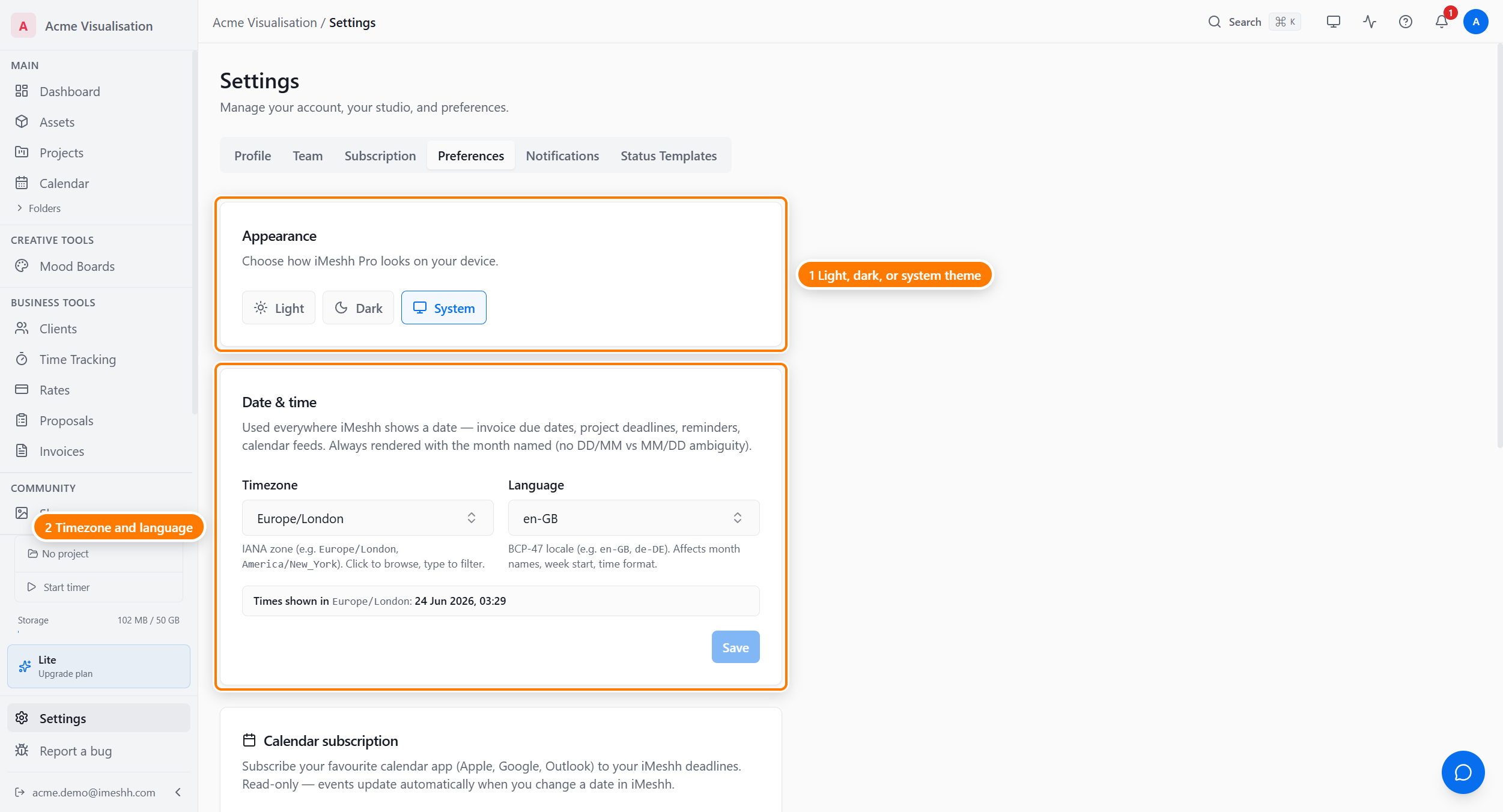
Appearance
The Appearance card sets your theme.
Click one of three buttons:
- Light — always light
- Dark — always dark
- System — follows your computer's setting
The theme changes straight away and is remembered on this device.
Date and time
The Date & time card sets the timezone and language used to show dates and times across your studio.
- Pick a timezone from the list (for example
Europe/London). It's used for due dates and reminder times. - Pick a language and region from the list (for example
en-GBoren-US). This drives both the date format and the wording. - Watch the live preview — it shows how today's date and time will look with your choices.
- Click Save.
Calendar subscription
The Calendar subscription card gives you a private calendar feed of your tasks and due dates, so they show up in Google Calendar, Apple Calendar, or Outlook.
- Click Create subscription to create a feed link the first time. When a feed already exists, the button reads Regenerate.
- Use Add to Google or Add to Apple Calendar to subscribe in one click, or click Copy URL to paste the link into another calendar app.
Google Calendar refreshes a subscribed feed every 12 to 24 hours, so new tasks can take up to a day to appear there.
Studio workflow (owners only)
If you own the studio, a Studio workflow card lets you turn on one automation.
- Auto-create a task from a deliverable — when this is on, adding a deliverable to a project also creates a task for it. Turn it off to add deliverables without making tasks.
The switch saves as soon as you flip it.
Export your studio data
The Data export card downloads your studio's data as a single file.
- Click the export button on the Data export card.
- A
.jsonfile downloads to your computer.
The export is a data file (projects, tasks, clients, and so on as text), not your deliverable files or images.
Download your personal data
The Your personal data card downloads the information iMeshh holds about you personally, for your right of access under UK GDPR.
Click the download button on the Your personal data card. A .json file downloads to your computer.
What's next
- Notifications — choose what notifies you, and add a backup email
- Status templates — reusable task statuses for new projects
- Settings overview — back to the six tabs