projects
Tasks
The internal work behind your deliverables — fields, statuses, lists, custom fields, subtasks, dependencies, bulk edits, and importing.
Updated 23 June 2026
A task is one unit of internal work — modelling, lighting, rendering, a client meeting, anything that needs doing on the project. Tasks live on a project's Tasks tab and never leave the studio: clients don't see tasks, only deliverables.
The Tasks tab
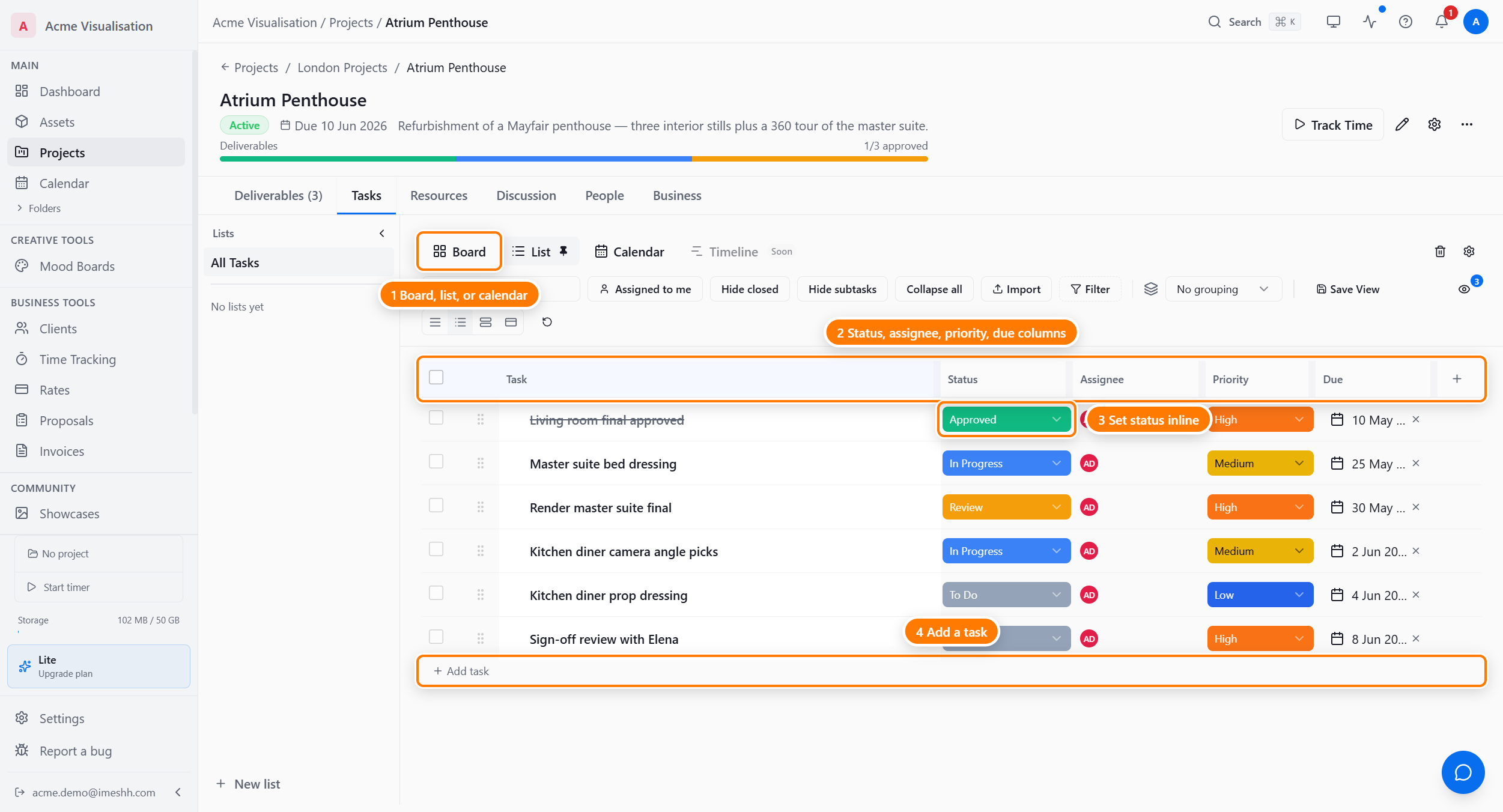
By default tasks show as a table — denser than a Kanban board, fastest for editing several at once. Switch to Board or Calendar with the view toggle at the top. See Task views for each layout.
What a task carries
Every task has these fields. Click any cell on a row to edit it in place — no separate edit screen for the common fields.
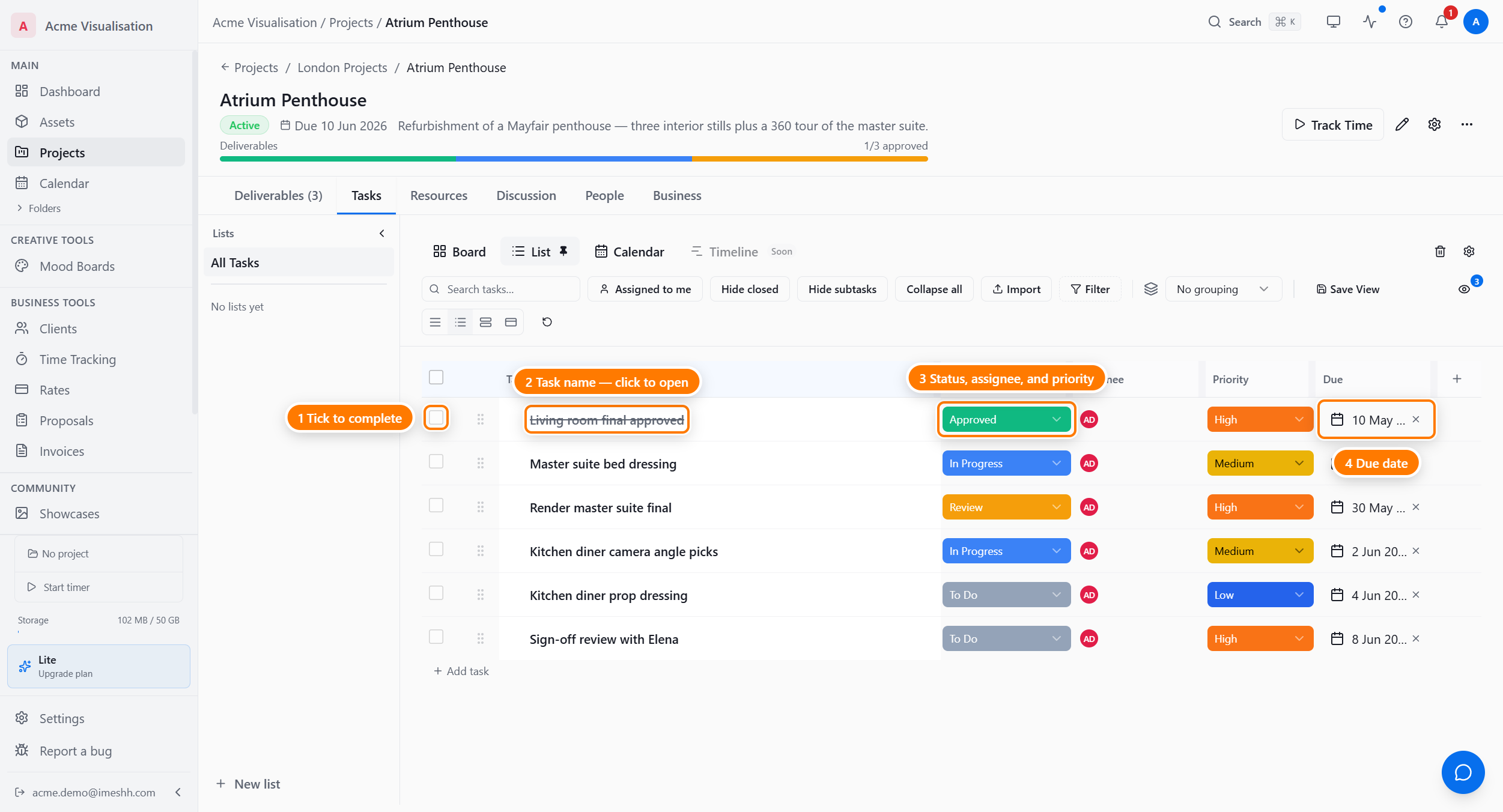
The core fields:
- Status — comes from your project's status list (typically To Do → In Progress → Review → Approved). See Statuses below.
- Assignee — one studio member, picked from the project's team.
- Priority — Low, Medium, High, or Urgent. Used for sorting and the priority stripe on the Board view.
- Due date — a calendar date, with an optional time of day for reminders.
- Description — an optional longer note. Click the chevron at the start of the row to expand it in place, or open the full task panel for richer editing.
Open the full task panel (click the task name) for the rest:
- Labels — free-text tags, multi-value. Group by "blocking", "needs reference", "exterior", "Phase 2", then filter by them later.
- Linked deliverable — tie the task to a deliverable so the deliverable's progress reflects it. Set automatically when you use the Task button on a deliverable card.
- Time: estimated and actual — minutes expected or spent. See Time and finance.
- Subtasks and Depends on — see Subtasks and dependencies below.
- Custom fields — any project field you've defined. See Custom fields below.
Adding a task
Click Add task at the bottom of the list. A blank row appears with the cursor on the task name — type and press Enter to commit. The new task lands with status To Do, no assignee, and no due date; fill in the rest by tabbing or clicking through the cells.
For a task linked to a deliverable, use the Task button on the deliverable card instead — it pre-fills the linked deliverable.
Statuses
A task's status comes from the project's own status list. When you create a project, iMeshh Pro copies your studio's default statuses across; after that the project manages its own.
To add, rename, recolour, or reorder statuses, open Settings on the project header, then the status editor.
Each status has a name, a colour, and a category. Changes apply across every layout — the columns on the Board, the dropdown on each row, and the filter chips.
Lists
The Lists sidebar on the left splits a project's tasks into buckets — Pre-production, Modelling, Lighting, Final renders, whatever fits the work.
To work with lists:
- Click New list to create one. Give it a name, colour, and icon.
- Move a task into a list by setting its list in the task panel, or by dragging it.
- Click a list in the sidebar to show only its tasks. Click All Tasks to show every task.
Lists are optional — leave a project with no lists and every task sits in All Tasks.
Custom fields
Beyond the built-in fields, you can define your own — a "Render engine" select, a "Final frame" checkbox, a "Client ref" text field. Custom fields are project-scoped and appear as extra columns and as inputs in the task panel.
To add a field:
- Open the custom fields manager.
- Type a name.
- Pick a type.
- For a select or multi-select, add the options.
- Click to save. The field appears as a column you can show, hide, and filter by.
The field types available:
- Text and Long text — short or paragraph notes
- Number, Currency, Rating, and Progress — numeric values
- Date — a calendar date
- Select and Multi-select — pick from your options
- Checkbox — a yes/no
- URL, Email, and Phone — formatted values
- User — pick a studio member
Subtasks and dependencies
Open a task's panel to break it down or link it to other tasks.
- Subtasks — add child tasks under any task. One level only: a subtask can't have its own subtasks. Each subtask carries its own status, assignee, and due date.
- Depends on — link the task to another that must finish first. The Board and Calendar views flag a task as blocked while its dependency is unfinished.
- Is milestone — mark the task as a milestone. Milestones show differently on the Calendar and Board so major dates stand out.
Editing in bulk
Tick the checkbox at the start of each row to select tasks. A bulk action bar appears at the bottom with change status, change assignee, set due date, set priority, and delete.
This is the fastest way to, for example, bump twelve tasks from To Do to In Progress at the start of a sprint. Set the selection, pick the action, and every selected task updates at once.
Importing tasks
If you're moving from ClickUp, you can bring tasks in from a ClickUp export rather than retyping them. Import the export file and iMeshh Pro creates a task per row, mapping names, statuses, assignees, and dates where it can.
Re-importing the same export won't create duplicates — iMeshh Pro recognises tasks it has already imported and updates them instead.
Plan tier
Tasks are unlimited on every paid plan. No caps on count, subtasks, dependencies, custom fields, lists, or saved views.
What's next
- Task views — List, Board, Calendar, and saving a view
- Time and finance — how task time rolls up
- Trash and recovery — restoring a deleted task