projects
Deliverable versions
Upload a new version of a deliverable, control which versions the client sees, and add a note for each version.
Updated 23 June 2026
A version is one upload of a deliverable. Every deliverable starts with no versions; you upload v1 when you've got something to show. After that, each new upload becomes v2, v3, and so on, with the old versions kept as history.
Versions are how you handle revisions. When the client asks for changes, you don't replace anything — you upload v2 alongside v1, and the client can compare.
Where versions live
Open any deliverable from the Deliverables tab. The detail panel slides in from the right, and the VERSIONS section sits below Description.
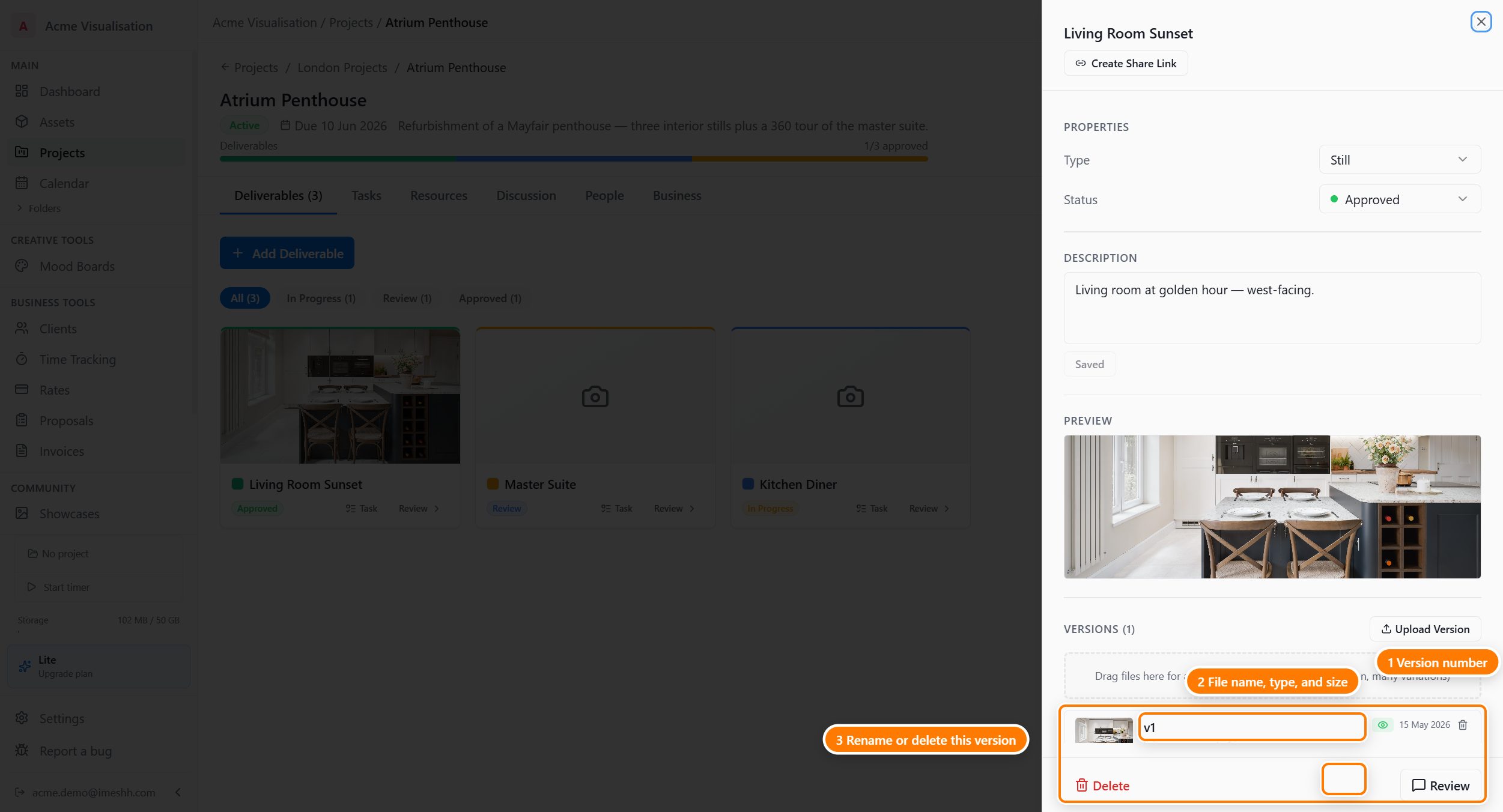
What every version row shows:
- Version number — v1, v2, v3, in order of upload
- File name — the original filename you uploaded
- File type and size — image/jpeg, video/mp4, and so on
- Upload date — when this version went up
- Client note (input) — a one-line note the client sees alongside this version
- Share toggle — whether this version is visible to the client
- Delete version (lead only) — moves this version to the trash
Uploading a new version
Click Upload Version at the top of the Versions section, pick a file, and it uploads. The new version takes the next number (if v1 exists, this becomes v2) and the deliverable's Status moves to Ready for Review.
Supported formats by deliverable type:
| Type | Accepts |
|---|---|
| Still | .jpg, .jpeg, .png, .exr, .tif, .tiff, .webp |
| Animation | .mp4, .mov, .webm (or a single still as a placeholder) |
| 360 / Panorama | .jpg, .png (equirectangular) |
| Video | .mp4, .mov, .webm |
Which versions the client sees
The toggle at the bottom-right of each version row controls visibility:
- "Shared with client — click to hide" — the client sees this version on their review screen
- "Not shared with client — click to share" — only your studio sees this version
This lets you upload work-in-progress versions for internal review without the client seeing them. When you're ready, turn the toggle on and the client gets access. If you've turned on subscriber notifications (under People → Clients), they get an email too.
A few points:
- Multiple shared versions — you can have v1, v2, and v3 all shared at once. The client sees them all and can compare.
- Hiding a previously shared version doesn't notify the client. Their next visit won't show it.
- The latest shared version is the default view — the client lands on the newest one and reaches older ones from a dropdown.
Client notes per version
The Client note field next to each version is a short message you want the client to see alongside that specific version. Use it to call out what's changed:
- "v2 — bumped sun angle to 3pm, added bins on the pavement."
- "v3 — final pass with the new tree species from the client's brief."
Notes are version-specific — change the note on v2 and v1's note stays the same. The note only shows on shared versions.
Click Save after typing a note to commit it. It then shows on the client's view of that version.
Deleting a version
The Delete version option (lead only) on each row moves that one version to the trash. The other versions stay. A restored version lands back in its original slot in the history.
Replacing the file in a version
You can't. Once a version is uploaded, the file stays put.
If you uploaded the wrong file:
- Delete the wrong version (lead only).
- Upload the correct file as a new version.
iMeshh Pro deliberately won't let you overwrite, because the client may have already approved or commented on the old version.
Variations within a version (coming soon)
For some deliverables you'll want to upload several related files as one version — a "Kitchen Hero v2" with the main render and three annotated callouts, for example. This is planned, but the screen for managing variations isn't finished yet.
What's next
- Sharing with clients — share links, review links, and subscriber notifications
- Deliverables — back to the main Deliverables page
- Trash and recovery — restoring a deleted version