settings
Status templates
Build reusable task status sets that new projects start from, recolour and categorise each status, and set one as the default.
Updated 24 June 2026
The Status Templates tab lets you build reusable sets of task statuses. New projects start from a template, and you can apply a template to an existing project from that project's settings.
Open Settings, then click Status Templates.
Each template appears as a row of coloured status pills. The one marked Default is the set new projects start from.
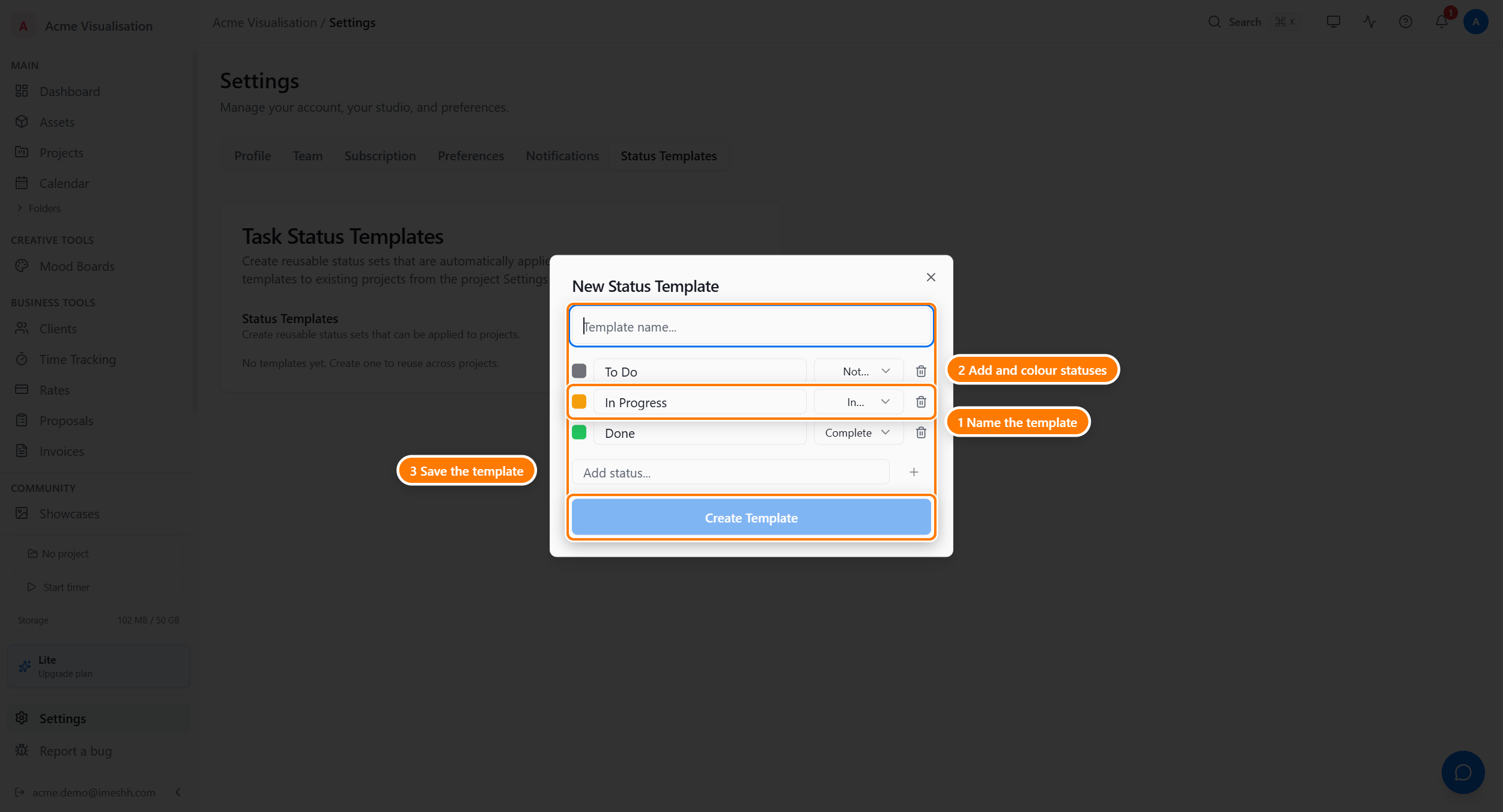
Creating a template
- Click New Template. The dialog opens with three starting statuses: To Do, In Progress, and Done.
- Type a name in the Template name field.
- Edit the starting statuses, or build your own (see below).
- Click Create Template.
Editing the statuses in a template
Inside the dialog, each status has a colour swatch, a name field, a category, and a delete icon.
- Rename a status — type in its name field.
- Recolour a status — click its colour swatch. The colour cycles through a fixed set of colours each time you click. There's no colour picker.
- Set its category — pick from Not Started, In Progress, Complete, or Closed. The category tells iMeshh how to treat the status (for example, which statuses count as finished).
- Remove a status — click the trash icon on its row.
- Add a status — type a name in the Add status... field and click the plus button, or press Enter. New statuses are added to the bottom of the list.
Editing or deleting a template
On the template list:
- Click the pencil icon to reopen a template and change its name or statuses.
- Click the trash icon to delete a template.
Setting the default
The default template is the one new projects start from.
Click Set Default on any template that isn't already the default. A Default marker moves to that template.
What's next
- Notifications — choose what notifies you
- Preferences — theme, timezone, calendar, and exports
- Settings overview — back to the six tabs