showcases
Browse the Gallery
Browse community showcases by feed and filter, like and save them, open a showcase, comment, and find your saved showcases.
Updated 24 June 2026
The Browse Showcases tab is the community Gallery — published showcases from every studio. You can browse without an account; sign in to like, save, comment, and follow studios. This page covers finding showcases, the social actions, and what you see when you open one.
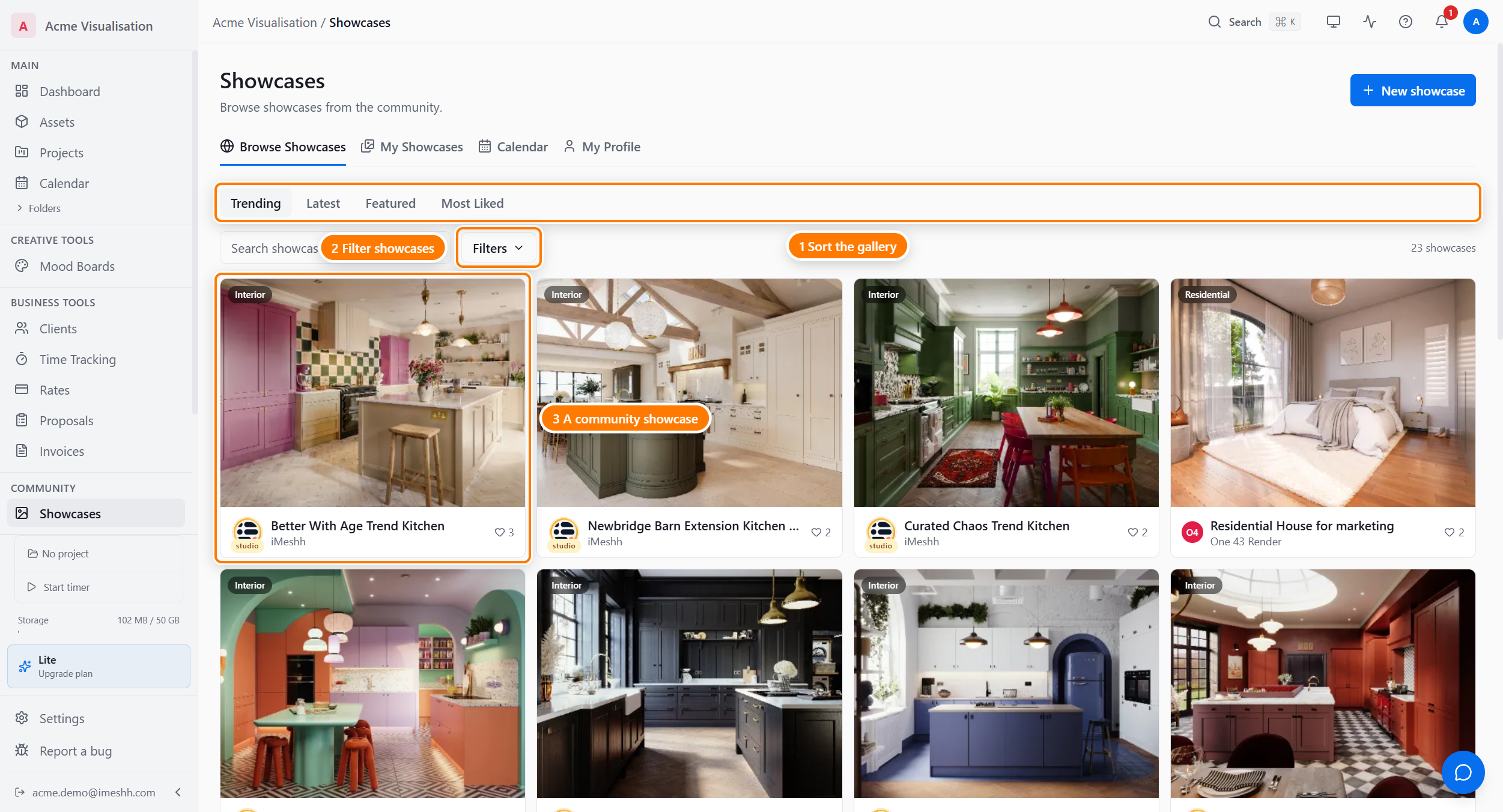
Switch between feeds
Four feed pills sit above the grid. Click one to change which showcases the grid shows:
- Trending — showcases getting the most likes and views right now
- Latest — the most recently published, newest first
- Featured — showcases the iMeshh team has picked out (these carry a Staff Pick badge)
- Most Liked — sorted by total likes, most-liked first
Search by keyword
Type in the Search showcases... field to match showcase titles, descriptions, and artist names. Results update as you type — there's no Apply button.
Filter the grid
Click Filters to open a panel with four dropdowns. Each one narrows the grid:
- Category — the kind of scene (interior, exterior, product, and so on)
- Style — the visual style
- Lighting — the lighting mood
- Software — the 3D software the work was made in
Filters and search combine. Pick a category and type a keyword to search only inside that category.
Read a showcase card
Each tile in the grid is a showcase card. It shows the cover image, the title, and the studio that made it. Point at a card to see the like, save, and comment counts.
Three actions sit on the card itself:
- Like — click the heart icon to like the showcase. Click again to remove your like. The owner gets a notification.
- Save — click the bookmark icon to save the showcase to your saved list.
- Share — click the share icon to copy the showcase's link to your clipboard.
Click a tag on a card to jump to the Gallery filtered by that tag.
Open a showcase
Click anywhere on a card to open the full showcase. The detail page shows:
- A large hero image at the top, with a filmstrip of the other images below it. Click any filmstrip image to make it the hero.
- A social bar with the like, save, comment, and share counts. Click Share to copy the showcase's link to your clipboard.
- Any content the studio added — text sections, image grids, before-and-after sliders, and timelines.
- A sidebar on the right with the studio's card, the showcase details, and a Tech Specs grid when the studio filled one in.
- A Discussion section at the bottom for comments.
Message the studio
When you're signed in and viewing someone else's showcase, a Message button in the studio sidebar opens a compose box addressed to that studio. On a showcase detail page this button only appears when the showcase has a linked artist profile that also has at least one social link set — and never on your own showcases or when you're signed out. The studio's own page (the page you reach by clicking the studio name) always shows a Message button when you're signed in and it isn't your own studio.
Comment and reply
Scroll to the Discussion section to read and post comments:
- Type your comment in the box and click to post it.
- Click Reply under a comment to respond. Replies appear indented under the comment.
- To change a comment you posted, click the edit icon. The edit icon only appears for the first 15 minutes after you post.
- To remove your own comment, click the delete icon.
You can react to a comment with an emoji using the reaction icon on the comment. You can reply to a comment, but not to a reply — the discussion goes one level deep.
Find your saved showcases
Every showcase you save with the bookmark icon lands in your saved list. Open Saved to see them all in one grid.
What's next
- Showcases overview — the four tabs and which plans can publish
- Create a showcase — make and publish your own showcase
- Your studio profile — what visitors see when they click your studio name