invoices
Create and send an invoice
Build an invoice from scratch or from a quote, add line items, pick a template, email it to your client with the confirmation step, and download the PDF.
Updated 24 June 2026
This page walks through building an invoice, sending it to your client, and downloading the PDF. To raise a preliminary document instead, see Proformas.
Start a new invoice
- Open the Invoices page from the left sidebar.
- Click New Invoice. The create form opens.
You can also start an invoice from a client, a project, or an accepted quote, which prefills the details — see Create from a quote.
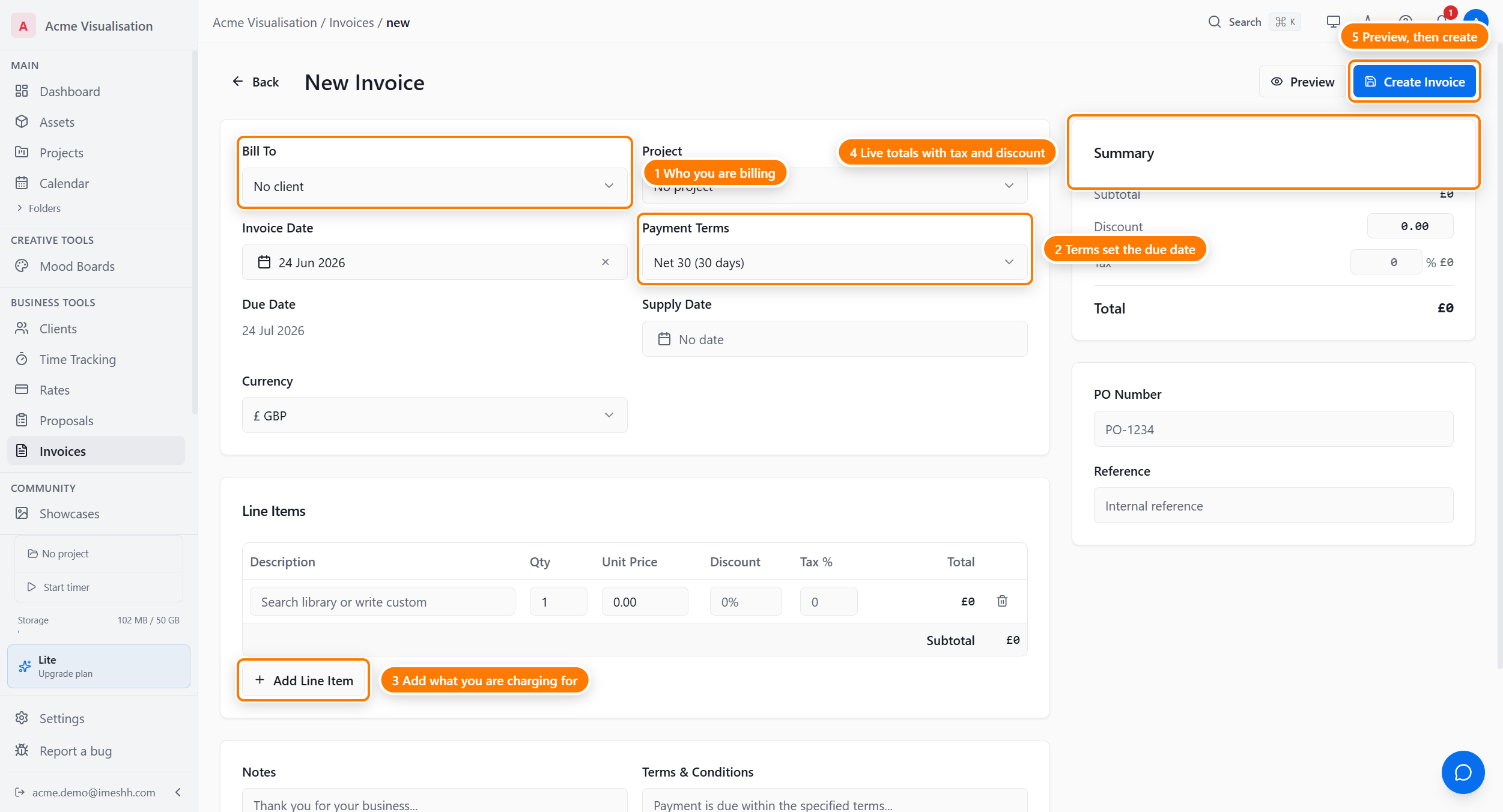
Fill in the top section
The top of the form sets who you are billing and when payment is due.
- Bill To — choose the business you are billing. This fills the Bill-To address block below.
- Contact — choose the person at that business to address the invoice to.
- Invoice Date — set the date the invoice is raised. It defaults to today.
- Payment Terms — choose when payment is due: Due on Receipt, Net 7, Net 14, Net 30, Net 45, Net 60, or Custom.
- Due Date — read this; the form works it out from the invoice date and payment terms. To change it, change the payment terms.
- Supply Date — set the date the work was supplied, if your tax rules need it.
- Currency — choose the currency. When the invoice is linked to a project, it defaults to that project's currency.
Edit the Bill-To address
The Bill-To address block fills from the business you picked, and you can edit every line. Changing it here changes only this invoice — it does not change the business record.
Add line items
Each row in the Line Items table is one charge. Click Add Line Item to add a row, and drag a row by its handle to reorder it.
Each row has:
- Description — type what you are charging for. As you type, matching saved descriptions from your studio's library appear; click one to fill the description, quantity, and price in one step.
- Qty — set the quantity. It defaults to 1.
- Unit Price — set the price for one unit.
- Discount — take an amount or a percentage off this line.
- Tax — set a tax rate for this line. Leave it blank to use the invoice-wide rate from the summary panel.
- Total — read the line total; the form works it out for you.
Import unbilled items from a project
When the invoice is linked to a project, an Import from project button pulls unbilled work straight into the line items. Use it to bill tracked work without retyping it.
- Click Import from project. The dialog opens.
- Switch between the deliverables, tasks, and time entries tabs to find unbilled work.
- Select the items you want to bill.
- Click to add them. Each becomes a line item you can still edit.
Set the totals, notes, and terms
The summary panel on the right totals the invoice. Set the invoice-wide discount and tax here, and they apply to every line that does not have its own.
- Subtotal — the sum of every line before the invoice-wide discount and tax.
- Discount — an amount or percentage off the whole invoice.
- Tax — the rate applied to lines that do not set their own.
- Total — the final figure your client owes.
Below the table, two text areas carry through to the PDF:
- Notes — write anything for your client, shown above the totals.
- Terms — write your payment terms or late-fee policy, shown at the foot of the invoice. Set a studio-wide default in Invoice settings so this fills on its own.
Choose a template
A template style dropdown sits below the line items. Choose how the PDF looks: Clean, Classic, Modern, or Creative. This choice is per invoice — set a default for new invoices in Invoice settings.
Click Preview to see the PDF beside the form as you work. Click Hide Preview to close it.
Send the invoice
The Send invoice button has two parts: the main button and a dropdown caret beside it. They do different things.
- Send invoice (the main button) — opens the email step so you can email the invoice to your client.
- Just mark as sent (no email) (under the dropdown caret) — marks the invoice Sent without emailing anyone. Use this when you have already sent the invoice another way.
Email the invoice to your client
Every client email goes through a confirmation step first, so you always see exactly who is being emailed before anything is sent.
- Click Send invoice. The confirmation dialog opens.
- Check the recipient. It is the contact you set on the invoice.
- Add up to five CC addresses if you want others copied.
- Read the subject and body preview, and add a note to the email if you want to.
- Click Send to client. Your client gets the email and the invoice moves to Sent.
Check whether the email arrived
After you email an invoice, a delivery pill appears in the invoice header showing what happened to the email:
- Delivered — the email reached your client.
- Delivery delayed — the email is taking longer than usual.
- Bounced — the email could not be delivered. Check the address.
- Marked as spam — your client's mail provider flagged it.
A green Delivered pill clears itself after a day. A bounce or spam pill stays so you can act on it.
Download or re-send the PDF
Open any invoice and use the PDF actions in the header to download a copy. The PDF is built fresh each time from the latest details, so re-downloading after an edit gives you the current version.
Mark an invoice paid, or void it
Open the invoice from the list, then:
- Mark Paid — click this once payment arrives. The invoice moves to Paid and a short celebration plays. You can mark a Sent, Viewed, Overdue, or Partially Paid invoice as paid.
- Void — click this to cancel an invoice you have already sent. You can void a Draft, Sent, or Viewed invoice. A voided invoice stays in the list for your records and drops out of the totals.
When you void, you can add a reason. The reason is kept with the invoice.
Duplicate an invoice
To raise a similar invoice, open one and click Duplicate. This makes a new Draft copy you can edit. Duplicating a proforma makes another proforma.
Create an invoice from a quote
When a client accepts a quote, turn it into an invoice in one step rather than retyping the figures.
- Open the accepted quote.
- Choose to convert it to an invoice. The line items and total carry across.
- To bill only part of the quote — a deposit, for example — set a percentage. Setting 50% on a £10,000 quote raises a £5,000 invoice.
What's next
- Proformas — preliminary documents and converting them to invoices
- Invoice settings — defaults, your logo, automation, and overdue reminders
- Invoices overview — the list page, totals, and statuses