showcases
Your studio profile
Edit your studio's public profile — name, bio, location, website, social links, and logo — and see where it shows up.
Updated 24 June 2026
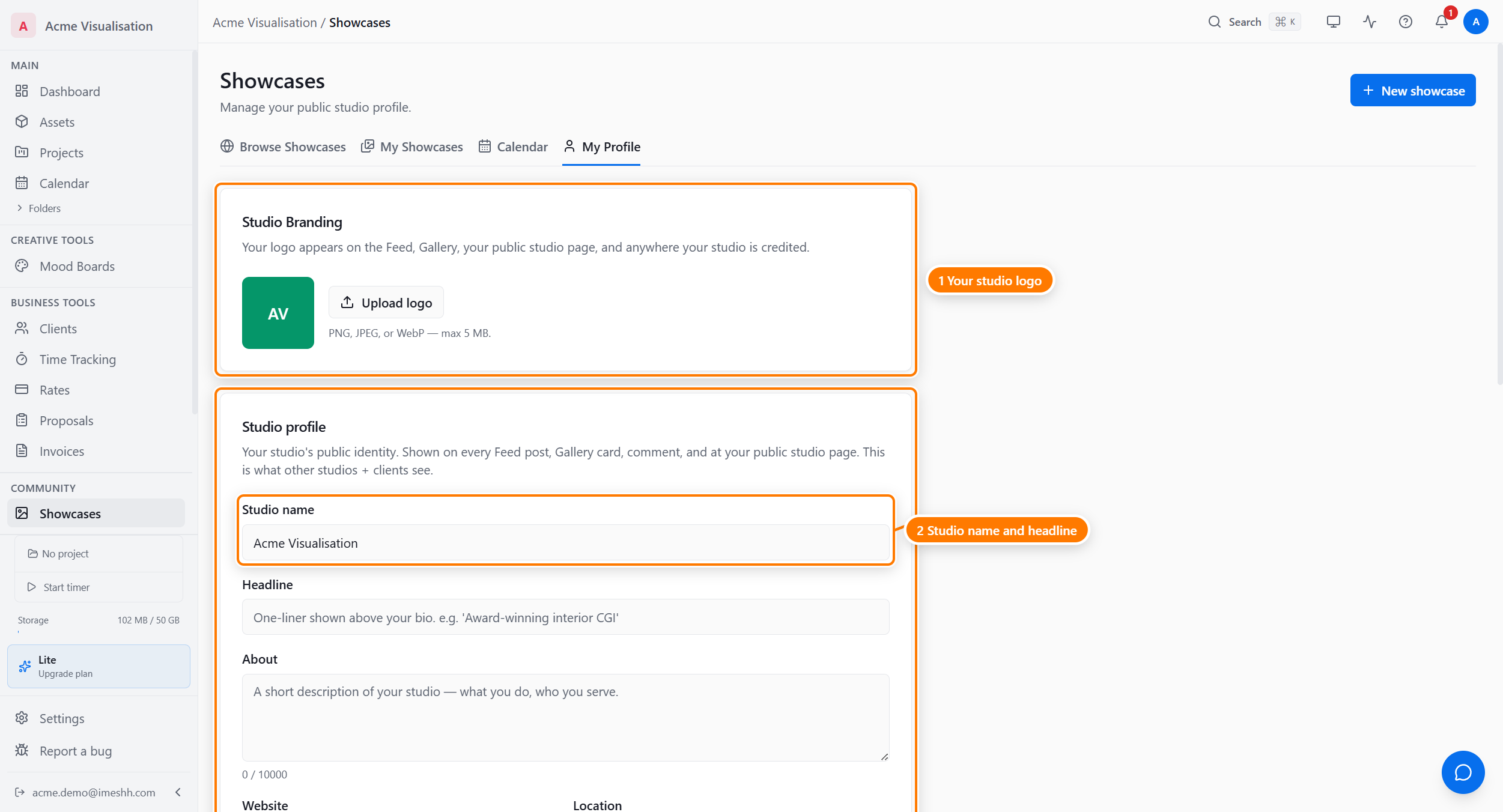
Your studio profile is the public face of your studio in the Gallery. When someone clicks your studio name on a showcase, they land on your profile — your name, logo, bio, and a grid of your published showcases. This page covers what's on it and how to edit it.
Open the profile editor
- Open Showcases from the sidebar.
- Go to the My Profile tab. The profile editor opens.
What you can edit
Fill in the fields, then save your changes. The editor covers these fields — visitors see them on your studio page:
- Studio name — the studio name shown on your showcases and profile
- Headline — a one-line tagline under your name
- Bio — a short description of your studio
- Location — where your studio is based
- Website — a link to your studio's own site
- Contact email — the address visitors can reach you on
- Social links — links to your studio's social accounts
- Brand colour — the accent colour used on your profile
- Specialties — the kinds of work your studio takes on
- Show reel — a link to your studio's reel
- Availability — mark yourself open or closed to new work
- Tax residency — used for billing
- Privacy toggle — Show my public studio profile controls whether your profile is public
- Logo — the image shown next to your studio name
Where your profile shows up
Your profile details appear in a few places across the Gallery:
- On every showcase card in the Gallery — your name and logo
- On each showcase detail page — in the studio card in the sidebar
- On your studio page — the full profile plus a grid of all your published showcases
Keep the name, bio, and logo current — they're how other studios recognise your work in the community.
What's next
- Showcases overview — the four tabs and which plans can publish
- Create a showcase — add work to your portfolio
- Browse the Gallery — see how your profile and showcases appear to visitors