messages
Messages overview
Your personal inbox for one-on-one direct messages with other studios on iMeshh — start conversations, attach files, react, search, and mute threads.
Updated 24 June 2026
Messages is your inbox for one-on-one conversations with other studios on iMeshh. It sits in the left sidebar of your dashboard and works the same on the web and in the iMeshh desktop app.
Every conversation is between you and one other person — there are no group threads, channels, or studio-wide inboxes. It is separate from a project's Discussion tab, which is the place for chat about a specific project.
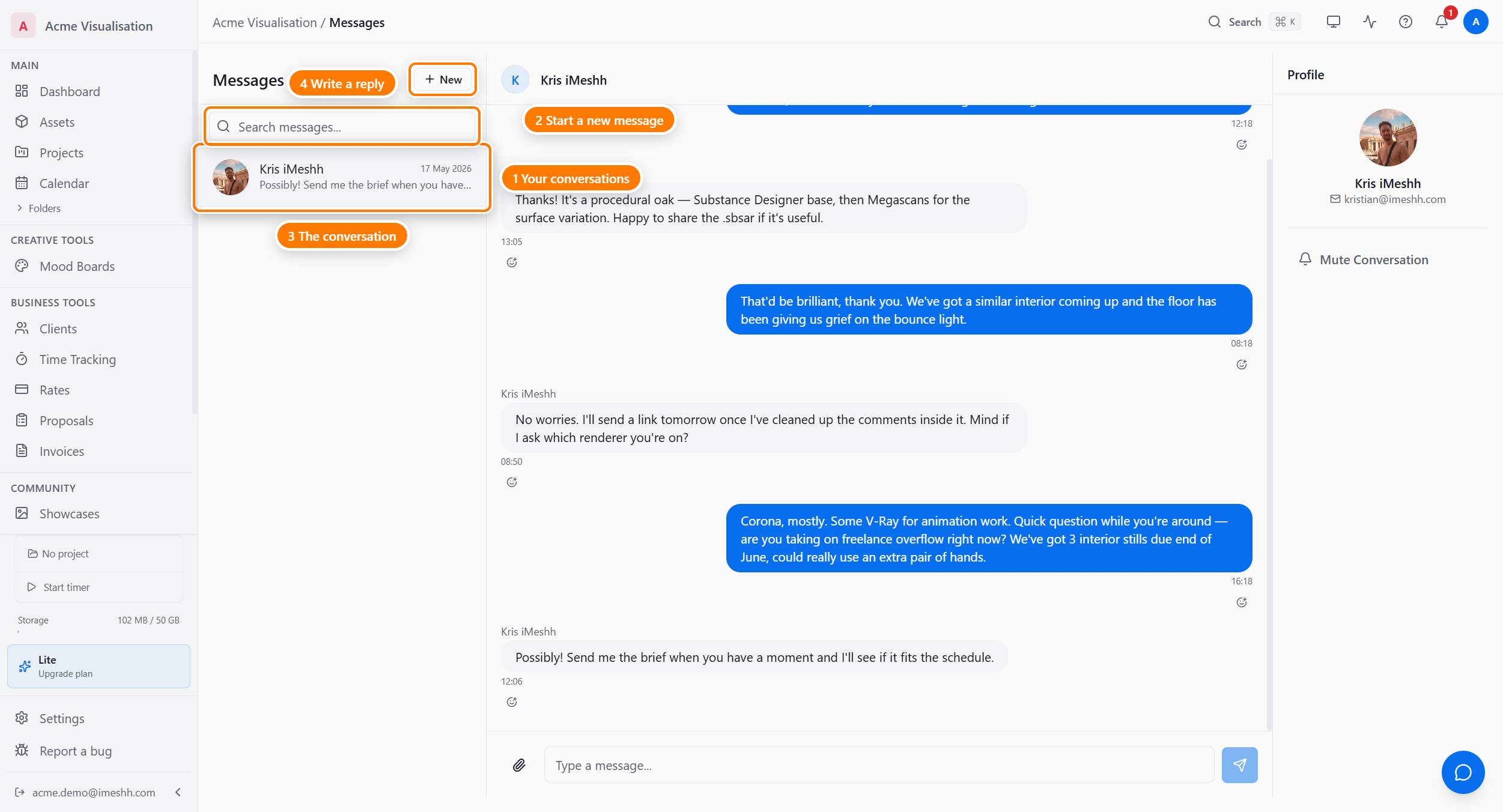
The three panes
On a wide screen, Messages shows three panes side by side:
- Left — your conversation list, with a search box at the top
- Centre — the conversation you've opened, with the message box at the bottom
- Right — a profile panel for the person you're talking to (wide screens only)
On a narrow screen or a phone, you see one pane at a time. The conversation list fills the screen; tap a conversation to open the thread, and use the back arrow to return to the list. The right-hand profile panel appears only on large desktop screens.
Reading the conversation list
The left pane lists every conversation you're part of, with the most recent activity at the top. Each row shows the other person's name and avatar, a short preview of the latest message, and how long ago it arrived.
Two markers tell you the state of each conversation:
- Unread count — a small number badge on a conversation that has new messages you haven't read
- Muted — a crossed-out bell icon on a conversation you've muted
When you have no conversations yet, the list reads No conversations yet.
Start a new conversation
Use the New button to message a studio you already follow.
- Click the New button (the plus icon) at the top-right of the conversation list.
- In the Start a new conversation dialog, pick a studio from the list of studios you follow.
- Type your message in the box.
- Click Send Message. The conversation opens and your message is sent.
The Start a new conversation dialog lists only studios you follow. If you don't follow anyone yet, you'll see You're not following any studios yet with a link to the Gallery.
Send and read messages
Click any conversation in the left pane to open it in the centre. Messages stack oldest at the top, newest at the bottom. Your own messages sit on the right; the other person's sit on the left, with their name above.
To send a message:
- Type in the message box at the bottom of the thread.
- Press Enter to send. To add a new line instead, press Shift+Enter.
To load earlier messages in a long conversation, scroll to the top of the thread and click Load older messages.
Edit or delete your own message
You can change or remove a message you sent.
- Point at one of your own messages.
- Click the three-dot menu that appears.
- Choose Edit to change the text, or Delete to remove it.
An edited message shows an (edited) label. A deleted message stays in the thread as [Message deleted] so the conversation still reads in order. A message removed by an iMeshh moderator shows as [Removed by moderator].
React to a message
Add an emoji reaction to any message. Reactions sit in a row beneath the message, and both people in the conversation see them.
- Click the reaction trigger next to a message to open the emoji picker, then pick an emoji.
- Click an existing reaction to add yours to it, or click your own reaction again to remove it.
Attach a file
You can send images, videos, and files alongside your message. There are two ways to attach:
- Click the paperclip icon in the message box and choose a file.
- Drag a file from your computer straight onto the thread.
The file appears as a pending attachment above the message box while it uploads. Send the message to share it.
Limits and supported types:
- Up to 5 files per message, 25 MB each.
- Images (JPEG, PNG, WebP, TIFF, EXR/HDR), video (MP4, WebM, MOV), and files including PDF, ZIP, RAR, Blender, and glTF/GLB.
Once sent, an image shows as a thumbnail in the thread — click it to open it full-size with a Download link. A video plays inline with standard controls. Other files show as an icon with the filename, size, and a download link.
Search your messages
The search box finds text across every conversation you're part of, not only the open one.
- Click the Search messages... box at the top of the conversation list.
- Type any word or phrase.
The list is replaced with matching results, each showing the message with your search term highlighted. Click a result to jump to that message in its conversation.
Mute or unmute a conversation
Muting stops a conversation from adding to your unread count, while keeping it in your list.
- Open the conversation.
- In the right-hand profile panel, click Mute Conversation.
The button changes to Unmute Conversation, and a crossed-out bell icon appears next to the conversation in the list. Click Unmute Conversation to turn alerts back on.
Notifications
When someone sends you a message, a count appears on the bell icon in the top-right of your dashboard, and the conversation moves to the top of your list with an unread badge. Muting a conversation stops it adding to that count.
When you're inside another studio
If you've been invited into another studio and switch into it, an amber banner appears at the top of Messages: You're acting inside [studio], but Messages shows your own account data. This is a reminder that your conversations follow you, not the studio you're currently working in.
How Messages differs from project Discussion
| Messages | Project Discussion | |
|---|---|---|
| Who's in it | You and one other person | Everyone on a project |
| Where it lives | The Messages section of your dashboard | Inside a project's tabs |
| Scope | Your personal inbox, platform-wide | One project |
| Layout | One flat list of conversations | Team, Client, and Activity tabs |
| Attachments | Yes | Yes |
| Reactions | Yes | Yes |
Use Discussion when the chat is about the work on a specific project — it stays with the project, next to the deliverables. Use Messages when it's between you and another studio: sharing references, freelance enquiries, or networking.
What's next
- Discussion (project-scoped) — the team-side chat that stays with a project
- Browsing the Asset Library — find studios and content across iMeshh