settings
Subscription and billing
See your current plan, what you're using, your payment card and invoices, and switch plan from the Subscription tab.
Updated 24 June 2026
The Subscription tab shows your studio's plan, what you're using against its limits, your payment details, and the controls to change plan.
Open Settings, then click Subscription.
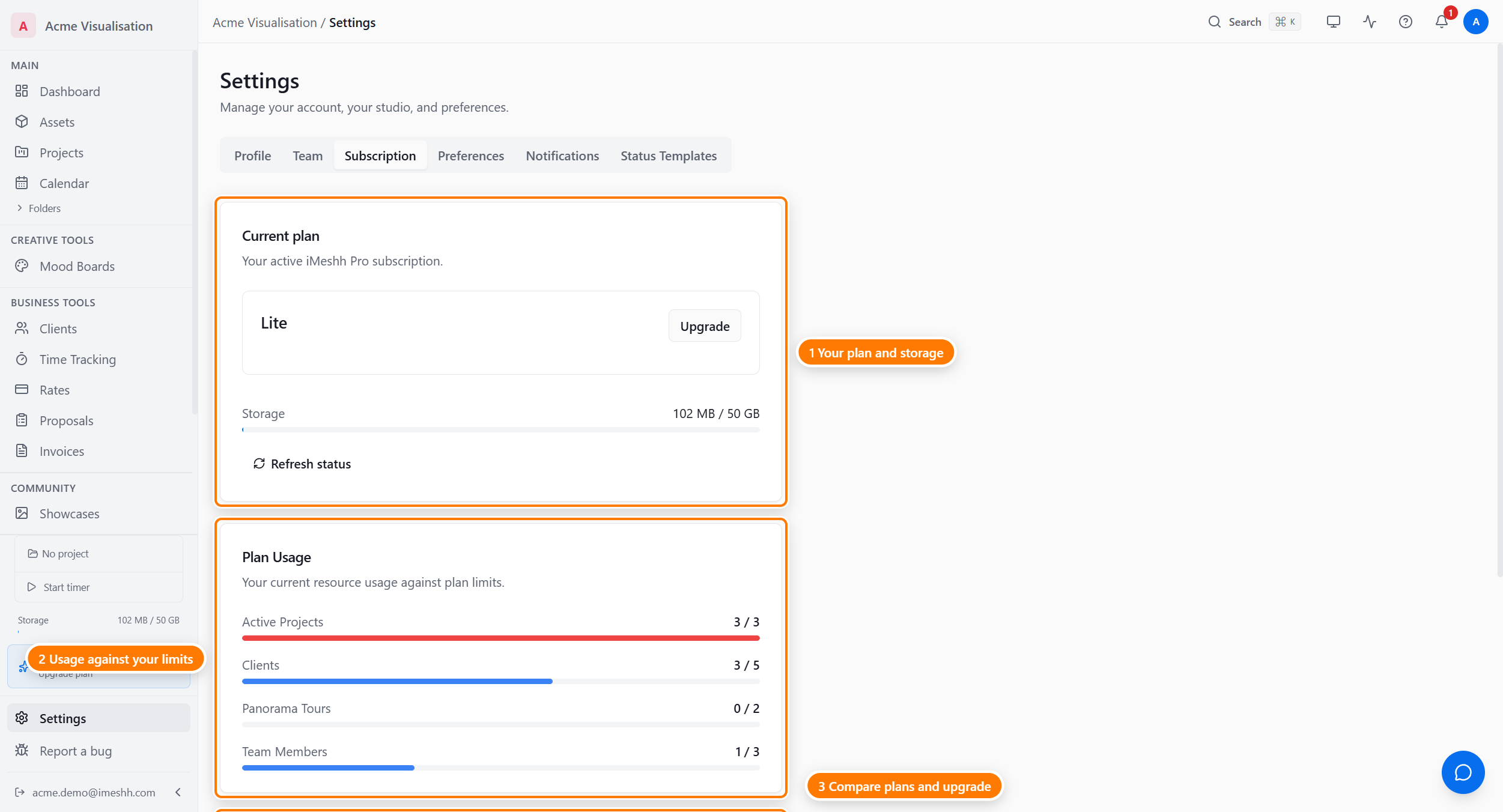
Current plan
The top card shows your plan name, a status badge (for example active or pending cancel), the amount, the next payment date, and your payment method.
Depending on your subscription, this card can also show:
- Trial status — how many days are left if you're on a trial
- Seat add-ons — a breakdown when your subscription includes paid team seats
- A discount — the full price struck through next to the discounted price, with how long it lasts
- An overage notice — a grace-period countdown if you're over a plan limit
- Keep my subscription — a button in the pending-cancellation notice to undo a pending cancellation before it takes effect
- Refresh status — re-syncs the figures if they look out of date. This appears only for shop/WooCommerce-managed subscriptions.
Plan Usage
The plan card shows a Storage bar — how many GB of your plan's storage limit you've used.
The Plan Usage card below it shows counter-by-counter usage. Each counter reads used / limit:
- Active Projects — projects in the active state. Completed and archived projects don't count.
- Clients — businesses in your Clients list.
- Panorama Tours — 360 panorama deliverables you've published (shown only when your plan includes panoramas).
- Team Members — people with studio access, not counting clients.
When a counter hits its limit, that feature blocks new creations until you free a slot (archive a project, remove a teammate) or move to a higher plan.
The plans
| Plan | Active projects | Storage | Team members | Clients |
|---|---|---|---|---|
| Free | 2 | 5 GB | 1 | 100 |
| Lite | 3 | 50 GB | 3 | 5 |
| Pro | Unlimited | 1 TB | 10 | Unlimited |
| Enterprise | Unlimited | Custom | Custom | Unlimited |
Switching plan
The plan-cards grid at the bottom of the tab lists each plan side by side. The button on each card depends on how your subscription is managed:
- Switch plan / Choose plan — changes your plan in-app. Upgrades are prorated and billed immediately; downgrades apply now, and unused time is credited toward your next invoice.
- Switch on shop — opens shop.imeshh.com if your subscription came through the iMeshh shop. You manage the change there.
- Contact us — for Enterprise, which is priced per studio.
When you switch in-app, a dialog shows a proration preview — what you'll be charged today for the rest of this cycle — before you confirm.
Cancelling
To stop your subscription, click Cancel on the current plan card. Cancelling takes two steps:
- Pick a reason from the list.
- Confirm. The dialog shows the date your access ends.
Your account stays on its current plan until the end of the billing period, then moves to Free. Nothing is deleted — your projects, deliverables, files, and tasks all stay. If you're over the Free limits when you drop down, the same "can't create new" lock applies until you trim.
To undo a cancellation before it takes effect, click Keep my subscription in the pending-cancellation notice on the current plan card.
Payment card and invoices
If your subscription is managed in-app, a Payment & Invoices section shows your card on file and your invoice history.
- Update your card — click Update in Payment & Invoices. A dialog opens with a card form right in the page. Enter the new card and save it.
- Invoices — each row shows the date, amount, status, and a PDF link. Refunded invoices carry a refund badge.
If your subscription came through the iMeshh shop, the Payment & Invoices section doesn't appear. Manage your card and invoices on shop.imeshh.com instead.
What's next
- Settings overview — back to the six tabs
- Team members and seats — paid seats add to this subscription
- Invoices module — invoices you raise against your clients