calendar
My Calendar
One calendar across your whole studio — project deadlines, task due dates, invoice due dates, quote expiry, and showcase publishes in a Month, Week, Day, or List view.
Updated 24 June 2026
My Calendar gathers every dated thing across iMeshh Pro into one grid: project deadlines, task due dates, invoice due dates, quote expiry, and showcase publish dates. Turn each source on or off to focus on what you care about, and click any event to open the thing behind it.
The page
When you open My Calendar, it loads in Week view with Project deadlines and Task due dates already turned on.
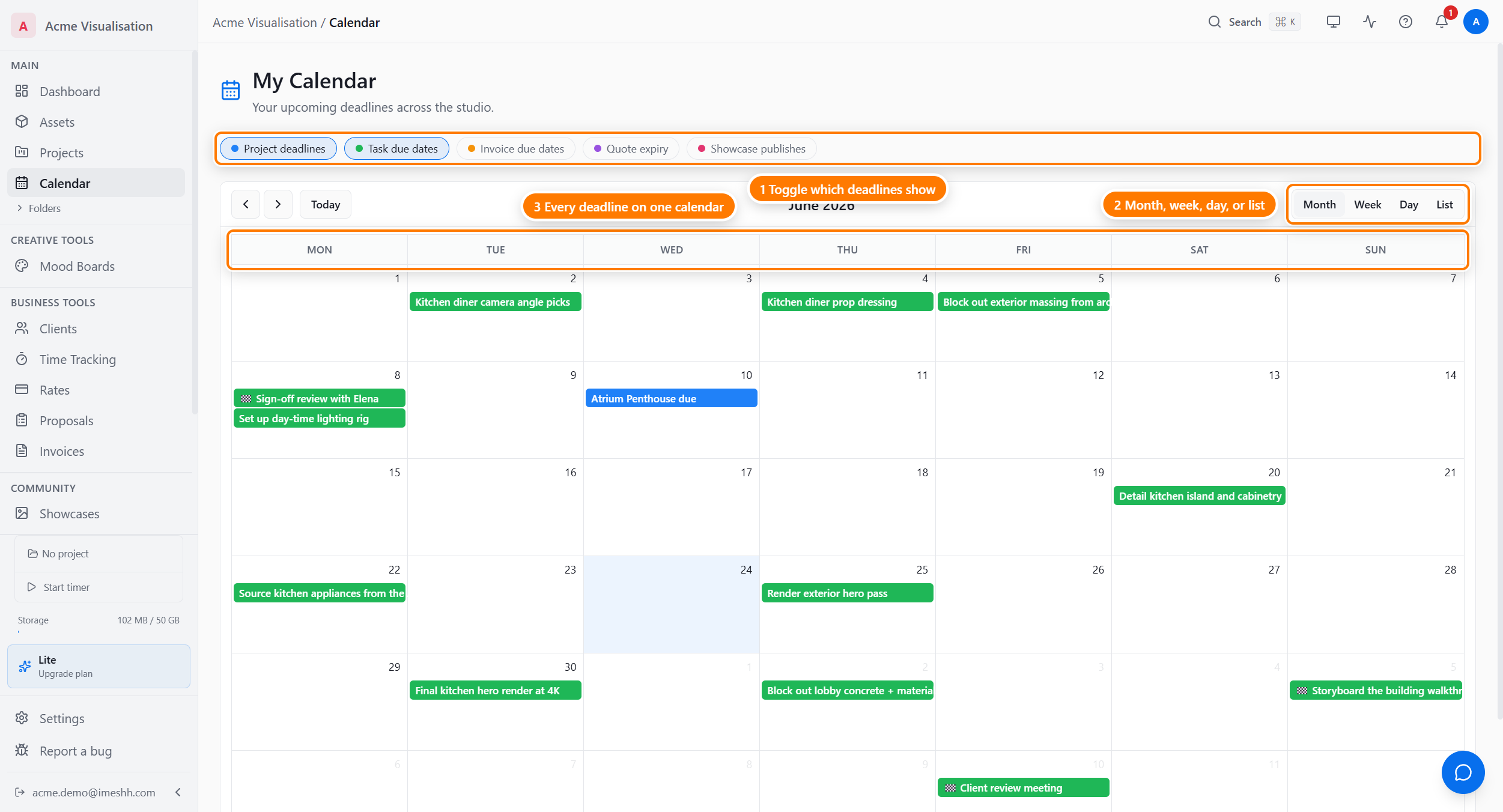
A line under the grid tells you the timezone and how many events loaded, for example "Calendar shown in Europe/London (12 items loaded)." See Timezone to change it.
Turn source types on or off
Five buttons above the grid control which kinds of events appear. Click a button to turn that source on; click it again to turn it off. The grid updates straight away.
| Toggle | What it adds | Default |
|---|---|---|
| Project deadlines | Each project's deadline, labelled "<Project name> due". Archived projects never appear. | On |
| Task due dates | Every task that has a due date, across the studio. | On |
| Invoice due dates | Invoices that aren't paid and aren't void. | Off |
| Quote expiry | When a sent quote lapses if the client hasn't accepted it. | Off |
| Showcase publishes | Showcases that have been published to your gallery. | Off |
A few things to know about the toggles:
- Turn them all off and the grid clears. With no source on, no events load. Turn at least one back on to see anything.
- Your choices reset when you reload. If you turn off Project deadlines, it comes back on the next time you open the page. The toggles don't remember your last setting yet.
- Some toggles do nothing on a restricted seat. If your role can't view invoices, turning on Invoice due dates or Quote expiry adds nothing — those events stay hidden.
How tasks and showcases are marked
Two sources style some events differently so you can tell them apart at a glance:
- Milestone tasks show a racing-flag prefix, for example "🏁 Sign-off review". They're ordinary tasks flagged as fixed-date checkpoints.
- Completed tasks still appear, but dimmed and struck through, so you can see what finished as well as what's still due.
- Featured showcases show a star prefix and a "(featured)" suffix, for example "⭐ Penthouse Reveal (featured)". A plain published showcase reads "Published: <name>".
The four views
Switch the layout with the Month, Week, Day, and List buttons in the calendar toolbar.
- Month — a full grid, one cell per day, every event for that day shown as a pill. Best for planning at a glance.
- Week — seven taller columns. This is the view you land on. Good for the days right in front of you.
- Day — a single column for one day.
- List — a plain agenda grouped by date. Best for "what's coming up next".
To move around:
- Click the back or forward arrow to step one unit at a time — a month in Month view, a week in Week view, and so on.
- Click Today to jump back to the current date in whichever view you're in.
Click an event to open it
Every event links to the thing it represents. Click a pill to go straight there.
- A task opens in its project with the task details open.
- A project deadline opens that project.
- An invoice opens that invoice.
- A quote opens that quote.
- A showcase opens that showcase's edit page.
Use My Calendar as the start of your day: open it, then click whatever you're working on next.
Timezone
The line under the grid reads "Calendar shown in <your timezone> (<N> items loaded)." The timezone comes from your profile. To change it, open Settings and set your Preferred timezone. If events show on the wrong day for where you are, this is the setting to check.
What's not on the calendar
My Calendar shows dated items only. These don't have a date, so they never appear:
- Deliverables — they carry a status, not a due date. See the project's Deliverables tab.
- Studio members — no schedule is attached to a person.
- Deleted and archived items — deleted projects, tasks, invoices, and quotes drop off, and archived projects never show their deadline.
To put a deliverable on the calendar, create a task linked to it and give the task a due date.
Plan and access
My Calendar is available on Lite and above. On a Free plan, the page shows a locked screen reading "Calendar is a Pro feature" with an Upgrade to Pro button that takes you to your subscription settings.
What's next
- Subscribe from your calendar app — add your iMeshh deadlines to Apple Calendar, Google Calendar, or Outlook
- Tasks → Task views — the per-project calendar for one project's tasks
- Projects overview — where project deadlines come from
- Invoices overview — where invoice due dates come from