clients
Clients overview
How the Clients section works — businesses you bill, contacts who work there, the Clients and Contacts tabs, adding either type, and the plan limit.
Updated 23 June 2026
The Clients section is your studio's record of every business and person you work with. It keeps the billing details, address, and history you need to raise invoices and quotes, and it rolls up project and invoice totals per business. One business can run many projects across years, and this section is where that history collects.
Clients and Contacts
The section holds two kinds of record, shown on two tabs at the top of the page:
- Clients — businesses: companies, agencies, studios, and one-person clients. This is the default tab.
- Contacts — the individual people who work at those businesses, in one flat list across every business.
The difference matters because the two link to different things:
- You link a project or an invoice to a business (a Clients-tab record).
- You share a project with a contact (the person who will open it).
One business can hold many contacts — a design lead, a marketing lead, an accounts contact for billing. You mark one as the Primary Contact so iMeshh Pro knows who to default to.
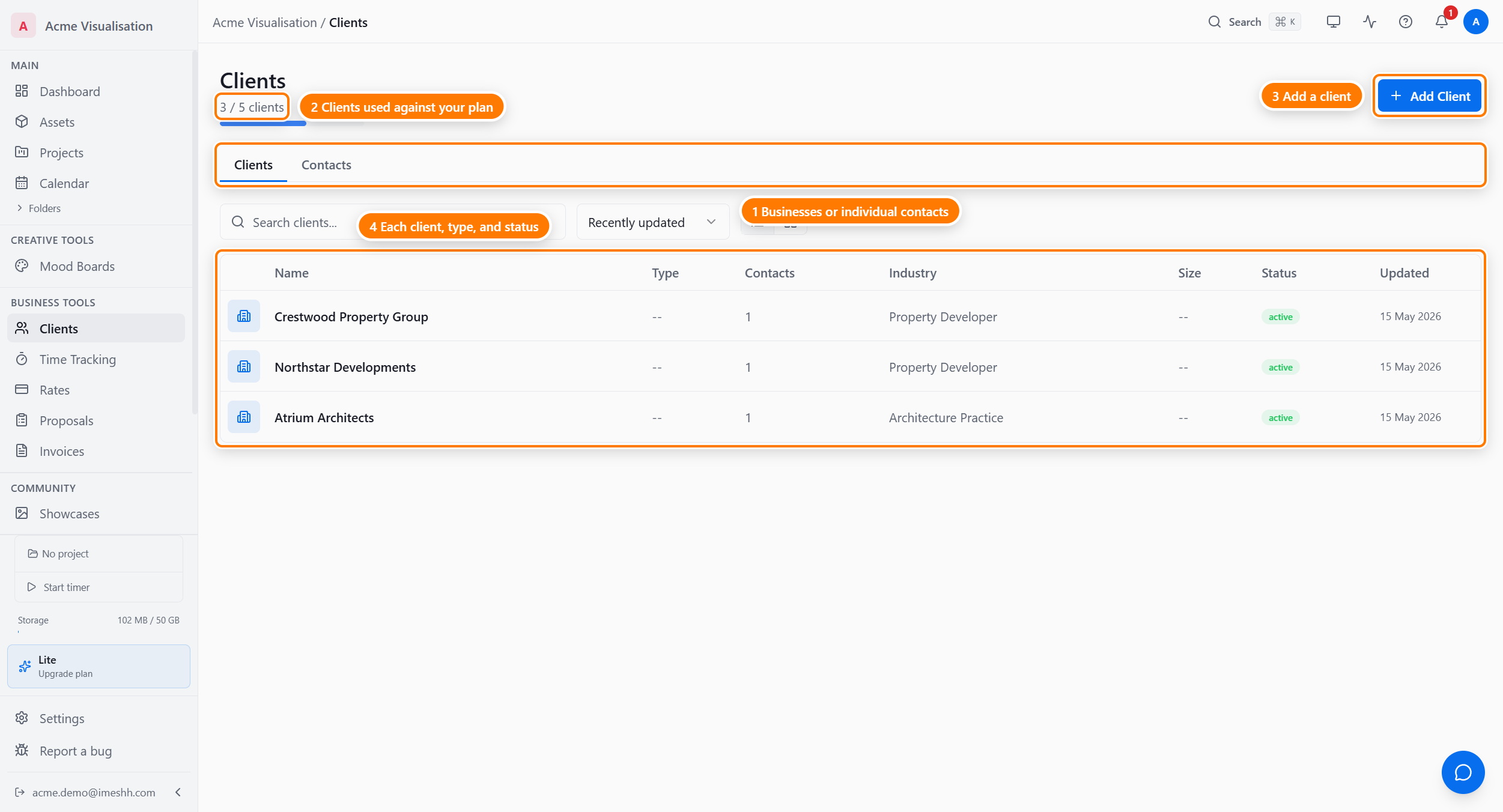
The Clients tab
The Clients tab lists every business. Each row shows:
- Name — the business name
- Type — Client, Partner, Supplier, or Internal
- Contacts — how many people are on file for that business
- Industry — the kind of business (Property Developer, Interior Design, Marketing Agency, and so on)
- Size — rough headcount band
- Status — Lead, Active, Inactive, Churned, or Archived
- Updated — when the record last changed
Click any row to open that business's detail page. See The business detail page.
Sorting, searching, and view
- Search — type in the search box at the top to filter by business name. Results update as you type.
- Sort — use the sort control to order by Name, Created, or Updated. The sort control appears on the Clients tab only.
- View — switch between the table view and a grid of cards using the view toggle. iMeshh Pro remembers which view you picked.
The Contacts tab
The Contacts tab lists every person across every business in one place. Use it when you remember someone's name but not which company they work at.
The Contacts tab has its own search box, separate from the Clients tab. The sort control does not appear here. Click any row to open that person's contact detail page. See Contacts and sharing.
Adding a client
You add a client from either tab.
- Click Add Client in the top-right.
- Choose a type: Business (a company, agency, or studio) or Individual (a one-person client). The dialog shows a two-tile picker first.
- Fill in the form for the type you picked (the two forms differ — see below).
- Click Add Business or Add Individual to create the record.
Business
Choose Business for any company, agency, or studio. The business form asks for:
- Name (required) — the legal business name
- Type — Client, Partner, Supplier, or Internal
- Status — Lead, Active, Inactive, Churned, or Archived
- Website
- Billing address — address lines, city, region, postal code, and country
- VAT number and company number — used on UK invoices
Click Add Business to create the record. A business added this way starts with no contacts — open it and add people from its detail page.
Individual
Choose Individual for a one-person client who has no company behind them. The individual form asks for the person's name and email.
Click Add Individual to create the record. iMeshh Pro creates two linked records at once: a business record (so the person can take projects and invoices like any client) and a contact record for the person. The person appears on both the Clients tab and the Contacts tab. On the detail page, company-only fields (Trading Name, Type, Industry, Company Size) stay hidden for an individual.
The plan limit
Your plan caps how many businesses your studio can hold. Contacts are unlimited on every plan.
| Plan | Businesses |
|---|---|
| Free | 100 |
| Lite | 5 |
| Pro | unlimited |
| Enterprise | unlimited |
A counter under the page heading shows where you are — for example "3 of 5 clients". The number counts businesses, not contacts, so a studio with 3 businesses and 50 people still reads "3 of 5".
When you reach the limit, the Add Client button is replaced with a message telling you the cap is reached. Delete a business or move to a higher plan to add more.
What's next
- The business detail page — metrics, details, contacts, notes, projects, and invoices for one business
- Contacts and sharing — the contact detail page, roles, quotes, and sharing a project with a person