projects
Time and finance
The Business tab — tracked time, contract value, and change orders. The money side of every project.
Updated 23 June 2026
The Business tab is where the money side of a project lives. It pulls together how long the work took, what you're contracted for, and any scope changes. It has two sub-tabs: Time and Finance.
Time
The Time sub-tab sums up every minute tracked against the project.
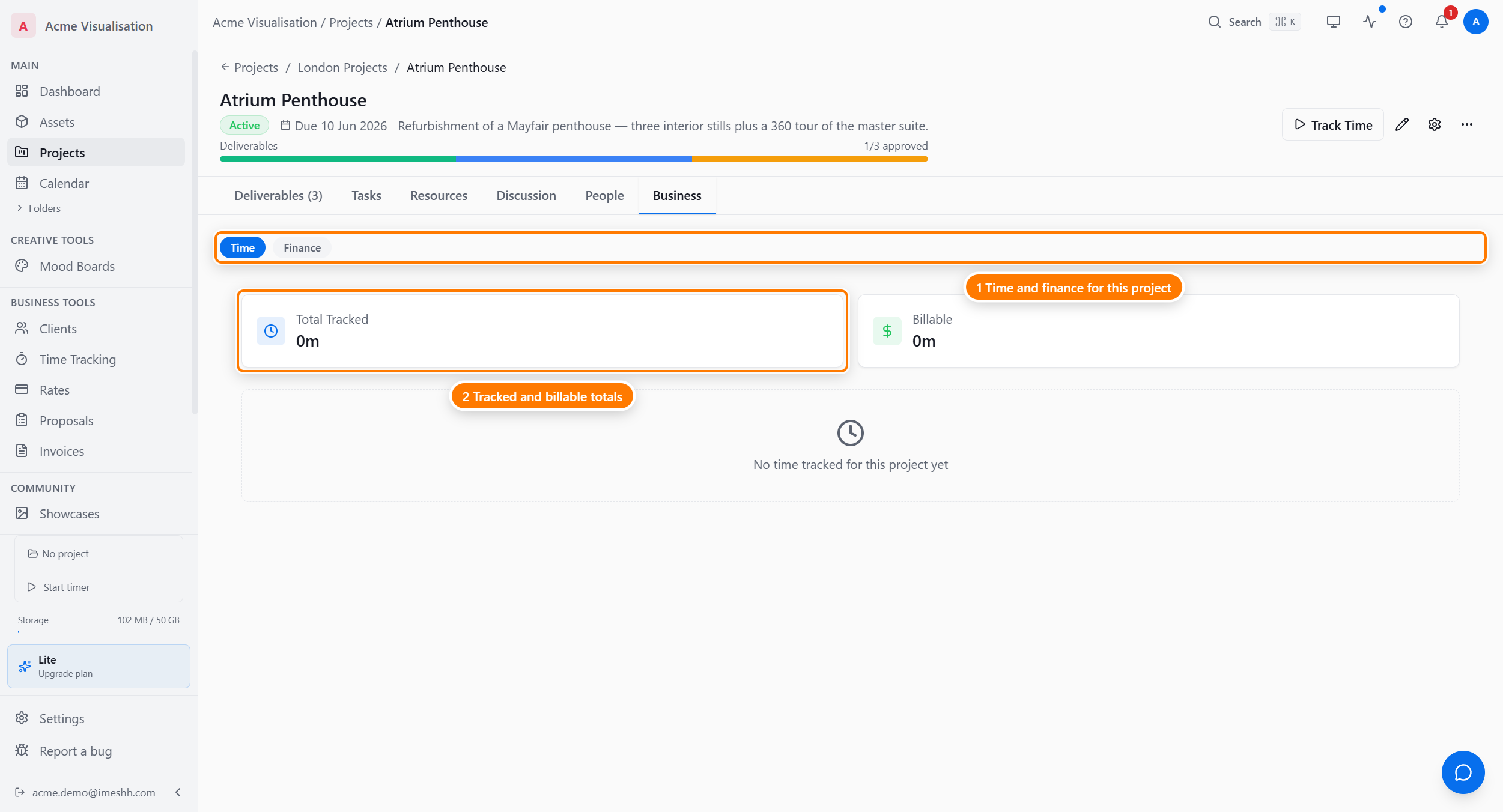
Two stats at a glance:
- Total Tracked — every minute any team member logged against the project, by timer or manual entry
- Billable — the part of total tracked time marked as billable
Below the stats is a per-entry list (when there's anything to show) — who, when, how long, the task or deliverable it was logged against, and whether it's billable.
How time enters the project
Three sources:
- The project timer — click Track Time in the project header, do the work, click again to stop. The session lands as a time entry.
- The per-task timer — every task has a play button; starting it tracks against that task and counts toward the project total.
- Manual entries — for time you didn't track live, such as yesterday's call. Add them from the Time Tracking section or on this tab.
The Time Tracking section rolls up the same entries across every project — see Time Tracking docs (coming soon).
Finance
The Finance sub-tab tracks the contract value and any agreed scope changes.
Contract summary
Three numbers:
- Base Value — what you set as the contract value when you created the project, or edited later through Edit project. The currency comes from the same place.
- Accepted Changes — the running total of every accepted change order. Change orders in any other state don't count here.
- Total Contract Value — base value plus accepted changes.
Change orders
A change order is a recorded scope adjustment with its own state. Use one whenever the work grows or shrinks beyond the original quote — an extra deliverable, an emergency revision pass, a deadline pull-in that needs overtime.
Each change order has:
- A title and description — what the change covers, for example "Additional 360 tour of the lobby"
- An amount — positive for more money, negative for a refund or scope cut
- A state — see below
A change order moves through these states:
- Draft — created but not yet sent to the client; only your studio sees it
- Sent — put in front of the client
- Accepted — the client agreed; the amount now counts toward Total Contract Value
- Declined — the client said no
- Cancelled — you withdrew it
Only Accepted change orders move the Total Contract Value. The rest show in the list but don't affect the running total.
This is your record when the client asks why the price changed — every adjustment, dated, with a reason and its state.
Edit Base Value or add a change order?
You can edit the base value directly, but you lose the history. The split:
- Edit Base Value when you mis-set the original figure (a typo or the wrong currency).
- Add a change order when scope genuinely changed mid-project.
That way you keep an audit trail of how the contract value grew.
Plan tier
Time entries and change orders are unlimited on every paid plan.
What's next
- Tasks — task-level time estimates
- Sharing with clients — getting deliverables approved
- Inside a project — the rest of the project tabs