feed
Replies, reactions, and saving
Reply to posts, react with emoji, bookmark posts to your Saved Posts, and copy a link to a post.
Updated 24 June 2026
Once you've found a post worth engaging with, the engagement bar under each post is where you reply, react, and bookmark. This page covers all three, plus copying a link to a post.
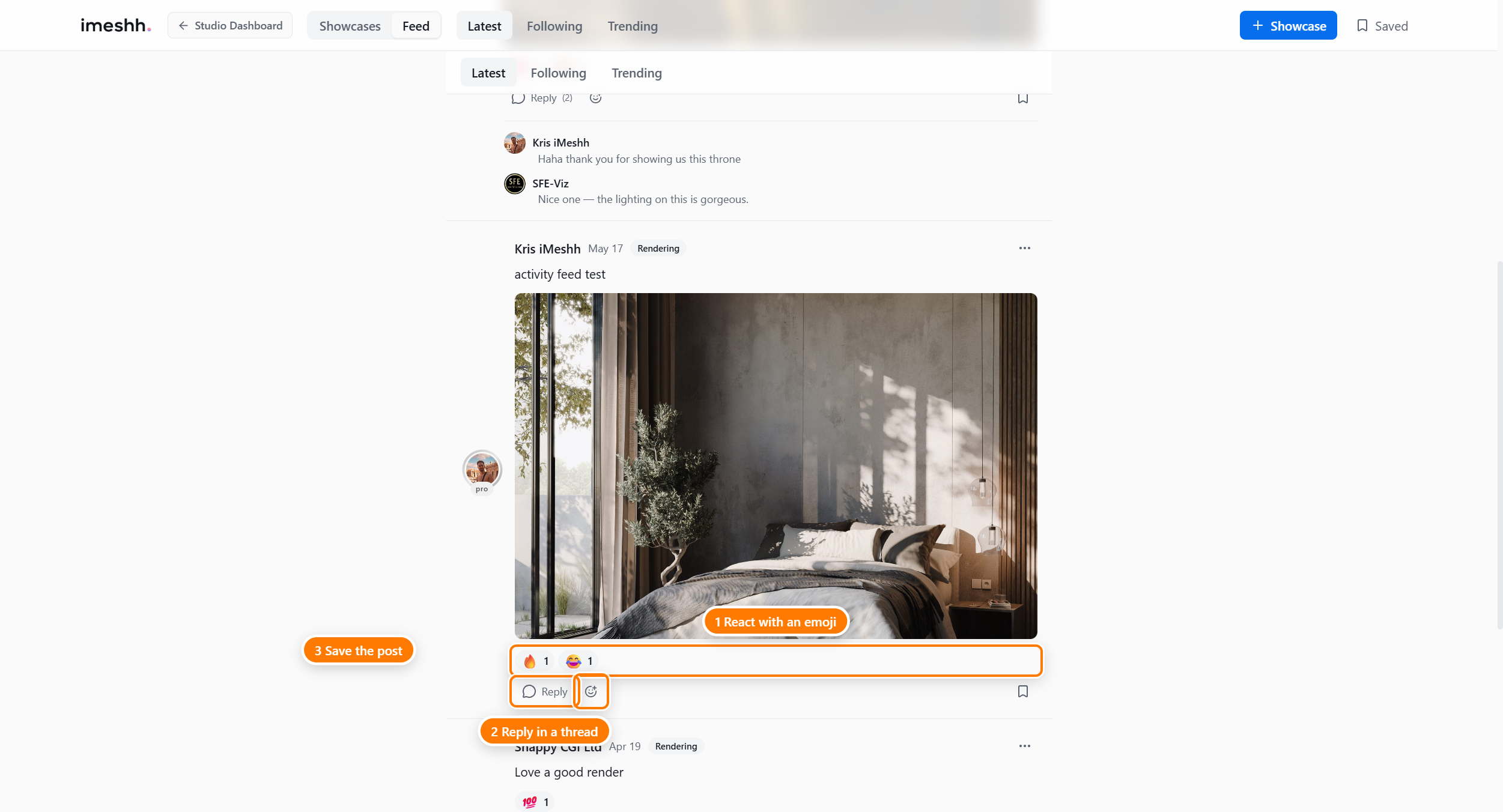
Replying to a post
Replies open right under the post, so you can read the conversation without leaving the Feed.
- Click Reply on the post.
- The replies open underneath, with a reply box at the bottom.
- Type your reply and click Post.
You can attach images to a reply the same way as a post. A reply takes the topic of the post it's under, so there's no topic to choose.
The main Feed shows up to three replies as a preview under each post. To read the whole conversation, click View all replies — this opens the post on its own page with every reply in order.
The full post page
Clicking a post (or View all replies) opens that post on its own page. There you see the post in full, a reply box, and the complete reply thread.
Replies always read oldest first, so the conversation runs top to bottom.
Reacting with emoji
You react to posts and replies with emoji rather than a single like.
- Click the reaction face on the engagement bar.
- Pick an emoji from the picker.
- Your reaction appears as a pill above the engagement bar.
To change your mind, click the picker again and pick a different emoji, or click your reaction pill to remove it.
Viewing images full size
Click any image in a post to open it full-screen. Press Escape or click the close button to return to the Feed.
Bookmarking a post
Bookmark a post to keep it in your Saved Posts for later. (Bookmarking needs a paid plan.)
- Click the bookmark icon on the post's engagement bar.
- The icon fills in to show it's saved.
To remove a bookmark, click the bookmark icon again.
Finding your saved posts
The Saved Posts page lists every post you've bookmarked, newest first. Click any one to open it. Removing a bookmark takes the post off this list.
Copying a link to a post
The three-dot menu on a post has a Copy link option that copies a direct link to the post, so you can share it or save it elsewhere.
What's next
- Reading and posting — tabs, topic filters, writing a post, and editing or deleting
- The Community Feed — who can read and post, and how the Feed relates to Showcases