assets
Using iMeshh models in D5 Render
Set up the iMeshh desktop app so the D5 models you download appear in D5 Render's Local asset library, ready to drop into your scene.
Updated 20 October 2026
The iMeshh desktop app can download models straight into D5 Render's own library. Point the app at your D5 workspace once, and every D5 model you download shows up in D5 under Local → Model → iMeshh D5.
1. Find your D5 workspace
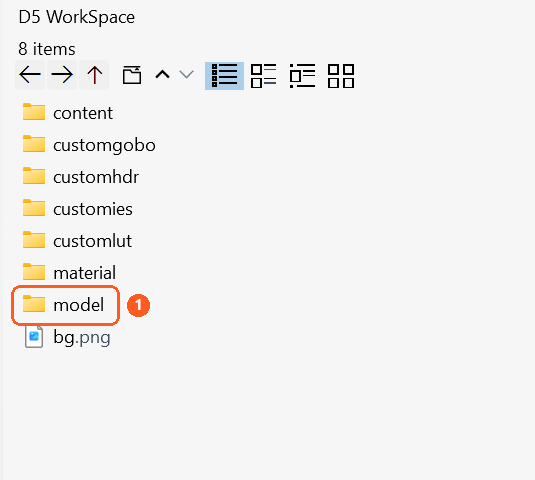
D5 keeps its library in a folder called the workspace, often Documents\D5 Workspace. The location depends on how D5 was installed, so check yours:
- Open the D5 Launcher.
- Click Setting.
- Look at Workspace under Installation & Storage. That's the folder you need.
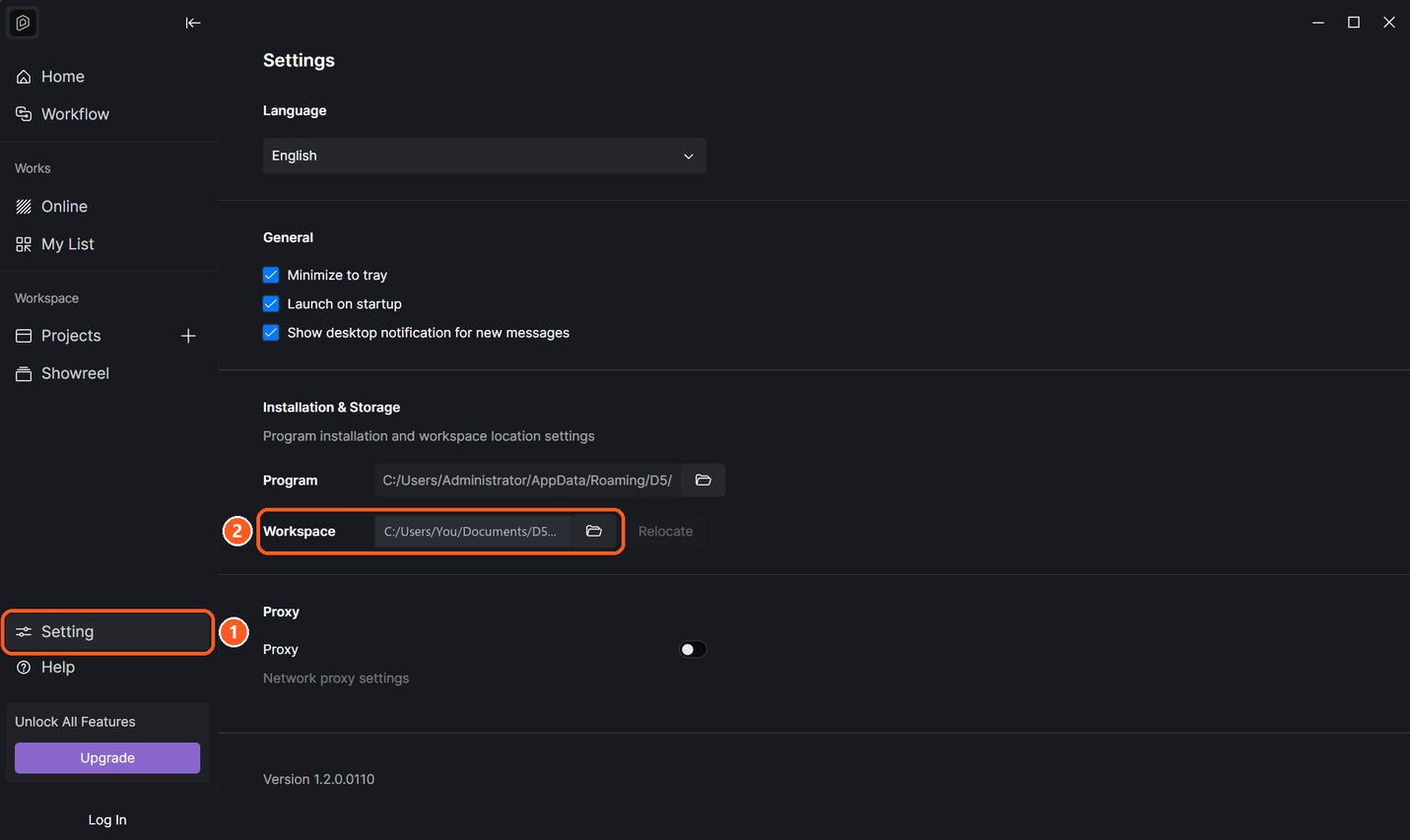
Inside the workspace is a model folder. That's where iMeshh models go.
2. Choose that folder in the iMeshh app
- In the iMeshh desktop app, open Settings from the Asset Library and go to the Folders tab.
- Open the D5 Render section.
- Click Browse and choose the model folder inside your D5 workspace, for example
C:\Users\<you>\Documents\D5 Workspace\model.
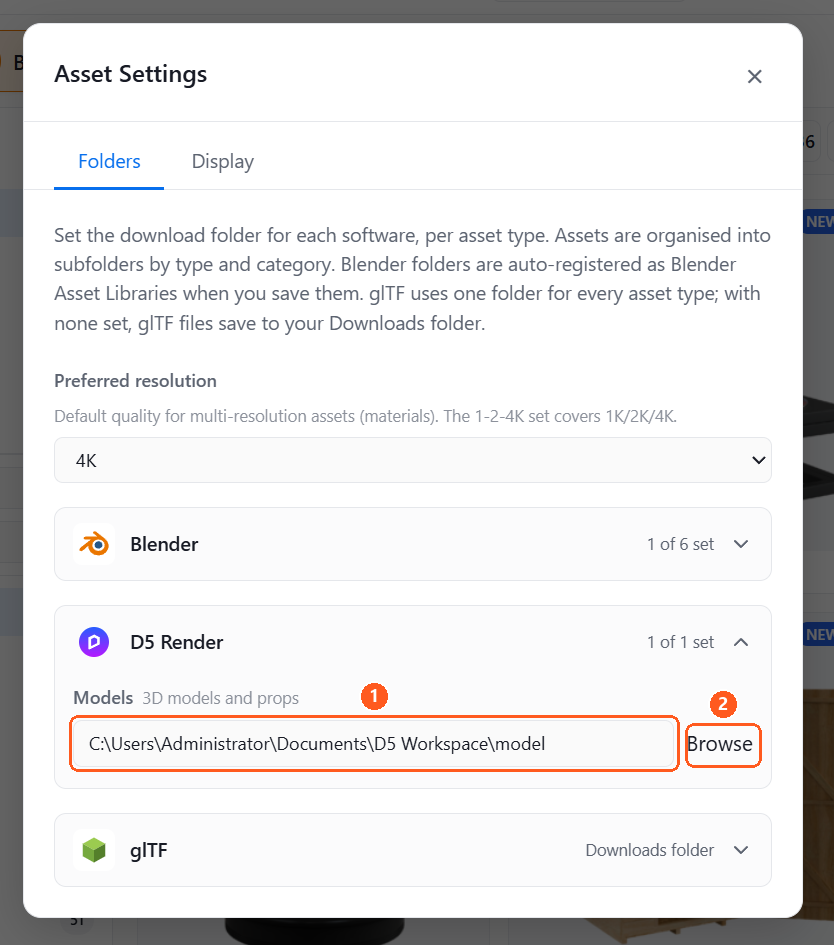
The app creates an iMeshh D5 folder inside it the first time you download, and sorts models into category folders under that.
3. Download D5 models
Switch the Asset Library's software to D5 Render and download the models you want. Each one lands in model\iMeshh D5\<Category>\<Subcategory>\ inside your workspace.
4. Find them in D5
- Open a project in D5 Render.
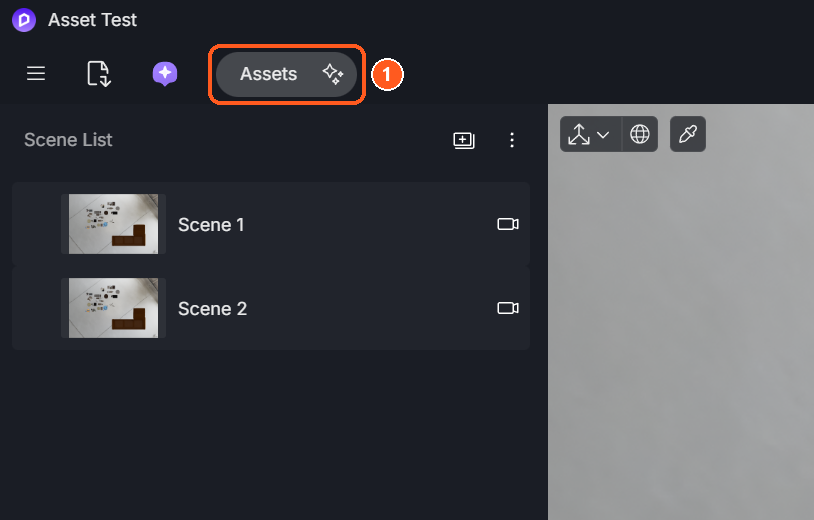
- Click Assets in the top bar to open the asset browser.
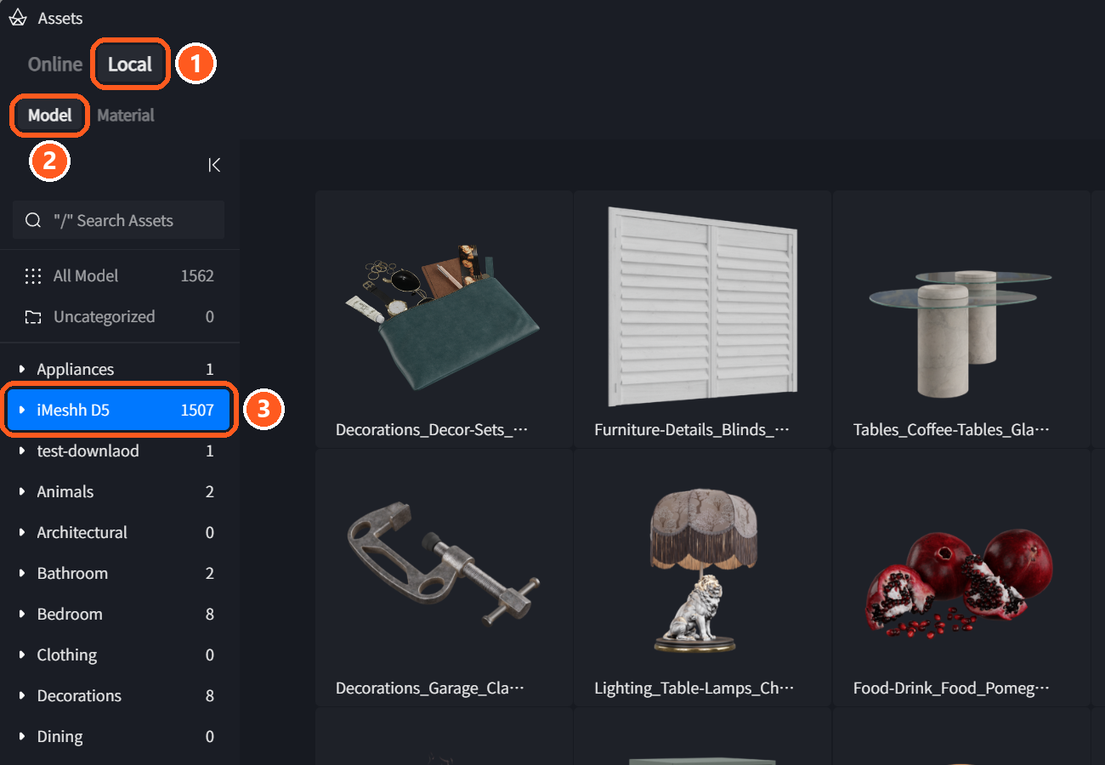
- Click Local (1), then Model (2).
- Open the iMeshh D5 folder (3). Your downloaded models are here, sorted by category.
Models not showing up?
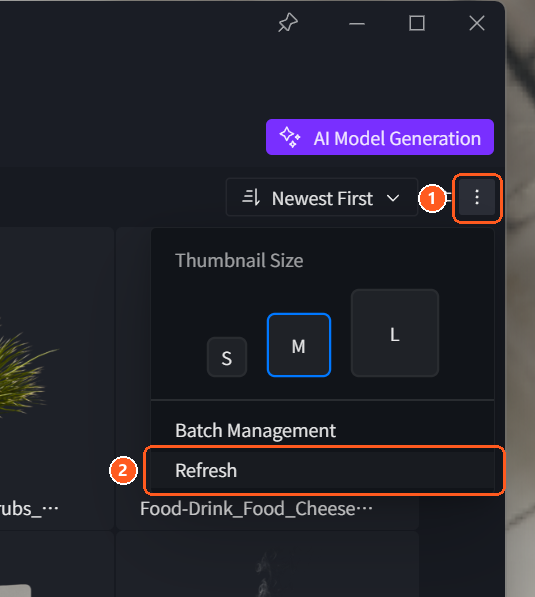
D5 doesn't always notice new files straight away. In the asset browser, click the three dots in the top right (1), then Refresh (2).
Still nothing? Check that the D5 Render folder in iMeshh Settings → Folders is the model folder inside the same workspace D5 is using. If you changed D5's workspace, update the iMeshh folder to match.