settings
Notifications
Choose which events notify you in-app and by email, and add a backup email that gets a copy of your notifications.
Updated 24 June 2026
The Notifications tab controls what iMeshh tells you about and how. It has two cards: a backup notification email and the notification preferences grid.
Open Settings, then click Notifications.
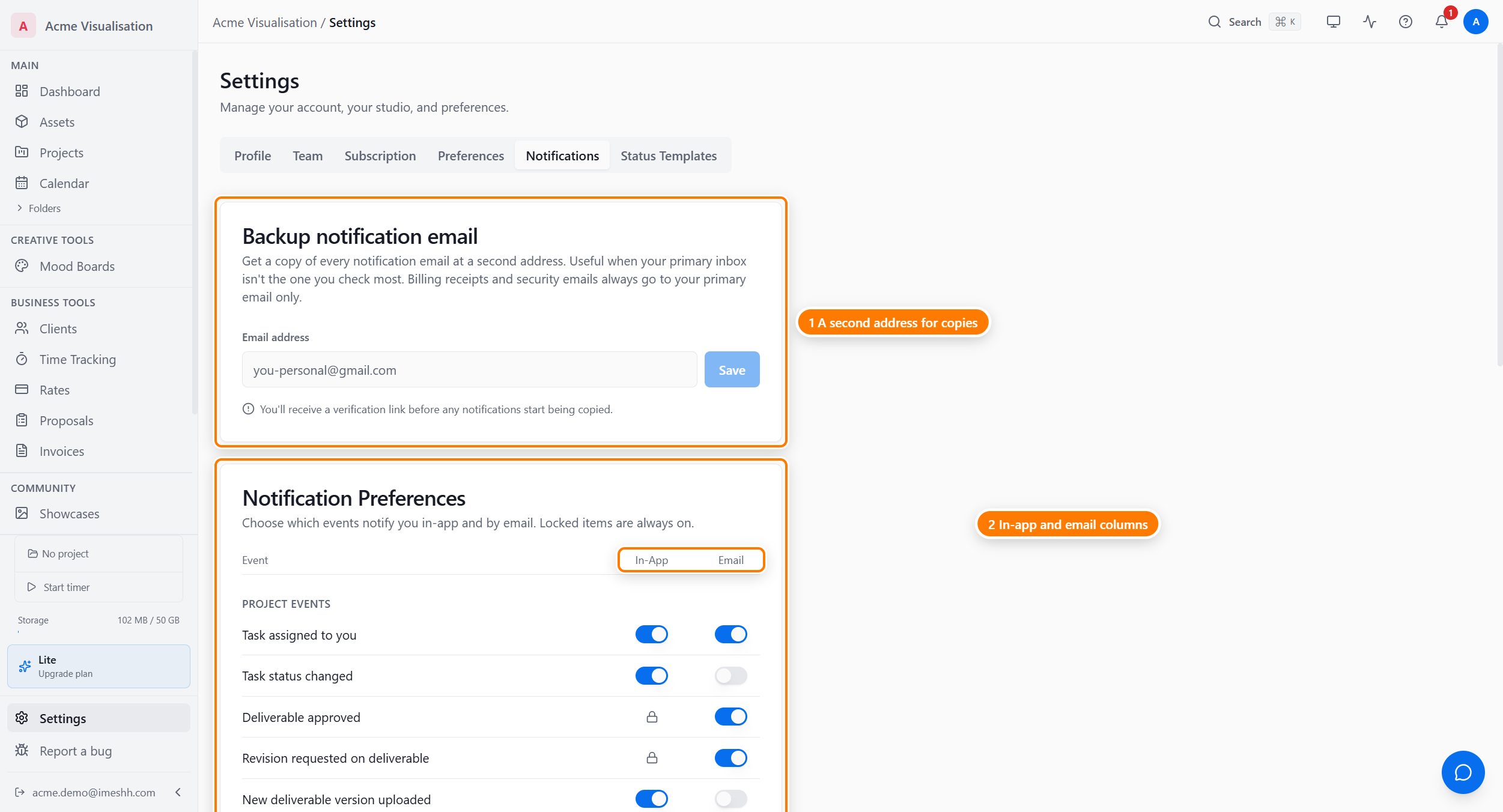
Backup notification email
The backup email card lets you add a second email address that gets a copy of every notification (except billing receipts and security mail).
This card is available on Lite and above. On the Free plan, the card still shows so you can see the feature, but the field is locked and an upgrade link appears in its place.
To add a backup email:
- Type the address in the field.
- Save it. iMeshh sends a verification link to that address.
- Open the email and click the link. The card then shows the address as verified, and copies start arriving.
You can resend the verification email or remove the backup address from the same card at any time.
Notification preferences
The Notification Preferences card is a grid of events, each with an In-App switch and an Email switch.
The events are grouped:
- Project Events — tasks assigned to you, status changes, deliverable versions and approvals, comments, client approvals and revision requests, and being added to a project
- Jobs — the posts and applications you're involved with on the job board
- Social & Showcases — likes, follows, and comments on your work
For each event:
- Turn on In-App to get a notification inside iMeshh.
- Turn on Email to also get it by email. Email is only available when In-App is on for that event — turning In-App off turns Email off too.
A lock icon in the In-App column marks events you can't switch off — these always notify you in-app.
Click Save Changes when you're done. The defaults are set sensibly, so you don't need to touch this on day one.
What's next
- Status templates — reusable task statuses for new projects
- Preferences — theme, timezone, calendar, and exports
- Settings overview — back to the six tabs