dashboard
The dashboard
Read the dashboard — the home screen that shows your tasks, projects, overdue items, recent activity, messages, and the latest community and Asset Library content.
Updated 24 June 2026
The dashboard is the first screen you land on after you sign in. It pulls together what needs your attention — your tasks, your projects, anything overdue, recent activity, and recent messages — and links each section to the section it comes from. You read and act here; you do not create anything on this page.
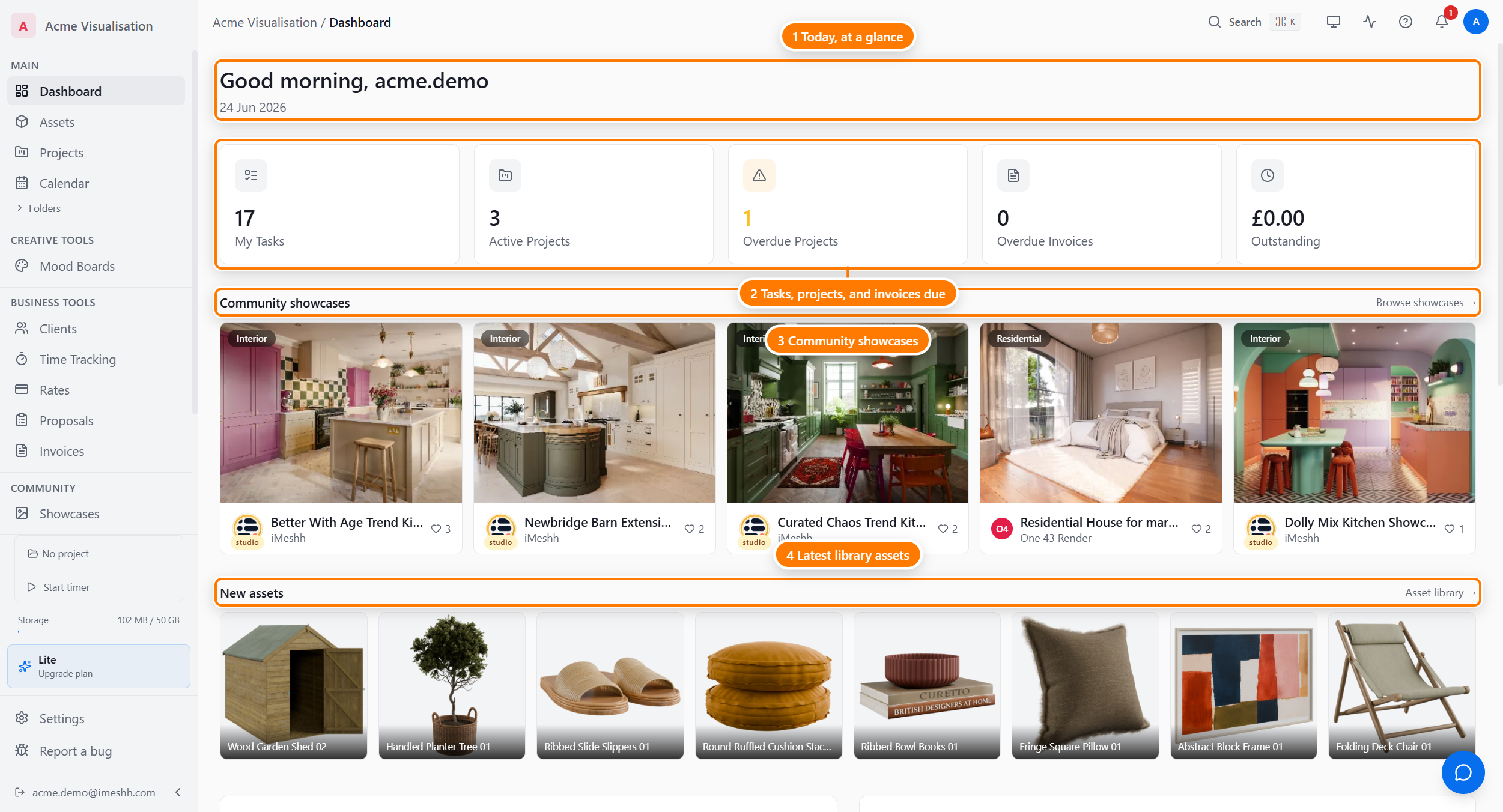
At the top you see a greeting and today's date. The greeting changes through the day — Good morning, Good afternoon, or Good evening — followed by your username.
The stat cards
A row of cards across the top gives you a running count of your work. Each card links to where the items live.
- My Tasks — how many open tasks are assigned to you
- Active Projects — projects currently in progress
- Overdue Projects — active projects past their deadline
If you can see invoices in your studio, two more cards appear:
- Overdue Invoices — invoices past their due date
- Outstanding — the total still owed across sent and viewed invoices
Click Active Projects, Overdue Projects, Overdue Invoices, or Outstanding to open the matching section.
My Tasks
The My Tasks card lists every open task assigned to you, across all your projects. Tasks are grouped so the most pressing ones sit at the top:
- Overdue — past their due date
- Due Today — due today
- Upcoming — due later
Each task shows its name and the project it belongs to. Click a task to open its project.
To mark a task done without leaving the dashboard:
- Point at the task you want to complete.
- Click the circle on the left of the task name.
- A small confetti burst plays and the task disappears from the list.
When you have nothing assigned, the card reads All caught up! No tasks assigned to you.
Needs Attention
The Needs Attention card collects your overdue projects and overdue invoices in one place, most overdue first, up to five items. Each row shows how many days the item is overdue, and invoices show the amount owed. Click a row to open the project or invoice.
When nothing is overdue, the card reads All caught up.
Recent Activity
The Recent Activity card shows your last six notifications — a task assigned to you, a comment on a deliverable, a client action, and so on. Unread items have a blue dot and bold text.
Click any item to mark it read and open whatever it points to: a project, a task, a deliverable, or a client.
Messages
The Messages card shows your five most recent direct-message conversations. Each row shows the other person's avatar and name, a preview of the last message, the time, and an unread badge when you have not read it. A bell-off icon marks a muted conversation.
- Click a conversation to open it in Messages.
- Click Open inbox in the card header to go straight to your full inbox.
Community showcases and New assets
A two-row shelf shows the latest content from across iMeshh. Scroll each row sideways to see more.
- Community showcases — trending work shared by other studios. Click a card to open the showcase.
- New assets — the newest additions to the Asset Library. Click a tile to open that asset.
Point at a showcase card to reveal three actions in the corner:
- The heart icon — like the showcase
- The bookmark icon — save it
- The copy-link icon — copy a link to share
Your social stats
A strip of five cards at the bottom shows how your studio's public profile is doing:
- Followers — people following your studio
- Following — studios you follow
- Likes received — likes across your showcases
- Saves received — saves across your showcases
- Showcase views — total views of your showcases
Large numbers shorten, so 1,200 shows as 1.2k. Click Followers to open your studio's public profile.
What's next
- Status banners — the trial, billing, storage, and seat warnings that appear above the dashboard
- Browsing the Asset Library — find the stock 3D content behind the New assets row