mood-boards
Working on a board
Draw on the canvas, add reference images, save your work, rename from the editor, and use mood boards inside a project.
Updated 24 June 2026
Open a board to draw on its canvas — an endless whiteboard you can fill with shapes, text, and reference images. This page covers what to do once a board is open.
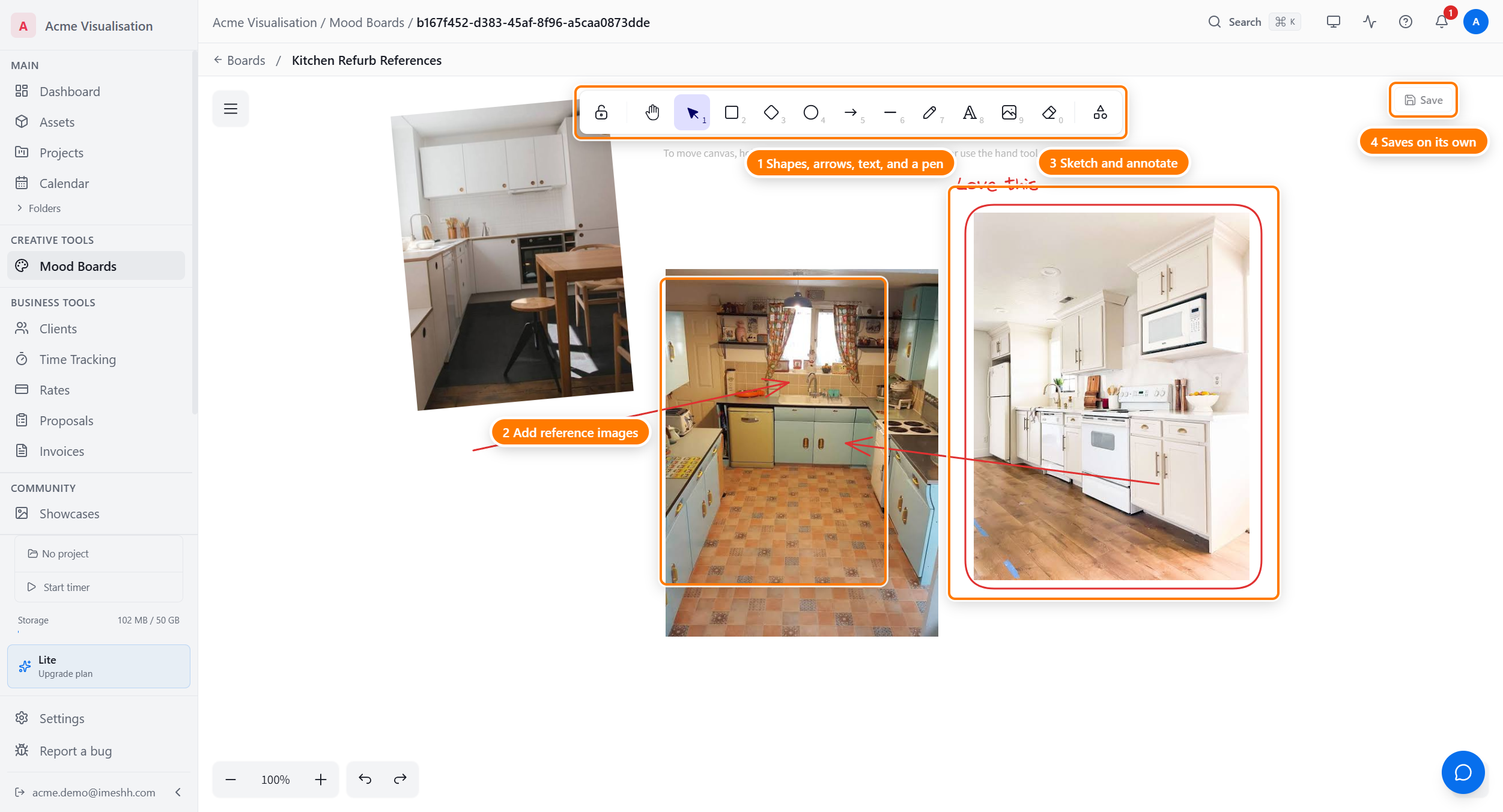
Draw on the canvas
The toolbar gives you shapes, lines, arrows, text, and a freehand pen. Click a tool, then draw on the canvas. Drag the canvas to move around it, and scroll to zoom in and out.
You can also change the canvas background colour and clear the whole canvas from the toolbar.
Add an image to the board
Reference photos are the point of a mood board. Add them in either of two ways:
- Paste — copy an image from anywhere and paste it onto the canvas.
- Image tool — click the image tool in the toolbar, then pick a file from your computer.
Once an image is on the canvas, drag it to move it, and drag its corners to resize it.
Save your work
The board saves on its own a couple of seconds after you stop drawing — you don't have to do anything. A Save button floats over the top-right corner of the canvas, so you can save right away while changes are pending; once everything is saved it greys out.
The Save button shows the save state as you work:
- Saving… — your changes are being saved
- Saved with a tick — everything is stored
Each time a board saves, its preview card on the list updates to match.
Rename from the editor
Click the board name in the header to edit it in place. Type the new name and click away or press Enter to save it.
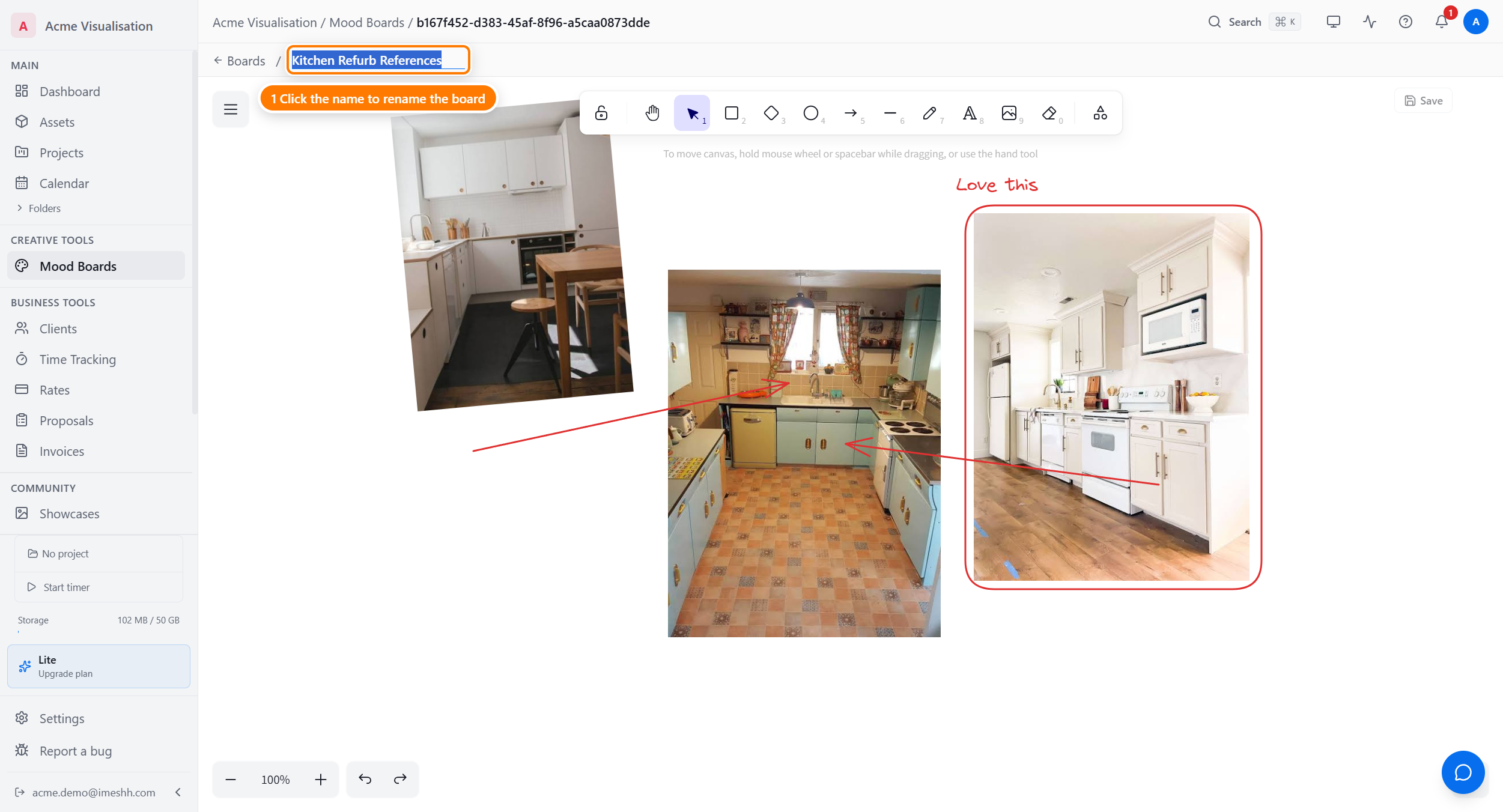
Leave the board
Use the back link in the top-left to leave the editor. Where it takes you depends on the board:
- A board attached to a project goes back to that project.
- A standalone board goes back to the Mood Boards list.
Project boards
You can keep a board alongside a project's other files. Project boards show up both in the project and in the main Mood Boards list.
To find a project's boards:
- Open the project from Projects.
- Click the Resources tab.
- Click Mood Boards.
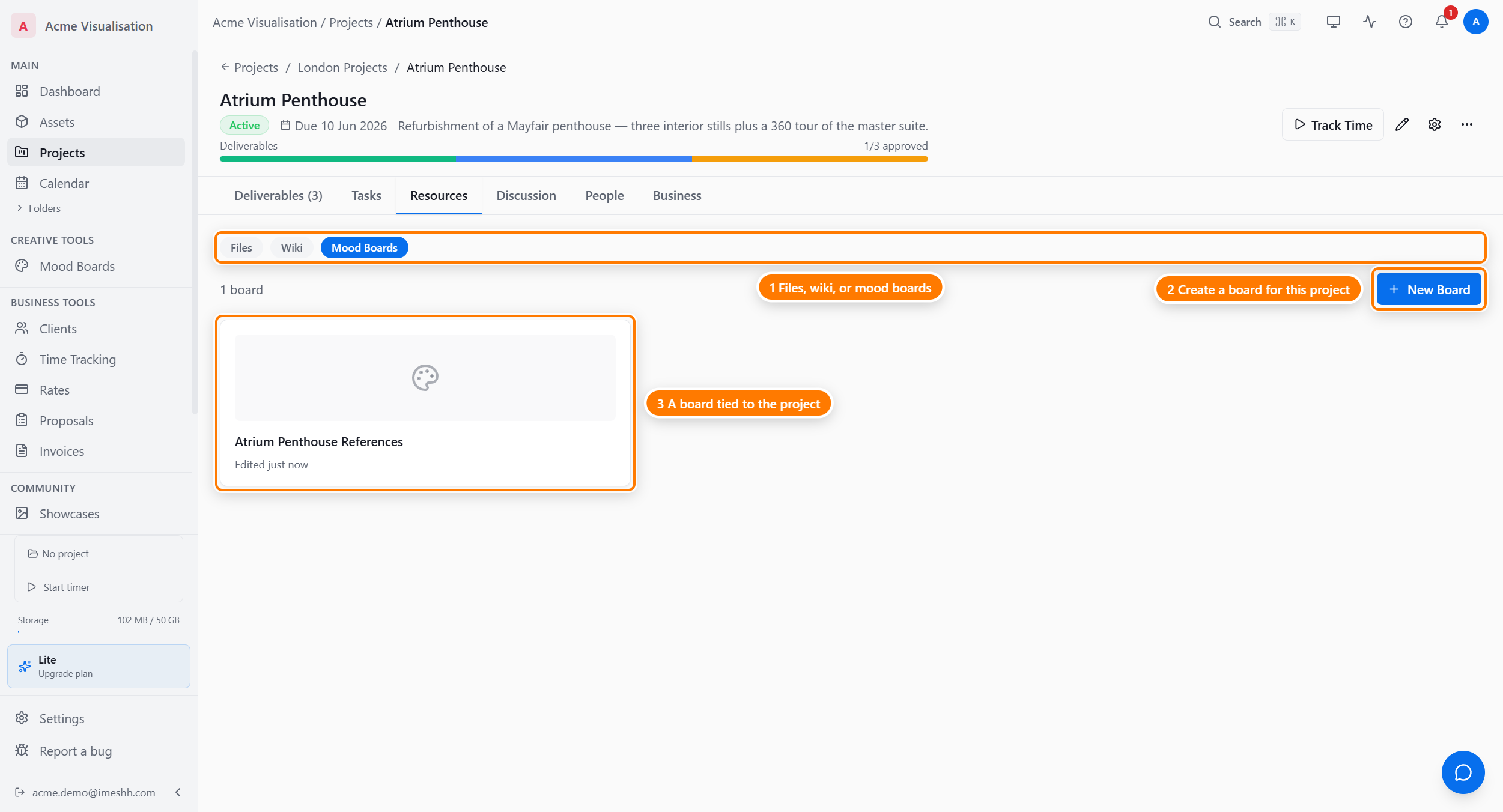
Create a board from here the same way as on the main list — click New Board. A board you make this way is tied to the project, so opening it and clicking back returns you to the project.
What's next
- Create and organise boards — name boards, sort them into folders, switch views, and delete them
- Mood Boards overview — plan limits, roles, and what the section does