client-review
Reviewing a deliverable on a share link
What a client sees and does on a share link — view, comment, mark up the image, reply, resolve, attach files, approve, and request revisions.
Updated 24 June 2026
A share link is a long, unguessable URL you generate from a deliverable and hand to a client. The client opens it in any browser — no login, no account. They see the deliverable, leave feedback, and, if you allow it, approve it or request revisions.
The link stays valid until it expires or you revoke it. The client can bookmark it, refresh it, and come back to it — the same URL keeps working.
What the page looks like
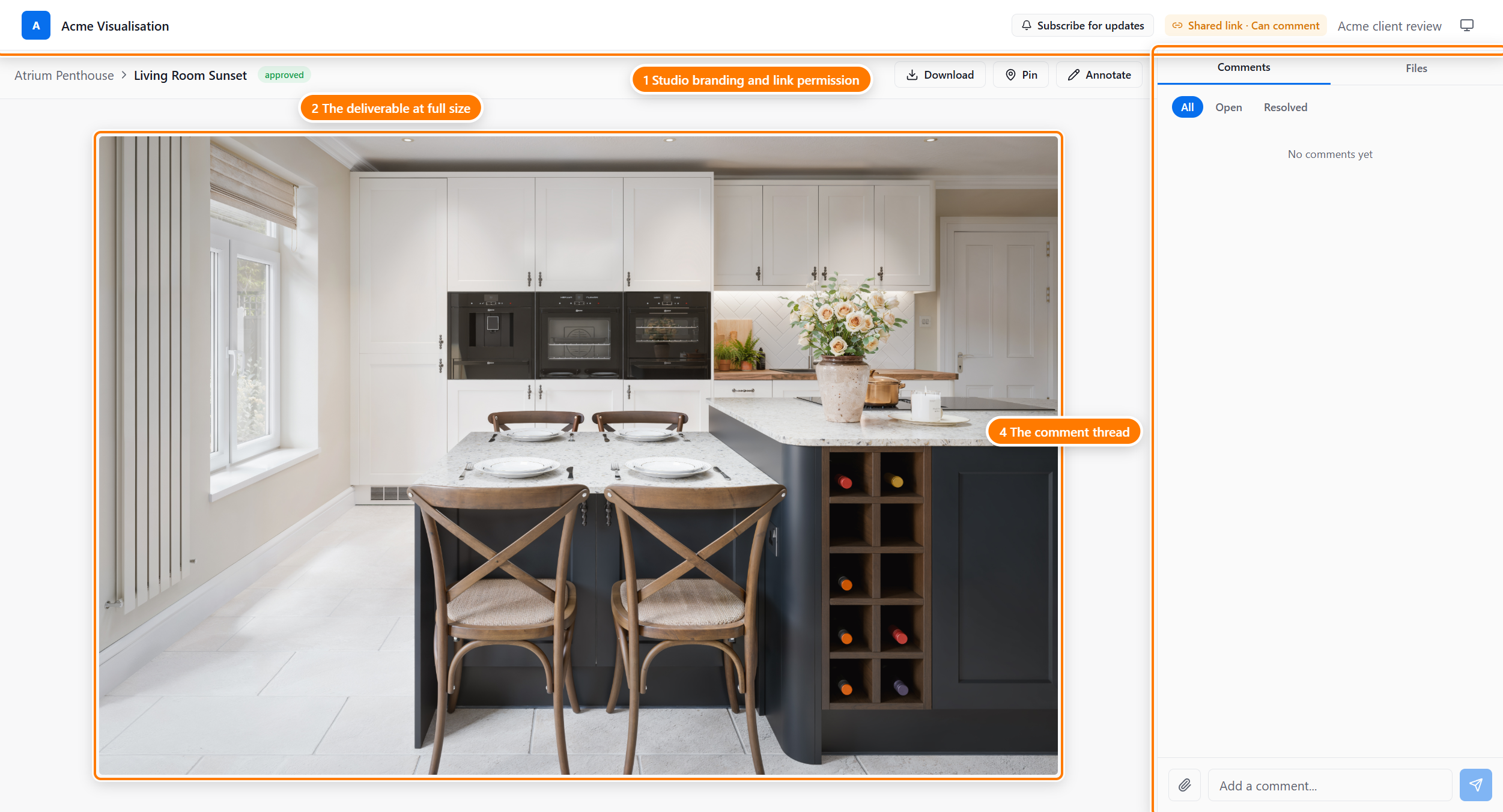
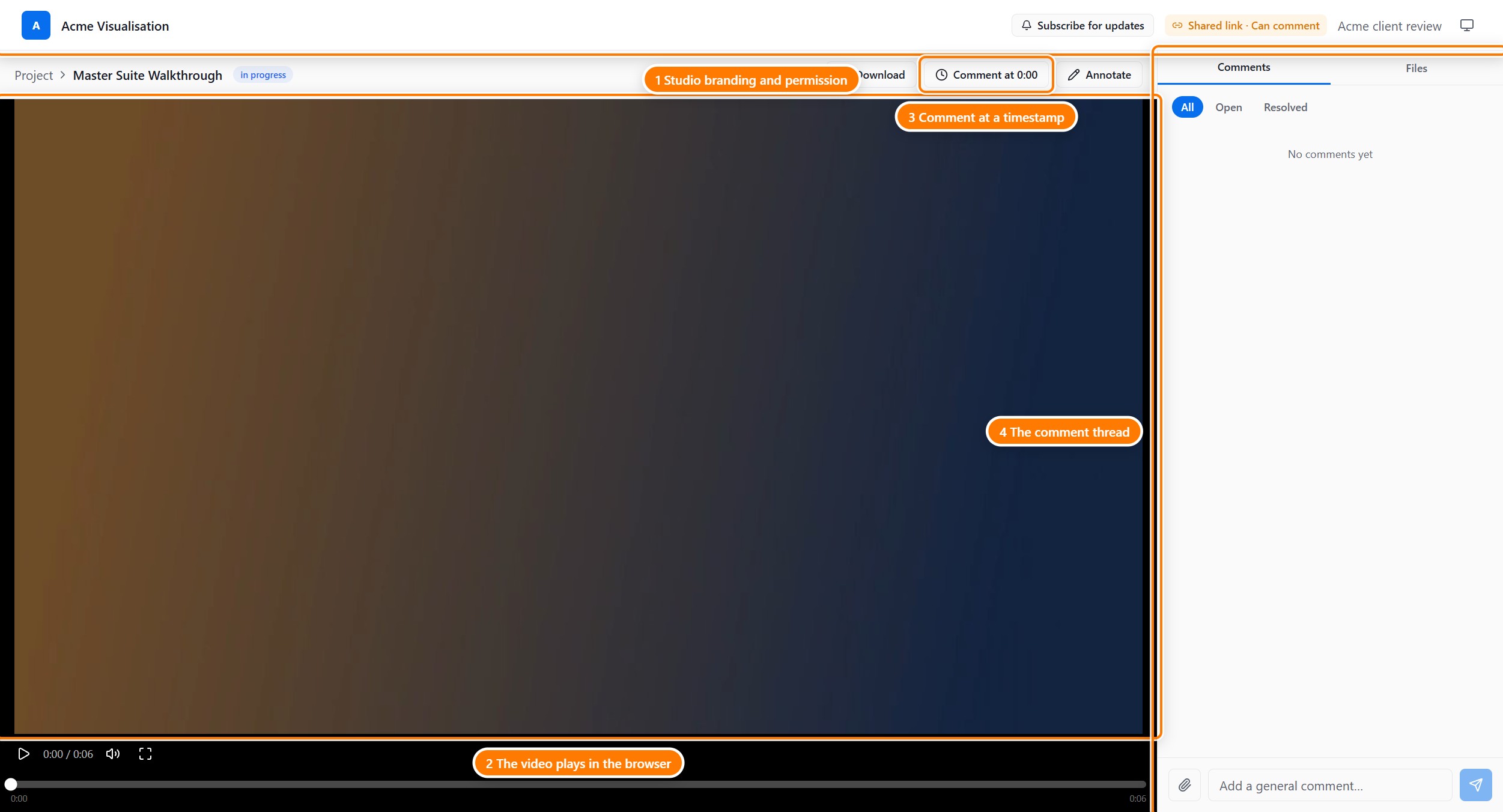
The header carries your studio name and logo, a Subscribe for updates button, a light/dark theme toggle, and an amber permission pill that tells the client what they're allowed to do.
One deliverable or the whole project
A share link comes in one of two shapes, set when you create it:
- Single deliverable — the client lands directly on one deliverable and sees only that one. They can't browse to anything else.
- Project — the client lands on a list of every deliverable in the project that has a version marked for the client. They click into any one to review it, and click back to the list.
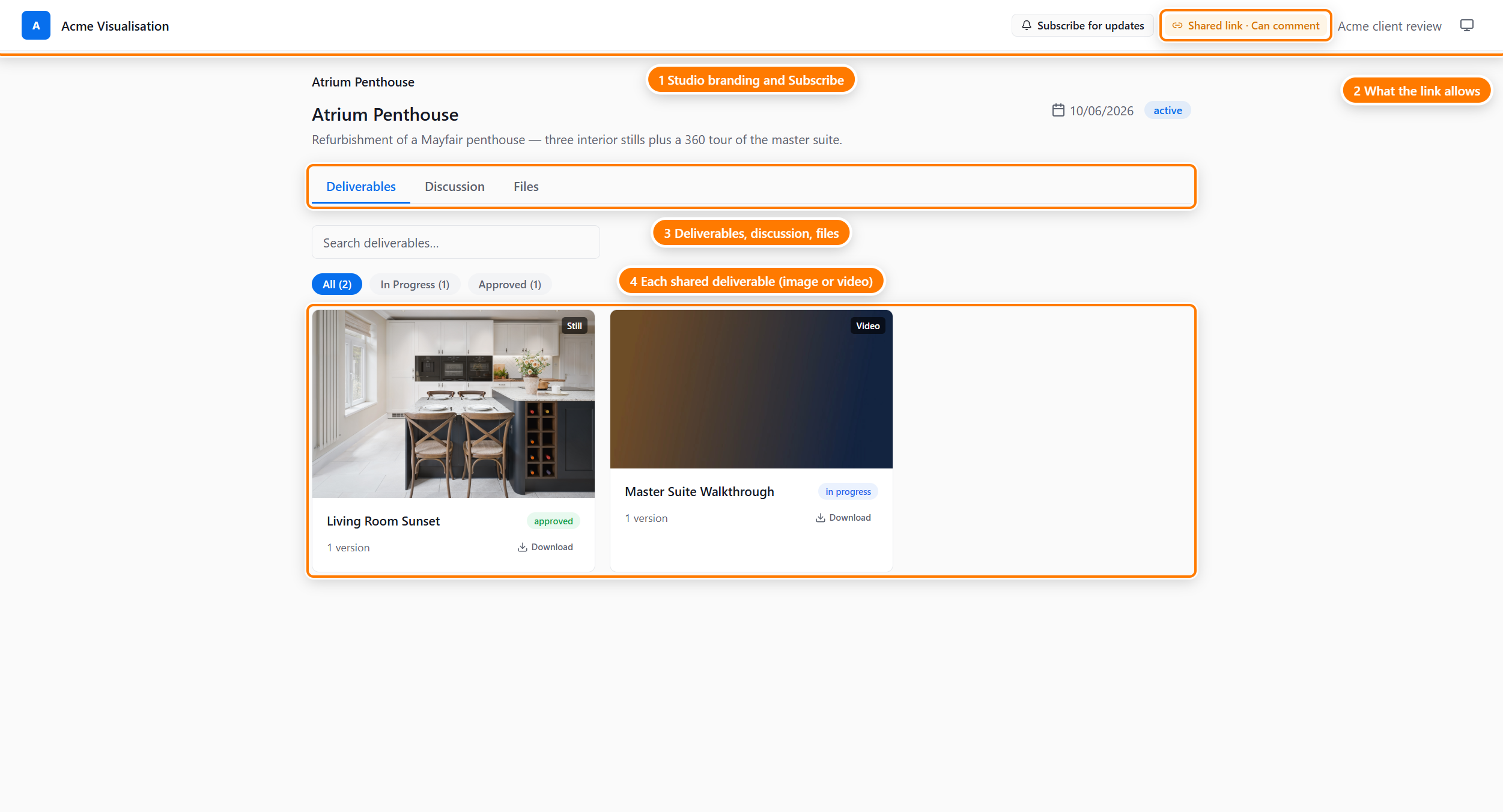
On a single-deliverable link the client never sees the project name, its deadline, or any other deliverable. On a project link they see the project's deliverables, but still nothing outside that project.
What the permission pill means
The amber pill near the top of the deliverable says one of three things. You set this when you create the link.
- Shared link · View only — the client can view, zoom, and download, but cannot comment or approve
- Shared link · Can comment — adds the comment tools on top of viewing and downloading
- Shared link · Can approve — adds Approve and Request revisions on top of commenting
Each level includes the ones below it: Can approve also lets the client comment, and any level lets the client view and download.
Commenting on a deliverable
When the link allows Can comment or higher, the client leaves feedback in the panel on the right. Plain comments post from the Add a comment box at the bottom of the panel; marked-up comments tie feedback to a spot on the image.
To leave a plain comment:
- Type in the Add a comment box at the bottom of the comments panel.
- Click Send. The comment appears in the panel and your studio sees it straight away.
Comments show the name the link was labelled with, or Guest reviewer if the link had no label. There is no sign of formatting or Markdown — comments are plain text.
Marking up the image
To attach feedback to an exact spot, the client uses one of two tools above the image:
- Pin — drop a numbered point marker on the image, then write a comment tied to it. The pin's number matches the comment in the panel.
- Annotate — draw on the image, then write a comment tied to the drawing.
The annotate toolbar has five drawing tools, a colour picker, and Undo / Redo:
- Freehand — draw a free line, like a pencil
- Rectangle — draw a box around an area
- Circle — draw a ring around a detail
- Arrow — point at something
- Text — type a label directly onto the image
Replying, resolving, and deleting
Inside the comments panel the client can:
- Reply to a comment — comments thread one level deep, so the client and your studio can go back and forth on a single point
- Resolve a comment — anyone with comment permission marks a point done; a resolved comment moves under the Resolved filter. Click Unresolve to reopen it
- Delete their own comment — the client can remove a comment they wrote; they cannot edit or delete anyone else's
The panel's All / Open / Resolved filters at the top let the client switch between every comment, the ones still open, and the ones marked done.
Attaching files to a comment
The client can attach an image to a comment — a reference photo, a marked-up screenshot, a swatch. Attachments show as thumbnails inside the comment. Each file can be up to 500 MB.
Variations and video
Some deliverables carry extra surfaces the comment tools follow automatically.
- Named variations — when a deliverable version has variations (for example Day / Night, or Open / Closed), the client switches between them with tabs above the image. A comment is tied to the variation it was left on; its badge shows in the panel, and clicking the badge switches the viewer to that variation.
- Video deliverables — a video plays with a timeline scrubber. A comment can be tied to a moment in the video; a timestamp badge shows in the panel, and clicking it jumps the player to that moment.
Approving or requesting revisions
When the link is set to Can approve, two buttons appear with the deliverable.
- Approve — the client signs off the deliverable. Adding a note is optional; the note is saved as a comment. Your studio is notified.
- Request revisions — the client asks for changes. A note explaining what to change is required; it's saved as a comment. Your studio is notified.
Your studio sees who approved or requested revisions and when. When you upload a new version, the deliverable is open for review again.
Subscribing for updates
A client who wants to be told when something changes clicks Subscribe for updates in the header and enters an email address. This is not an account — it's an email on a notification list.
After entering an email, the client sees a Check your inbox message and must click a link in a confirmation email to start receiving updates. Once confirmed, they get an email when:
- A new version of the deliverable is uploaded
- Your studio replies to a comment
- The deliverable's status changes — for example, it's approved
Every notification email carries a one-click unsubscribe.
The Tasks tab
If you mark one of your saved task views as shared with clients, that view shows on a project share link as a read-only Tasks tab. The client sees the tasks in the view but cannot change them. The tab only appears when you've turned this on for a view; most share links don't have it.
When the link expires or is revoked
By default a share link does not expire (you can opt in to 7 / 30 / 90 days or a custom date when creating it), and is capped at a maximum of one year. You can also revoke a link at any time from the studio side.
When a link expires or you revoke it, the client opening it lands on a This link is no longer valid page instead of the deliverable.
Any comments the client already left stay visible to your studio — they're attached to the deliverable, not the link. To let the client back in, create and send a fresh link.
What's next
- Accepting or declining a proposal — the client side of accepting or declining a proposal
- Sharing with clients — creating and managing share links from your dashboard