jobs
Finding and applying for work
Browse and filter open roles, read a job post, apply with a pitch and quote, and track your applications through to messaging the studio.
Updated 24 June 2026
This page covers the applicant side of the job board: finding open roles, reading a post, applying, and following your applications. For the hiring side, see Posting a role and hiring.
Browsing open roles
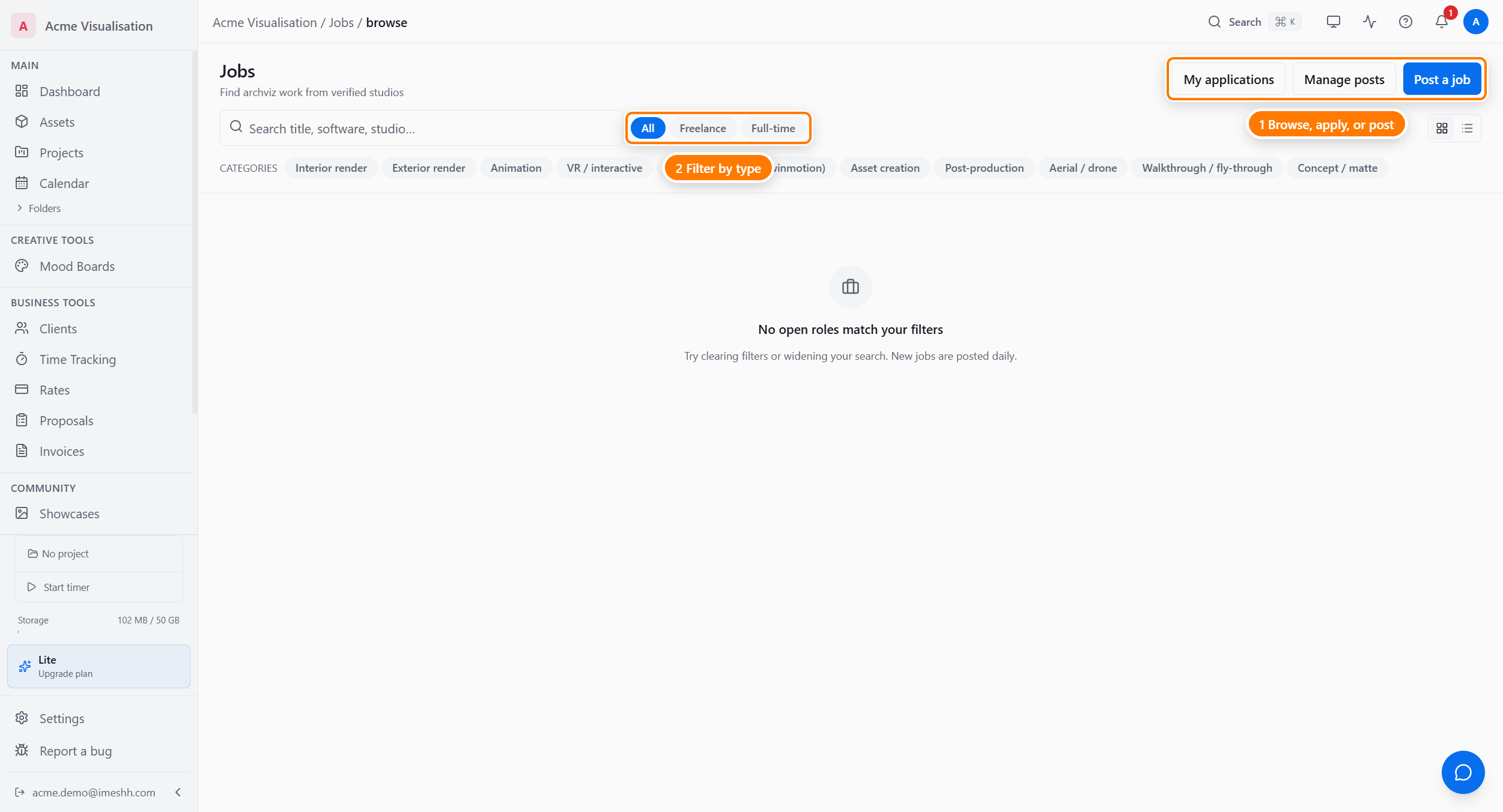
Open Jobs in the sidebar to land on the browse page. It shows every approved, open role posted by other studios — your own studio's posts are kept out of this list.
Each card shows the role's cover image, title, the studio that posted it, and badges where they apply:
- Verified — the posting studio is verified by iMeshh
- Featured — a highlighted post
To narrow the list down:
- Type in the search box to match against role titles and descriptions. Results update as you type — there's no need to press Enter.
- Pick a type chip — All, Freelance, or Full-time — to show only that kind of work.
- Pick a category chip to filter by specialty (for example, exterior, interior, or animation). Results are ordered with the most recent roles first. An in-page sort control is not yet available.
Grid or list view
Switch between a card grid and a compact list using the Grid view and List view buttons near the top of the page.
Saving a role for later
Click the bookmark icon on a card to save a role. Saved roles stay marked so you can find them again while you decide whether to apply.
When nothing matches
If your filters return no roles, the page tells you so with a No open roles message. Clear a filter or change your search to widen the list.
Reading a job post
Click any card to open the full post.
A post is laid out in sections:
- Reference images — a scrolling strip of images the studio added to show the look they're after. Not every post has them.
- The meta block — budget or salary, timeline, location, and level at a glance.
- Requirements — the software, render engines, deliverables, and sectors the role needs, shown as chips.
- About the studio — the studio's short bio and how many roles they've posted before.
From this page you can:
- Apply — click Apply in 30s to open the application form
- Save — bookmark the role to come back to it
- Report — flag a post to iMeshh if something looks wrong, with a reason
Applying for a role
Click Apply in 30s on a post to open the application form.
Fill in the form:
- Write your pitch in the Pitch field — a short note on why you're a fit. This is required and needs at least 20 characters.
- Enter your quote in the Quote field (freelance roles only) — your price for the work.
- Add your hourly rate if you'd rather quote by the hour.
- Set your availability date — when you can start.
- Choose whether to reveal your identity with the Reveal my identity option. Leave it off to stay anonymous until the studio shortlists you.
- Click to submit. Your application moves to the studio's queue.
Tracking your applications
Open My applications to see every role you've applied to and where each one stands.
The stage tabs at the top let you filter by where an application sits — new, shortlisted, interviewing, offered, or finished. The Active tab gathers everything still in play.
If a studio is editing a post you applied to, that role shows a Job under review · your application is safe note. Your application stays exactly where it is while the studio's changes are re-checked.
Opening one application
Click an application to see its detail page: your pitch, your quote, and your identity setting.
From here you can:
- Reveal your identity — turn it on to show the studio your name and links, even before they shortlist you. You can turn it back off too.
- Withdraw — pull your application out of the running. This cannot be undone.
Messaging the studio
Once a studio shortlists you, a conversation opens between you and the studio. Messaging runs through your Messages inbox — there's no separate chat inside Jobs.
What's next
- Posting a role and hiring — the hiring side of the board
- The job board — plan access, moderation, and how blind apply works
- Messages — where conversations with studios appear