projects
Inside a project
A tour of the project detail page — the header, the six tabs, the sub-tabs inside them, and the lead-only and admin-only actions.
Updated 23 June 2026
Click a project from the Projects index and you land on the project detail page — every project's own working surface. The same shape every time: a header at the top, six tabs underneath, and the active tab's content below.
When you open a project, it lands on the Tasks tab. After that it remembers the last tab you were on for that project.
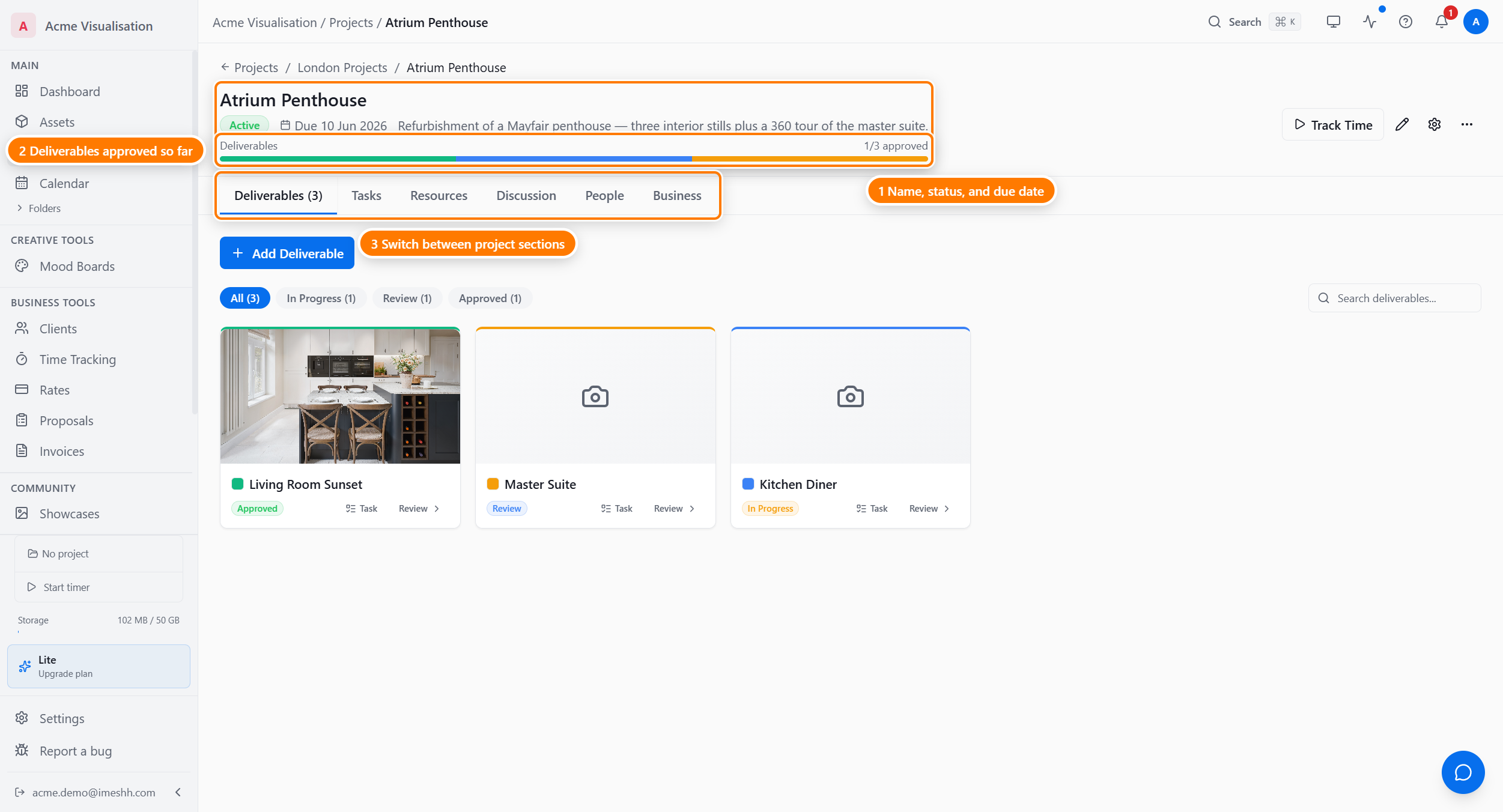
The header
The header sits above the tabs on every tab. From left to right:
- Breadcrumb — Projects → folder → project name. Each segment links back to that level.
- Project name — the heading. Click the pencil icon next to it to rename.
- Status pill — Active, Completed, or Archived.
- Deadline — when the project is due. Click to change.
- Description — the one-line summary you set on creation.
- Deliverable progress — the coloured strip and the approved count. Green is approved, orange is ready for review, blue is in progress.
- Track Time — starts the project timer. Keeps running across tabs and across the rest of the app.
- Edit project (lead only) — opens the same dialog as New Project, for editing.
- Settings (lead only) — opens the project's settings panel (task statuses, custom fields, sharing).
- Three-dot menu (lead only) — move to folder, mark completed, archive, delete.
The six tabs
Every project has the same six tabs in the same order. Which ones a person sees depends on their role and any per-member tab restrictions a lead has set.
Deliverables
The outputs the project produces — stills, animations, 360 tours, videos. Each deliverable carries its own versions, comments, and approval state. The card colour-codes the status: blue for In Progress, orange for Review, green for Approved, red for Revisions.
This is the tab clients see most often — when you share a project externally, the share link lands on Deliverables.
The Deliverables page covers types, versions, the approval flow, and sharing.
Tasks
The internal work behind the deliverables. The default layout is a sortable table; switch to Board for a Kanban view or Calendar to plot by due date. A Timeline layout is queued — its button shows a Soon badge and is not yet usable.
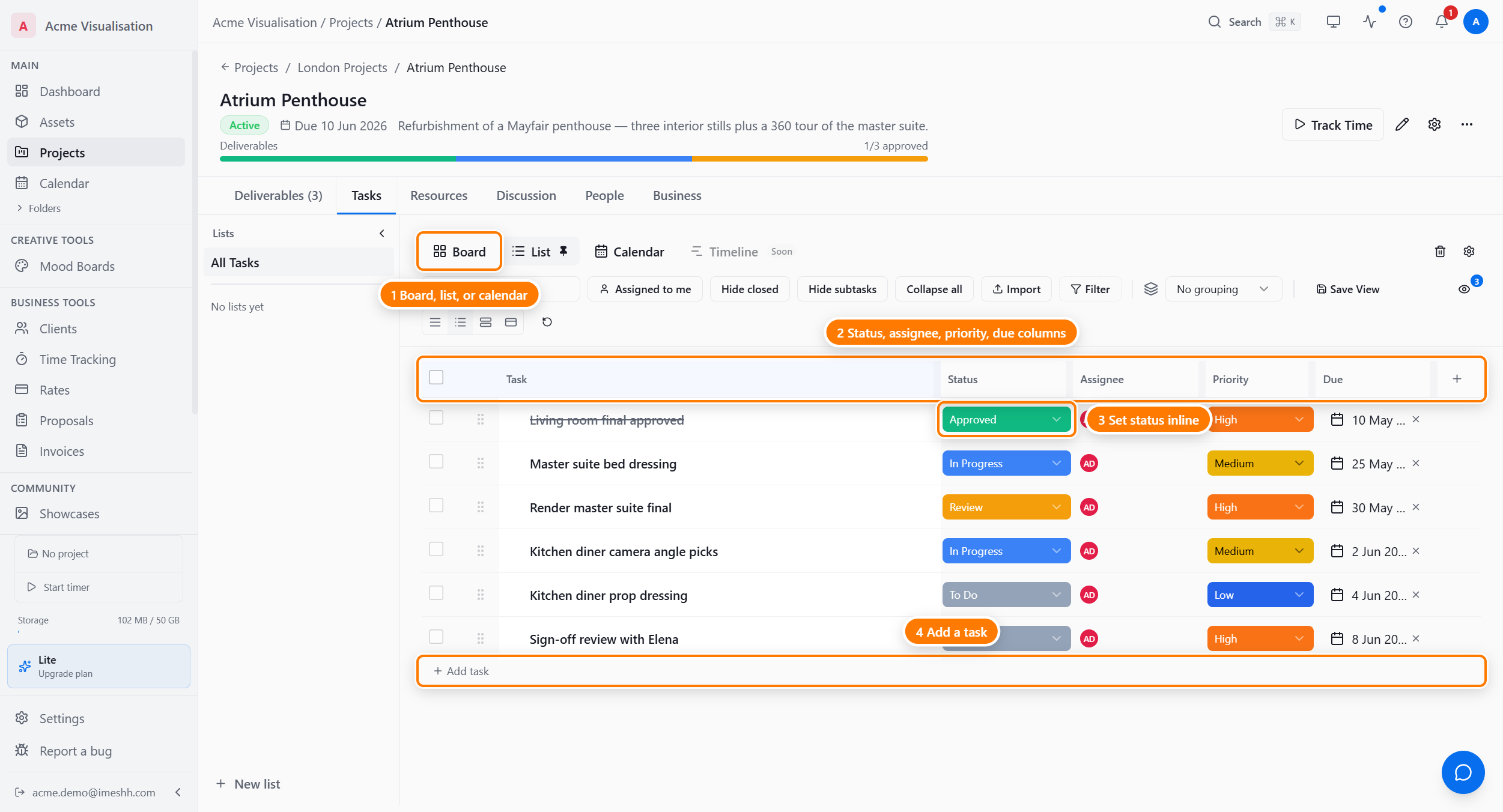
Each task carries a status, a priority, an assignee, a due date, and optional labels and custom fields. Subtasks, dependencies, and milestones are supported. The Tasks page breaks all of this down.
Resources
Three sub-tabs:
- Files — Project files your studio supplies for itself (architect's CAD, mood images, briefs). Separate from deliverables — these aren't what the client sees.
- Wiki — a rich-text wiki you fill with project notes, decisions, and naming conventions.
- Mood Boards — pinned mood boards for the project.
Discussion
Three sub-tabs, each with a different audience:
- Team — studio-only. Anyone with project access can post. Clients never see this.
- Client — client-visible. Lets external reviewers join the conversation.
- Activity — a read-only log of who did what when.
The Discussion page covers all three.
People
Two sub-tabs.
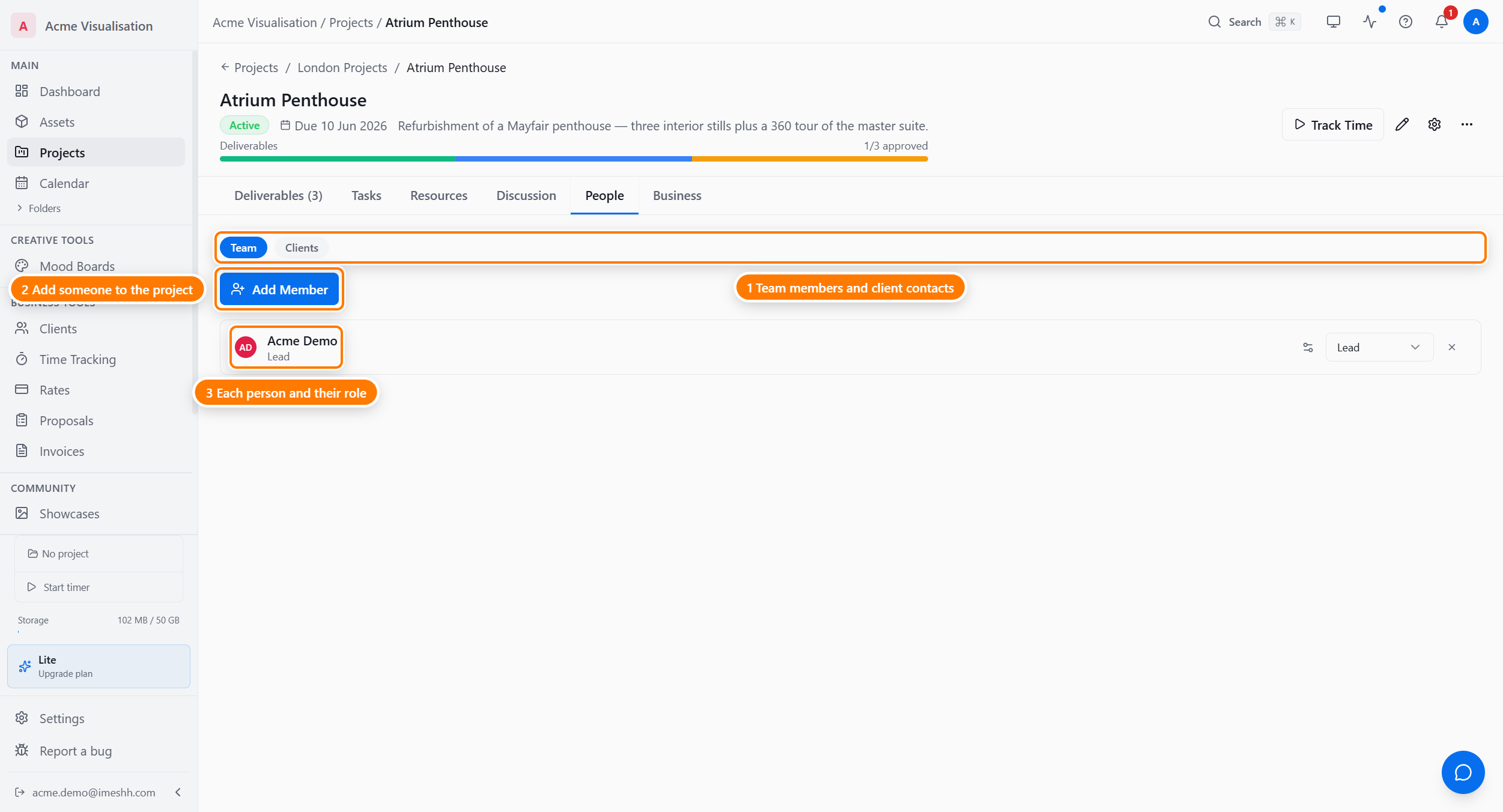
- Team — studio members assigned to the project. Each has a role — Lead, Contributor, or Viewer — and optional per-tab restrictions.
- Clients — external reviewers, share links, and portal access.
The Members and roles page covers role differences and tab restrictions; Sharing with clients covers the Clients sub-tab.
Business
Two sub-tabs:
- Time — total tracked time, broken down by member.
- Finance — the base contract value, change orders that adjust it, and the running total.
The Time and finance page covers both sub-tabs.
What's next
- Members and roles — Lead, Contributor, Viewer, and tab restrictions
- Deliverables — what lives on the Deliverables tab
- Tasks — the Tasks tab in detail
- Time and finance — the Business tab