mood-boards
Mood Boards overview
What Mood Boards are, where to find them, who can use them, plan limits, and how they differ from the proposal mood-board images.
Updated 23 June 2026
Mood Boards is a freeform canvas where your studio collects inspiration. Each board is a named whiteboard you draw on, add images to, and annotate. Boards belong to your studio, so any member with access sees the same boards.
Use a board to pull together reference shots, sketches, colour notes, and layout ideas before a project starts, or alongside one as it runs.
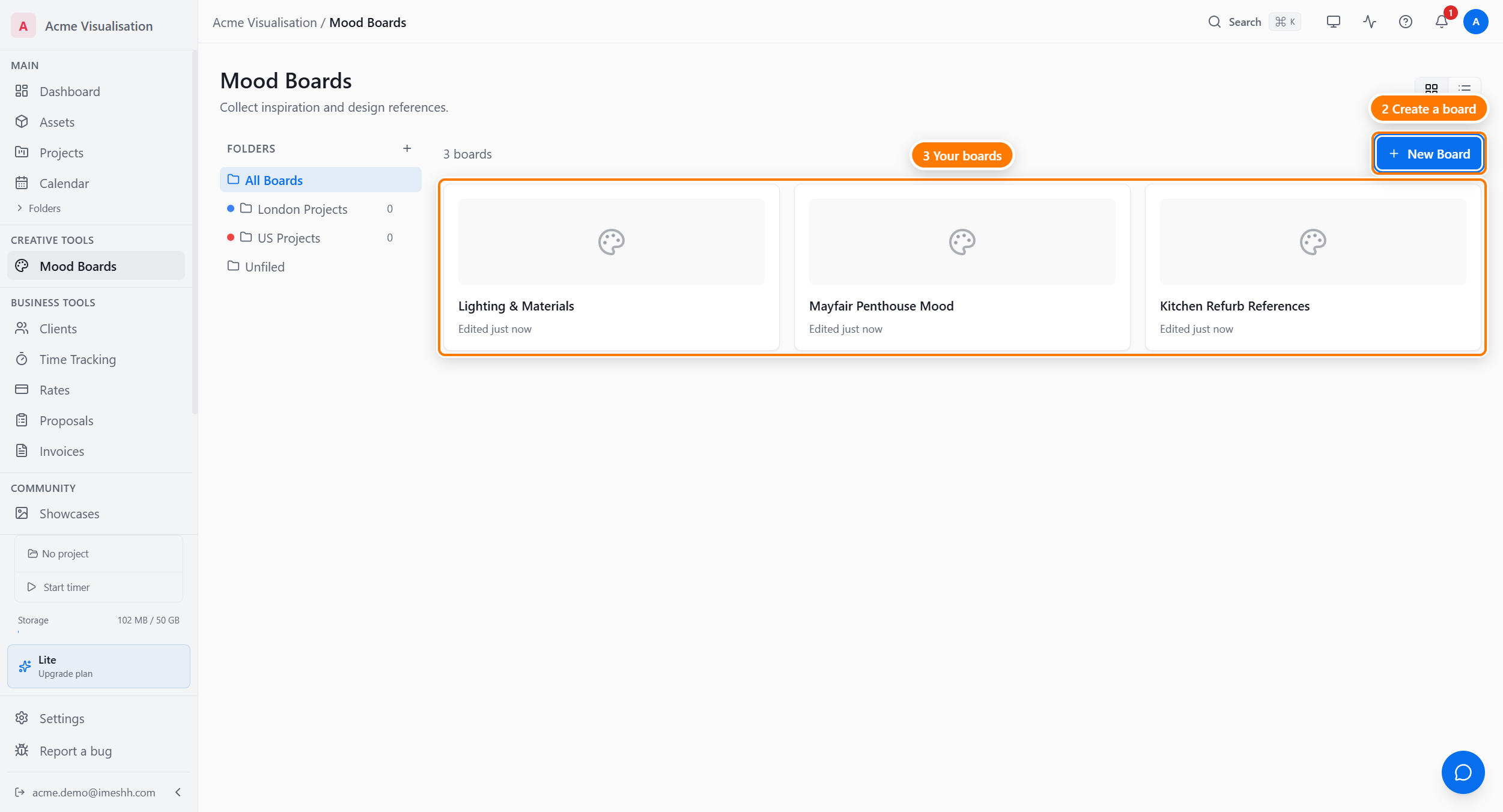
What you can do in Mood Boards
- Create a board — make a new whiteboard and give it a name. See Create and organise boards.
- Draw and add images — sketch shapes, drop in reference photos, write notes. See Working on a board.
- Sort boards into folders — group boards using your studio's folders.
- Attach a board to a project — keep a project's boards alongside its other resources. See Project boards.
Who can use it
Mood Boards is web only. The iMeshh desktop app does not include it, so open your studio in a browser to use boards.
What you can do depends on your role inside your studio:
- View a board — any member from Viewer and above
- Create, draw on, and edit a board — Owner, admin, manager, and full member seats
- Rename, move, or delete a board — the person who created it, or an Owner or admin
Plan limits
How many boards your studio can create depends on your plan:
| Plan | Boards you can create |
|---|---|
| Free | 3 |
| Lite, Pro, and Enterprise | Unlimited |
On the Free plan, once your studio has 3 boards, New Board stops creating more. You'll see a message telling you the plan allows 3 mood boards. Delete a board to free up a slot, or move to a paid plan for unlimited boards.
Mood Boards is not the proposal mood-board
Two different parts of iMeshh Pro use the words "mood board", and they are not the same thing:
- Mood Boards (this section) — the drawing canvas described on these pages.
- Mood-board images in a proposal — a set of static reference images you attach to a quote or proposal you send a client. These live in the proposal tool, not here.
The two share no boards, files, or settings. If you're attaching reference images to a client proposal, you want the proposal tool, not this section.
What Mood Boards does not do
So you know what to expect, these are deliberately out of scope:
- No live co-editing — two people can both open a board, but there are no live cursors or presence dots. The last save wins, so avoid editing the same board at the same time.
- No sharing or public links — boards stay inside your studio. There's no shareable link and no client view.
- No comments on a board.
- No version history beyond the undo steps in your current editing session.
- No export to PDF or image from inside iMeshh Pro.
What's next
- Create and organise boards — make a board, rename it, sort it into folders, switch views, and delete it
- Working on a board — draw, add images, save your work, and use boards inside a project