assets
Asset Library overview
A one-page tour of the iMeshh Asset Library — what it is, what it isn't, and where to go next.
Updated 6 July 2026
The Asset Library is where you find iMeshh's stock 3D models, materials, geometry-node setups, effects, scenes, and HDRIs. Drop them straight into your own projects. Open it from Assets in the main sidebar.
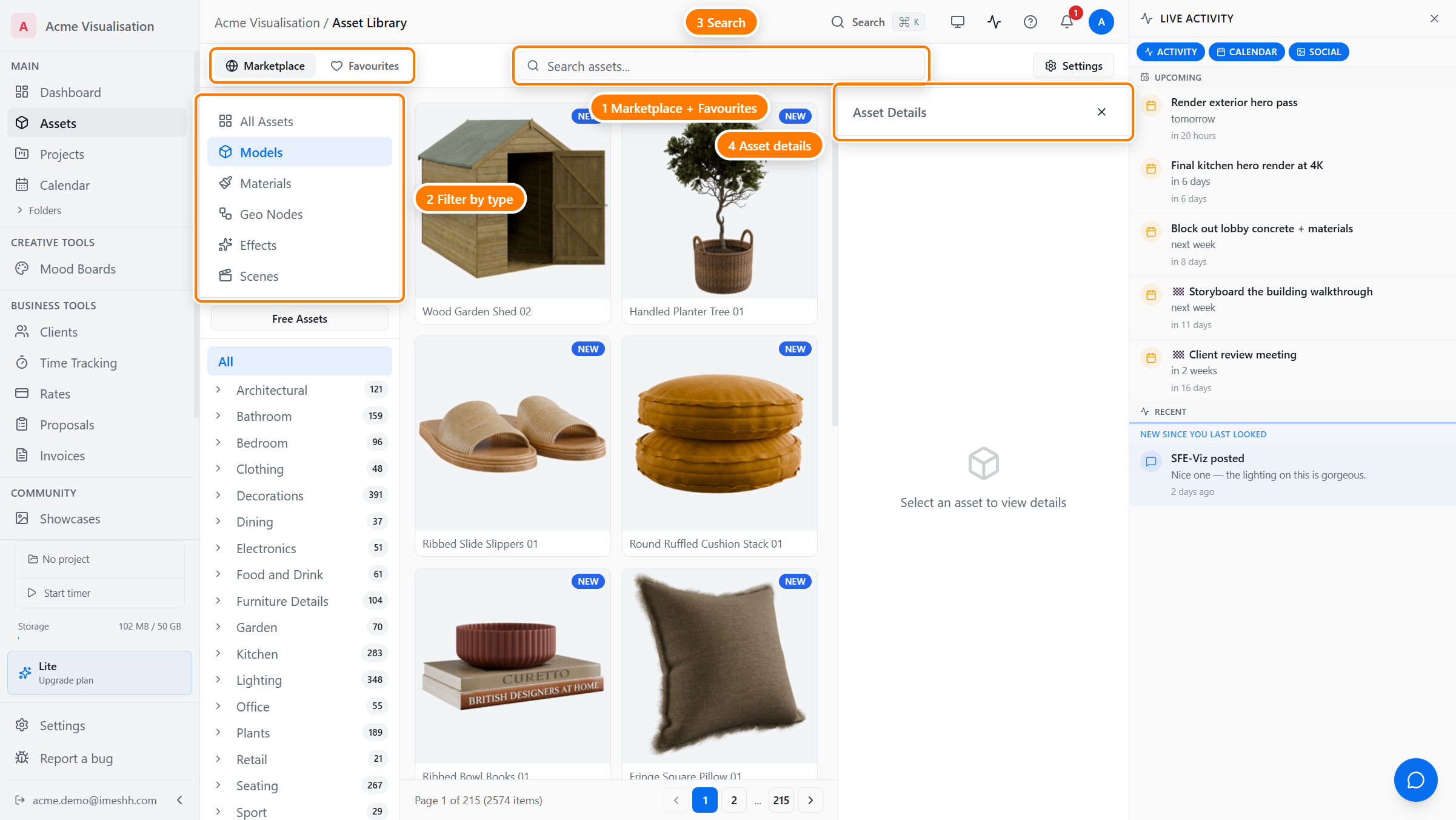
What's in the library
The catalogue holds six kinds of stock content from iMeshh:
- Models — meshes such as furniture, plants, vehicles, hardware, and fittings
- Materials — shader presets you apply to your own geometry
- Geo Nodes — geometry-node setups for procedural detail
- Effects — FX rigs such as smoke and fluids
- Scenes — pre-built scenes you dress and re-light
- HDRIs — lighting environments
Every asset ships with at least one Blender file. Most also ship a glTF version for use outside Blender — switch the Browsing for strip to glTF to see them, and look for the Optimised badge marking our new .glb exports with 1K/2K web tiers. See Browsing the Asset Library.
What the Asset Library is not
The Asset Library is for iMeshh's stock content — not your studio's own work. It has no upload button. To work with your own files, go elsewhere:
- Your reference images, briefs, and working files — open a project and use Projects → Resources
- Deliverables for clients — also inside a project, under Projects → Deliverables
A typical session
To find an asset and get it into a project:
- Open Assets from the main sidebar.
- Pick a type in the left sidebar — for example, Models.
- Pick a category to narrow it further, or type a keyword in the search field.
- Click an asset card to open the Asset Details panel on the right.
- Click Download to get the file. Paid assets need a paid plan.
- Drop the file into your scene. On the desktop app, this happens for you.
What each plan can do
You can browse the whole catalogue on every plan, including Free. Plan tier matters when you download.
| Action | Free | Lite | Pro | Enterprise |
|---|---|---|---|---|
| Browse, filter, and search | ✓ | ✓ | ✓ | ✓ |
| Favourite assets | ✓ | ✓ | ✓ | ✓ |
| Request more like this | ✓ | ✓ | ✓ | ✓ |
| Download free assets | ✓ | ✓ | ✓ | ✓ |
| Download paid assets | — | ✓ | ✓ | ✓ |
On a free account, paid assets show a Subscribe to Download button instead of Download. Free assets always show the regular Download button. See Subscriptions & access for the full breakdown.
Where to go next
- Browsing the Asset Library — source tabs, type and category filters, search, and filtering by material, colour, and style
- Asset Details panel — the right-side panel that opens when you click an asset
- Favouriting & requests — saving assets and asking iMeshh to make more
- Downloading assets — who can download, formats, the per-asset limit, and free re-downloads
- Getting the Blender add-on & desktop app — the free Blender add-on, the Bridge, and the desktop app
- Blender, folders & your own files — the desktop app, Send to Blender, and the My Folders tab
- Subscriptions & access — what each plan includes