projects
Folders and organisation
Group projects into folders on the Projects index — create, recolour, rename, nest, link to a client, and drag projects into them.
Updated 23 June 2026
Folders are how you organise projects inside iMeshh Pro. They live in the Folders sidebar on the Projects index and group projects however your studio likes — by client, by year, by stage of work, by location. A project sits in one folder, or none.
Creating a folder
Click New Folder at the top right of the Projects index, or the + next to FOLDERS in the sidebar. Both open the same dialog.
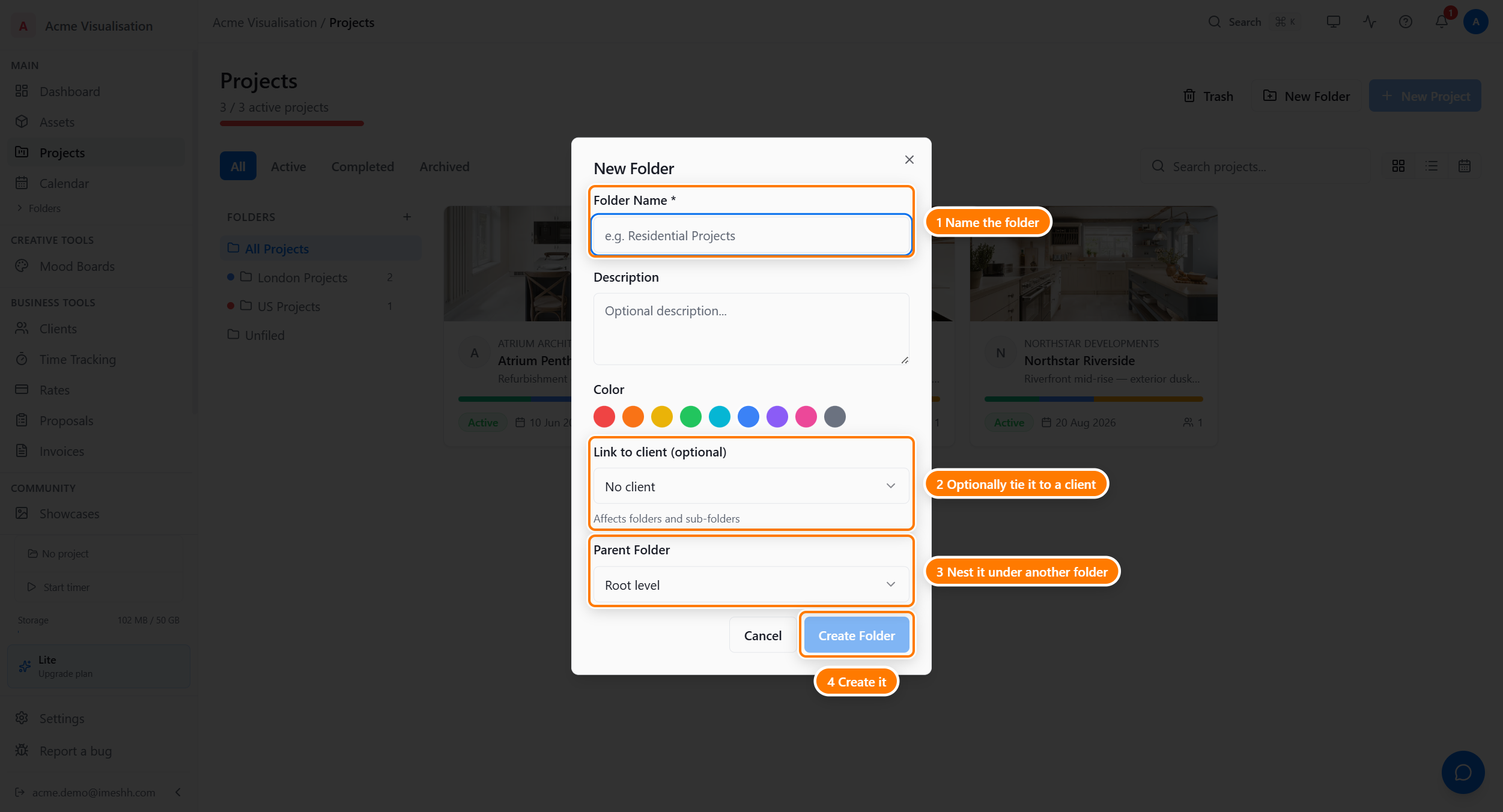
Fill in the fields:
- Folder Name — required. Must be unique inside its parent. You can have one 2026 folder under London Projects and another 2026 under US Projects without a clash.
- Description — optional. Shows when you point at the folder in the sidebar.
- Color — pick one of nine. The dot next to the folder name takes this colour, which makes scanning the sidebar quicker.
- Link to client (optional) — ties the folder and its sub-folders to a specific client.
- Parent Folder — leave at Root level for a top-level folder, or pick an existing folder to nest inside.
Click Create Folder to save.
Renaming, recolouring, and deleting
Point at any folder in the sidebar and a small menu icon appears. Click it for three actions.
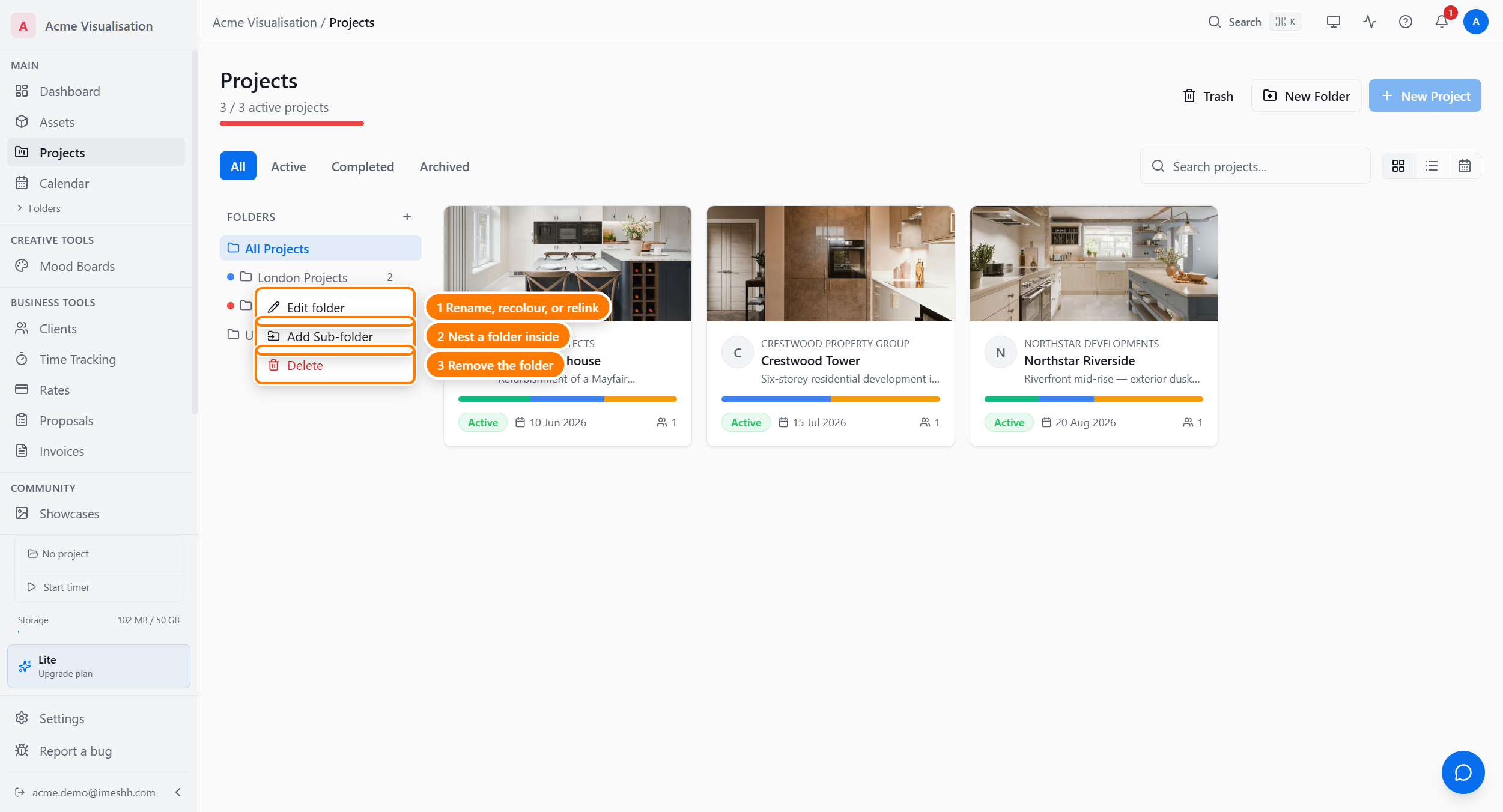
- Edit folder — change the name, description, colour, linked client, or parent.
- Add Sub-folder — opens the New Folder dialog with this folder pre-filled as the Parent.
- Delete — removes the folder. Any projects inside move back to Unfiled; they aren't deleted.
Putting a project in a folder
Three ways:
- Drag it — in grid or list view, drag a project's card or row onto a folder in the sidebar.
- From the row menu — in list view, open the three-dot menu on a row and choose Move to folder.
- From the project header — open the project, open the three-dot menu, and choose Move to folder.
A project sits in exactly one folder at a time, or Unfiled if you haven't filed it.
Nesting folders
Folders can sit inside other folders. There's no hard depth limit, but two or three levels usually covers what a studio needs.
A typical structure:
London Projects
  2025
  2026
    Crestwood Tower
    Atrium Penthouse
US Projects
  Northstar Riverside
Unfiled
To create a sub-folder, either:
- Click Add Sub-folder from the parent's menu, or
- Open the New Folder dialog and pick the parent in the Parent Folder dropdown.
In the sidebar, click a parent folder name to expand or collapse its children.
Linking a folder to a client
The Link to client field is a shortcut for studios who organise everything by client. Setting it does two things:
- The client's initial appears in a small coloured chip next to the folder name, so you can scan which folder belongs to which client.
- When you create a new project from inside that folder, the client is pre-selected on the New Project dialog.
The link cascades to sub-folders. If Atrium Architects is linked to the parent Atrium Architects folder, every sub-folder underneath inherits the same client.
Unfiled
Unfiled at the bottom of the sidebar isn't a real folder — it's the catch-all for projects you haven't filed yet. New projects land there by default unless you create them from inside a folder.
You can leave a project in Unfiled for good. Folders are optional.
What's next
- Creating a project — the New Project flow end to end
- List view and folders — finding and filtering projects
- Inside a project — the header and the six tabs