clients
The business detail page
What you see on a business's page — the metric cards, the details panel, contacts, the notes log, projects, invoices, the logo, and deleting.
Updated 23 June 2026
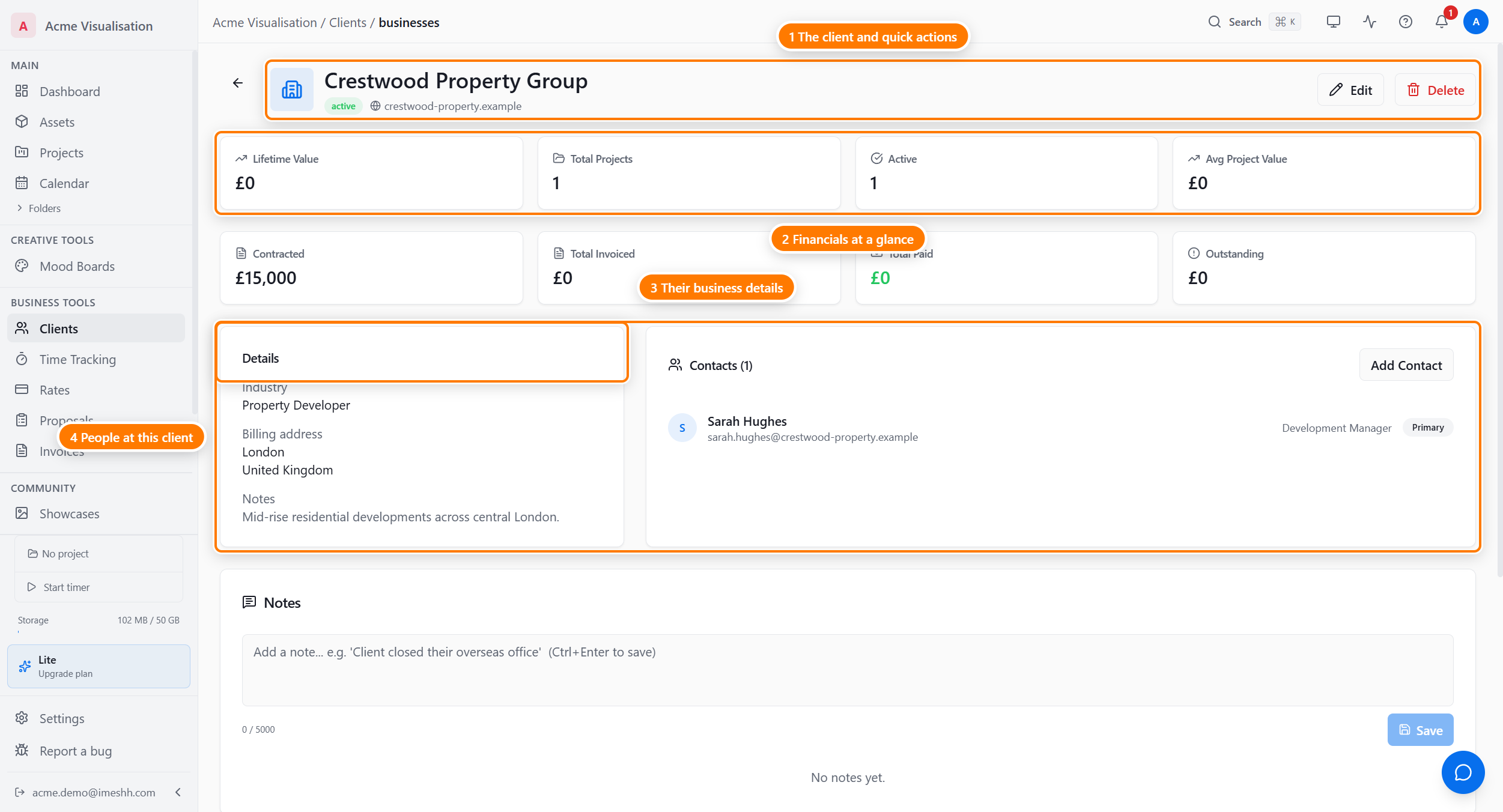
The business detail page is the full record for one business. It shows the money totals across every project for that business, the people who work there, a running notes log, and tables of the business's projects and invoices.
To open it, click any row on the Clients tab. The page covers businesses; for an individual person, see Contacts and sharing.
The metric cards
Two rows of cards sit at the top of the page.
The first row always shows:
- Lifetime Value — the total of every paid and part-paid invoice for this business
- Total Projects — every project linked to this business, in any state
- Active — how many of those projects are currently active
- Avg Project Value — Lifetime Value divided by Total Projects
The second row appears only once there is money to show — once the business has a contracted value or any invoiced amount:
- Contracted — the base value of all linked projects plus any accepted change orders
- Total Invoiced — the total of every invoice raised for this business
- Total Paid — the total marked paid
- Outstanding — what the business still owes you (Total Invoiced minus Total Paid)
A project counts toward these totals if it is linked to the business directly, or if it sits in a folder linked to the business. Organising projects into a business-linked folder is enough to roll them up here, even when the project itself has no direct link.
Details
The Details panel holds the business's structured information: trading name, type, industry, company size, website, billing address, VAT number, and company number. iMeshh Pro reads this address and these identifiers when it pre-fills an invoice or a quote, so keeping them correct saves you typing later.
Click Edit at the top of the page to change any of these fields. For an individual client, the company-only fields (Trading Name, Type, Industry, Company Size) are hidden.
Contacts
The Contacts list shows every person linked to this business, with their name, email, and role. The person marked Primary Contact is highlighted.
- Click Add Contact to add a new person to this business. See Contacts and sharing.
- Click a contact's name to open that person's detail page.
Notes
The Notes card is a running log of comments about the business — a timeline, not a single field. Use it for things that don't fit a structured field: "Sarah is on leave from June, contact David instead", "They prefer animated walkthroughs over stills", "Payment usually lags 60 days".
To add a note:
- Type into the composer at the top of the Notes card.
- Click to post it. The note appears at the top of the list with your name and the time.
Notes are listed newest first. You can edit or delete your own notes in place. A note can be up to 5000 characters.
Projects
The Projects table lists every project linked to this business, with its status and dates. Click a project name to open it. Projects are linked from the project's own settings, not from this page.
Invoices
The Invoices table lists every invoice raised for this business across all its projects, with its status. Click an invoice to open it.
The business logo
Each business can carry its own logo. Point at the logo at the top of the page and click the camera icon that appears to upload one.
- Accepted file types are PNG, JPEG, and WebP.
- The maximum file size is 5 MB.
To remove a logo, open the upload control and clear it.
Deleting a business
Click Delete to remove a business. iMeshh Pro asks you to confirm first.
What's next
- Contacts and sharing — the contact detail page, roles, quotes, and sharing a project with a person
- Clients overview — the Clients and Contacts tabs, adding a client, and the plan limit