academy
iMeshh Academy
What the Academy is, which plans include it, how to browse and filter the course catalog, and the free preview lesson and learning streak.
Updated 24 June 2026
The Academy is a set of archviz courses built into your studio dashboard. Each course is a series of video and reading lessons you watch in the browser, with your progress saved as you go. This page covers browsing the catalog and finding a course. To read a course's full details and enrol, see The course page and enrolling. To watch lessons, see Watching lessons and tracking progress.
Who can use it
Anyone signed in can browse the catalog and read a course page. Enrolling in a course depends on your plan:
- Any signed-in user — enrol in any course included with your subscription, unless a specific course requires a higher plan (its page then shows the plan you need)
- Any plan — watch the free preview lesson on any course, and buy a course on its own where iMeshh has set a price
If a course needs a higher plan than yours, its page shows the plan you need instead of an Enrol now button. See The course page and enrolling.
Browsing the catalog
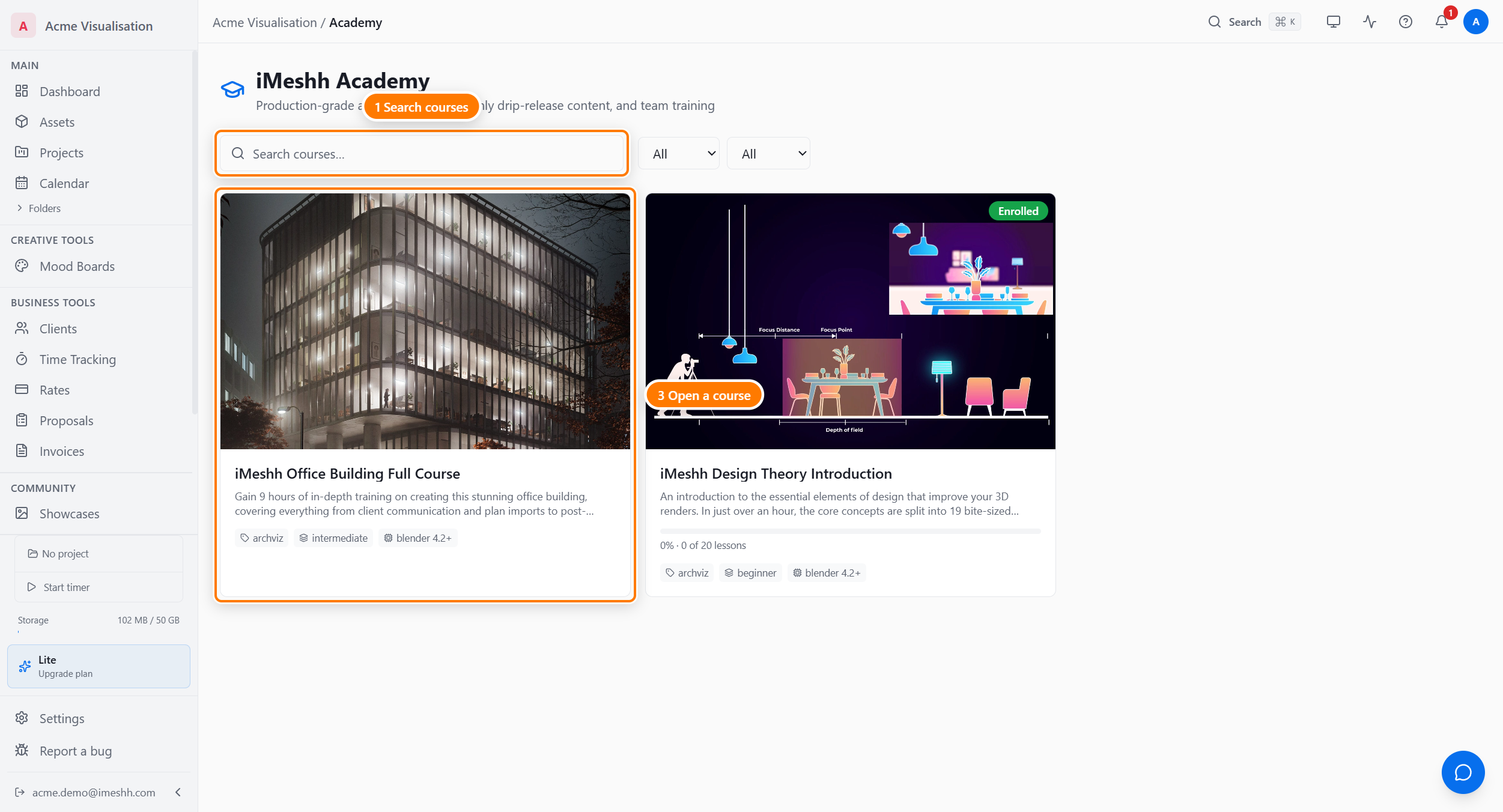
The catalog shows every available course as a card. Each card has the course's cover image, title, and a short line about what it covers. Courses you've already enrolled in show a progress bar and an Enrolled badge.
Click any card to open the course page.
Filtering and searching
A filter bar sits above the grid. Use it to narrow the catalog down to the courses you want.
- Search — type in the search box to match against course titles. Results update as you type.
- Category — open the Category dropdown to show only courses in one subject.
- Software — open the Software dropdown to show only courses for one tool, such as Blender.
The filters combine, so you can show only Blender courses in one category at the same time.
The learning streak
When you complete any lesson activity on consecutive days, a flame badge appears at the top of the catalog showing your streak — the number of days in a row you've been active in the Academy.
The free preview lesson
A course can have one lesson set as a free preview. You can watch it without enrolling and on any plan. The free preview lesson shows a Preview badge in the course's curriculum.
See The course page and enrolling for where the preview lesson sits in a course.
What's next
- The course page and enrolling — read the curriculum, instructor, and FAQ, then enrol or buy a course
- Watching lessons and tracking progress — the lesson player, marking lessons complete, drip-release modules, and course files